Management Console
Transactions page
The transactions section lists all payment activity in your shopreme server. A transaction is created when a shopper taps on “Pay” to either choose a payment method or pay immediately with a preselected one. This also means that more than one transaction can belong to the same shopping session. Review the previous section about Shopping Sessions for more information.
On this page, you can:
See transactions per day
Search by transaction ID or customer ID and see the status
Filter transactions per store
Filter transactions by status
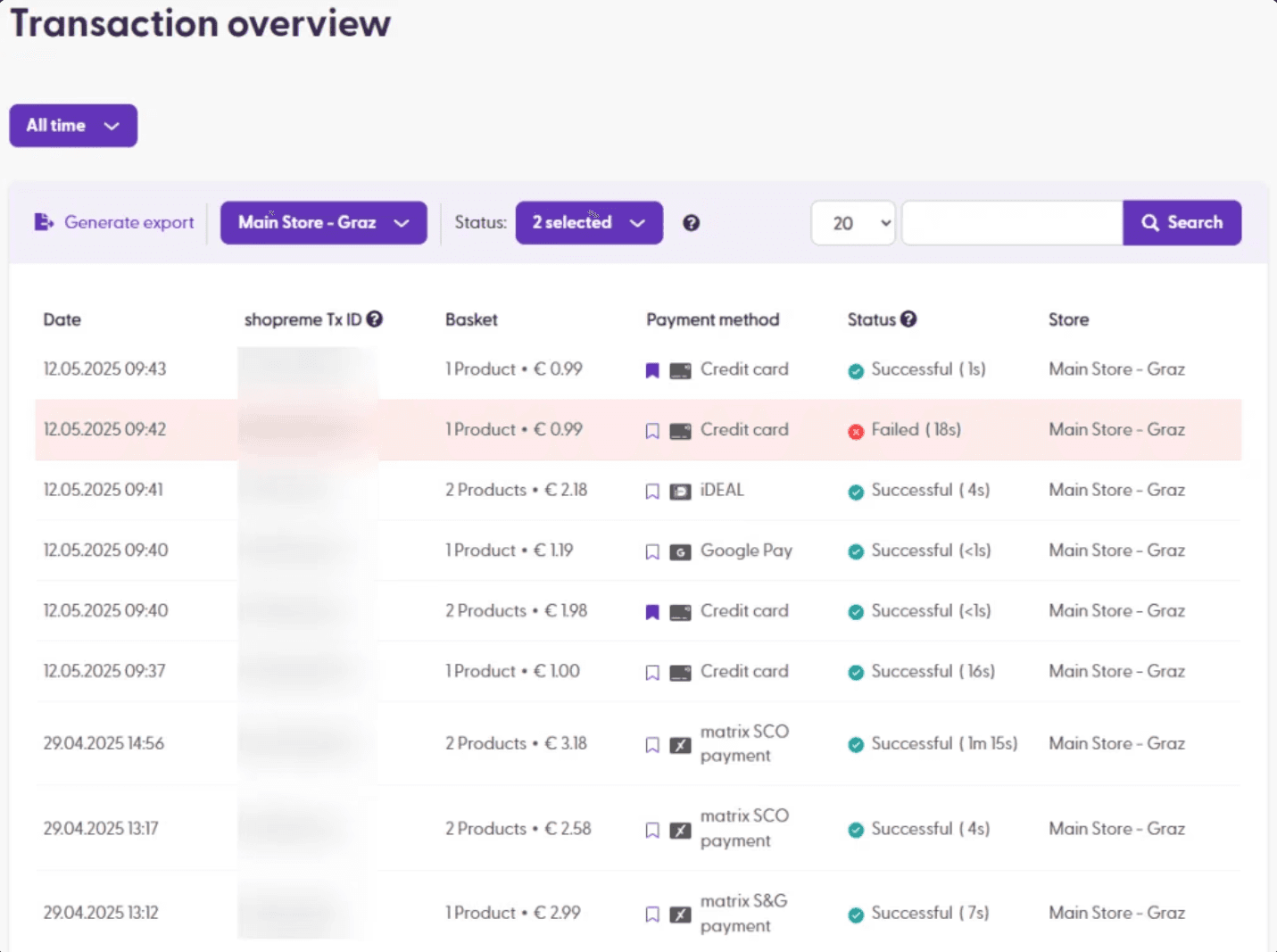
See the overview for each transaction: date, ID, amount paid, payment method, status, and store.
In the following example, you can see what the transaction overview may look like. Each table row is a transaction. If the payment in a transaction fails for any reason, it will be highlighted in red. Clicking on the row will take you to the transaction details page.
Transactions details
The transaction details page is the first step when reviewing the details of a purchase in a store, if it requires investigation, or simply to understand the shopping process better.
Key definitions and concepts
The first section of the transaction details includes a summary with a small label that says if it was a “Recurring customer” or a “First-time customer“. This works by identifying the customer ID and the user history in the server database. The customer ID can be a UUID that identifies a personal device or another identifier for user accounts or device IDs.
A shopping session ID represents the shopping process and usually starts when a customer scans their first product and can end when checking out from the store, canceling a transaction, abandoning the session, etc., which is the last state of the session. A session expires after a set amount of time if it is inactive on the client side (shopper app or matrix app). A session can contain zero to many transactions, depending on the shopper’s activity on the client app.
A transaction ID represents the payment process during a shopping session. It starts once the shopper taps “Pay” on the client app. The actions that take place during a transaction are: processing the payment directly (with a saved payment method), loading and choosing available payment methods, triggering an age verification, selecting the customer for a spot check, and saving payment processing information. Closing the payment process (i.e., going back to the cart view) and tapping “Pay” again will create a new transaction ID.
The client refers to the Android or iOS apps, the hand scanner app, or the matrix SCO app. That is, the app that is used by the shopper in the Scan & Go journey. Clicking on “Show details” will display further information about the app, such as the platform version (e.g., Android 13) and the shopreme client version (e.g., matrix 23.0.1).
A position is an entry on the client app, where a product is displayed. For example, if one bottle of beer is added to the shopping cart in the app, the position will include the bottle and the deposit amount for the glass bottle. Similarly, scanning two or more identical products without special characteristics will show the quantity and product information in the same position, not separately.
Summary information
Some key information in the summary section is:
Date: Time and date of the last update to the transaction.
Store: Name of the store where the transaction started.
Live-clearing date (optional): Time and date of the clearing process being completed and sent to the retailer’s system.
Spot check: Whether the shopper was selected for a spot check, and if yes, the outcome of the process.
Age check: Whether the shopper needed to be age-verified, and if yes, the outcome of the verification.
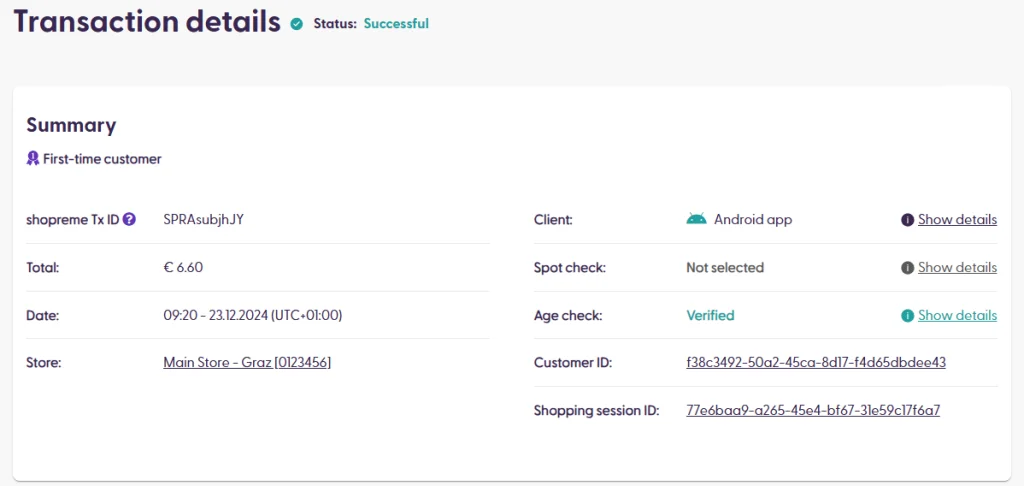
Clicking on the “Show details” options will display more information, which can be useful when analyzing or investigating different issues. For example, let us see the Client details in this example:
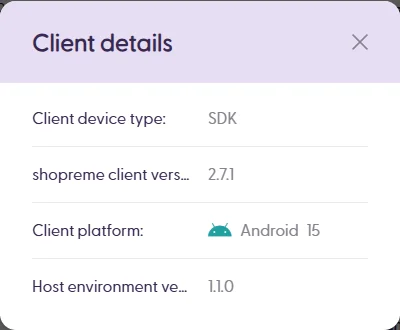
The client details include the device type (SDK, but can also be matrix or portable scanner), shopreme client version (this is the version of the shopreme SDK), the client platform (can be Android or iOS and its corresponding version), and the host environment version (this is the version of the host app, which can be the retailer’s specific app version, not managed by shopreme).
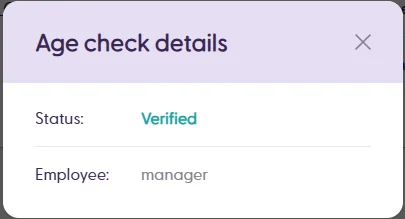
Similarly, clicking on “Show details” next to the Age Check entry will open a modal dialog with more details about this process. This includes the status of the age verification and the username of the Supervisor user who completed the verification.
Spot check details
If a shopper was selected to be spot-checked, you can click “Show details” next to the spot-check outcome to see more details about the reason for the spot-check selection, who performed the actions, and other information.
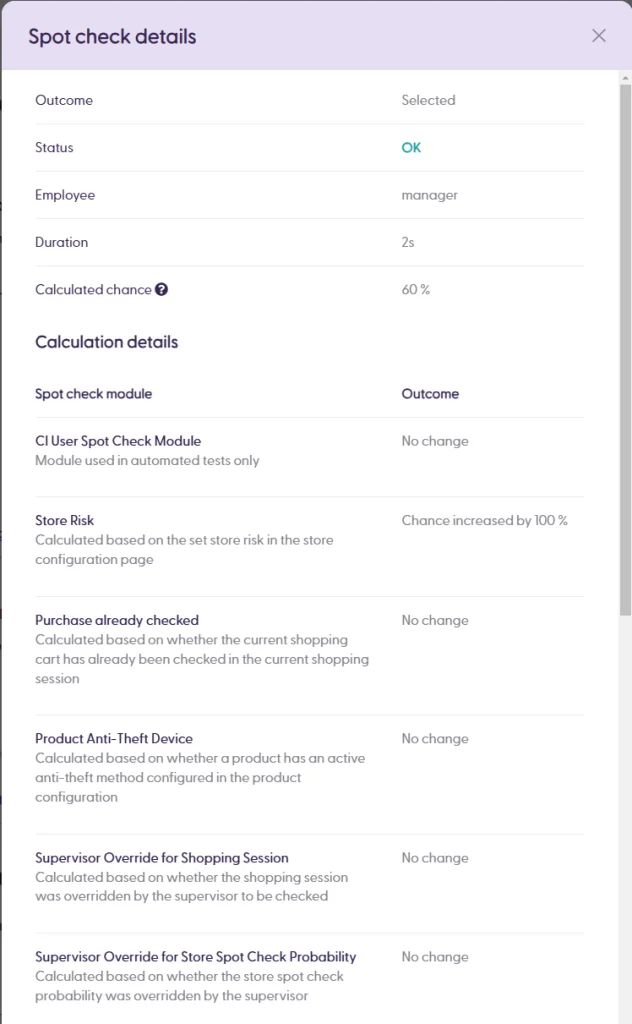
This screen shows the status and outcome of the spot check (customer was selected and the result was approved), the Supervisor username of the employee who confirmed the actions, the duration of the interaction (from the moment of acknowledging the check until the approval or rejection was confirmed), and the calculated chance that led to the spot check.
What is the calculated chance? In short, there are different “modules” that increase or decrease a percentage value. After checking all modules, this chance percentage will generate a random number that will be more or less likely to lead to a spot check or not. However, some configurations can trigger a spot check automatically without resorting to chance. For example, it is possible to configure that all shoppers who add 2 discount stickers to their matrix SCO basket will be spot-checked.
To learn more about the Spot Check process and selection strategy, you can read this article in our Knowledge Base.
Payment information
In this section, you can see the last status of the transaction, which can be one of the following:
Successful: Payment was successful
Started: The payment process has been initialized. The customer tapped “Pay”.
Canceled: Payment was canceled or the shopper opened the payment method chooser but then went back to the cart view in the app.
Failed: There was a problem when processing the payment.
In Progress: The shopper has selected a payment method and the payment processing is currently ongoing.
Critical: A critical issue was encountered when processing the payment.
Handover: An external cash register or a shopreme POS has received the shopping cart information and will handle the payment processing for the transaction.
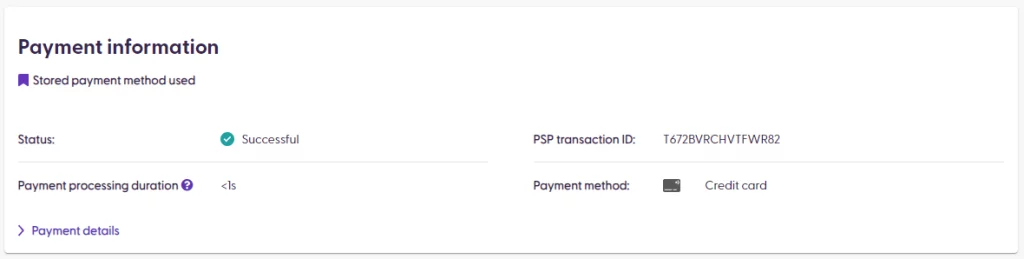
The PSP transaction ID is the identifier on the payment provider platform. If you need to investigate a payment on the payment provider side, you will need to provide this ID to them.
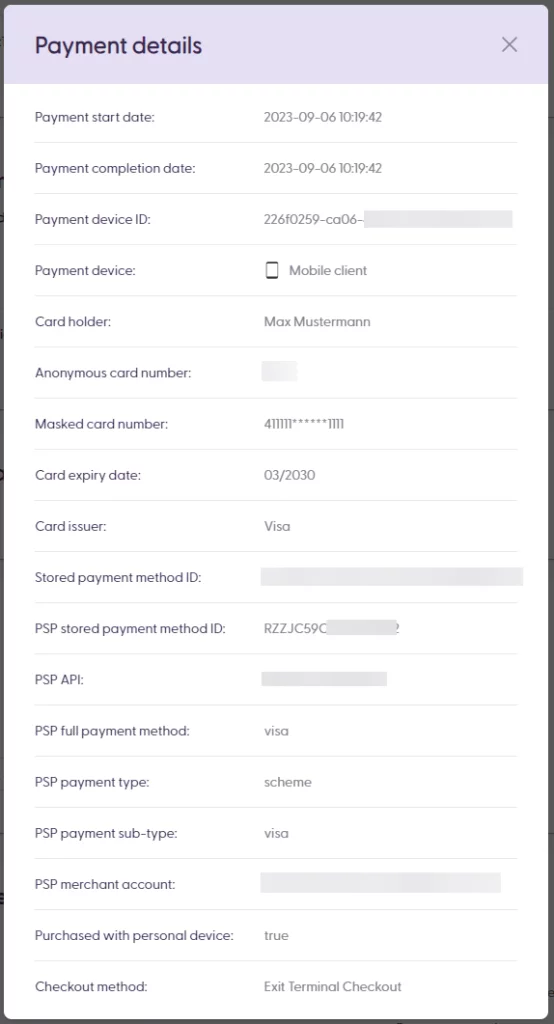
Clicking on “Payment details in this section will open a new pop up with details on the payment, which we explain below.
Payment details
The payment details pop-up shows all the available information as provided by the Payment Service Provider (PSP). The details available will depend on the PSP and what their payment confirmation response contains.
Some important details here that are relevant to observe are the payment start and completion dates. These could help diagnose a network delay or a server issue on the payment processor side.
The payment method information, such as the cardholder and masked card number, could also be useful for diagnosing payment issue reports, as it ensures that the requester matches the cardholder’s name in the transaction.
Lastly, the field “purchased with personal device” refers to whether the shopper used their smartphone to scan the products or a retailer-owned device, such as a Zebra hand scanner.
Receipt information
For online payments (i.e., purchases made directly on the Scan & Go client app), as well as the matrix Hybrid Scan & Go journey or the Pay at vector journeys (customers scan on the Scan & Go client app and then pay at vector or matrix), customers will find their receipt on their app in digital form. In this case, the receipt will also be available on the Transaction Detail page under the “Receipt information” section.
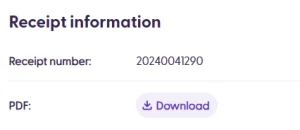
The receipt will not be available, for example, if the shopper completed the purchase at a traditional cash register that provided a receipt on paper. That is, when the cash register /confirm call includes the field "generateInvoice": false. You can find more information about this third-party process, in this article here.
Positions
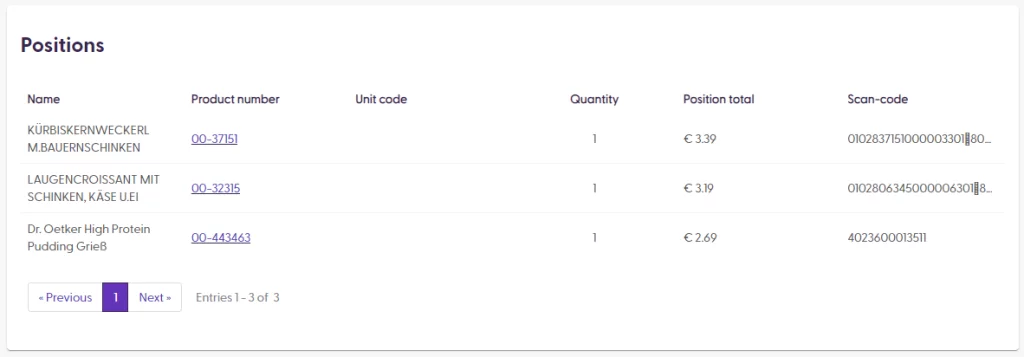
This section shows the products scanned and purchased by the shopper, based on the last state of the transaction. The name is the text displayed on the client app that describes the product in the cart view. The product number is the internal identifier for the product within the Product Import. The unit code can be used by retailers when more than one product has the same product number, but they are differentiated in the unit code (individual unit, 6-pack unit, etc.). The quantity is the number of identical products in the cart. The position total is the price for all items within the same position (including deposits and multiple quantities). Lastly, the scan-code refers to the actual code scanned by the customer. This information could be helpful when investigating any discrepancy between the scanned code and the actual information on the client app. Some special scan codes include the price or product weight, which can be seen in this column to confirm the information.
Checkout process
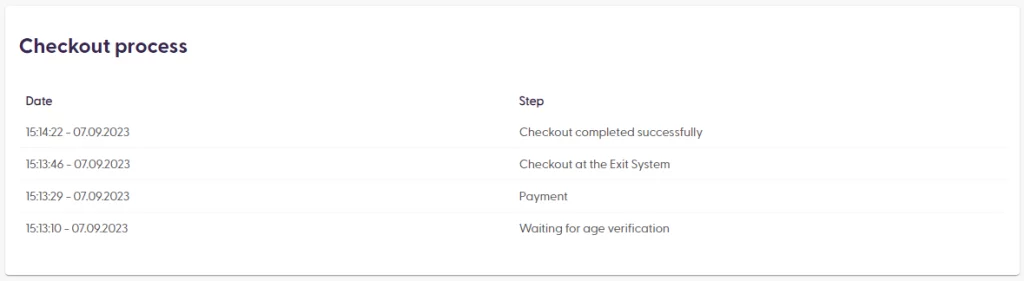
The steps in the checkout process describe the exact steps (or “stages”) taken by the shopper client app. Payment, age verification, spot checks, and checkout at vector are some of the stages listed in this section, along with the timestamp for each stage.