SCO solution: matrix
Features and functionalities
In addition to the basic user journeys, the shopreme matrix app includes various features by default, which are available out of the box with your shopreme implementation.
Some of these key features are adding products by category, entering a barcode manually, ensuring that shoppers get age-verified when it is required, and allowing employees to verify shoppers during random spot checks.
More features may be available depending on specific requirements, which are discussed between the shopreme customer and the shopreme integration team. The features described in this section are available to any shopreme environment out of the box, without special configuration.
Adding products by category
It is common in various retail stores for certain products not to have a barcode attached to them. This is the usual case, for instance, for baked goods and some vegetable products.
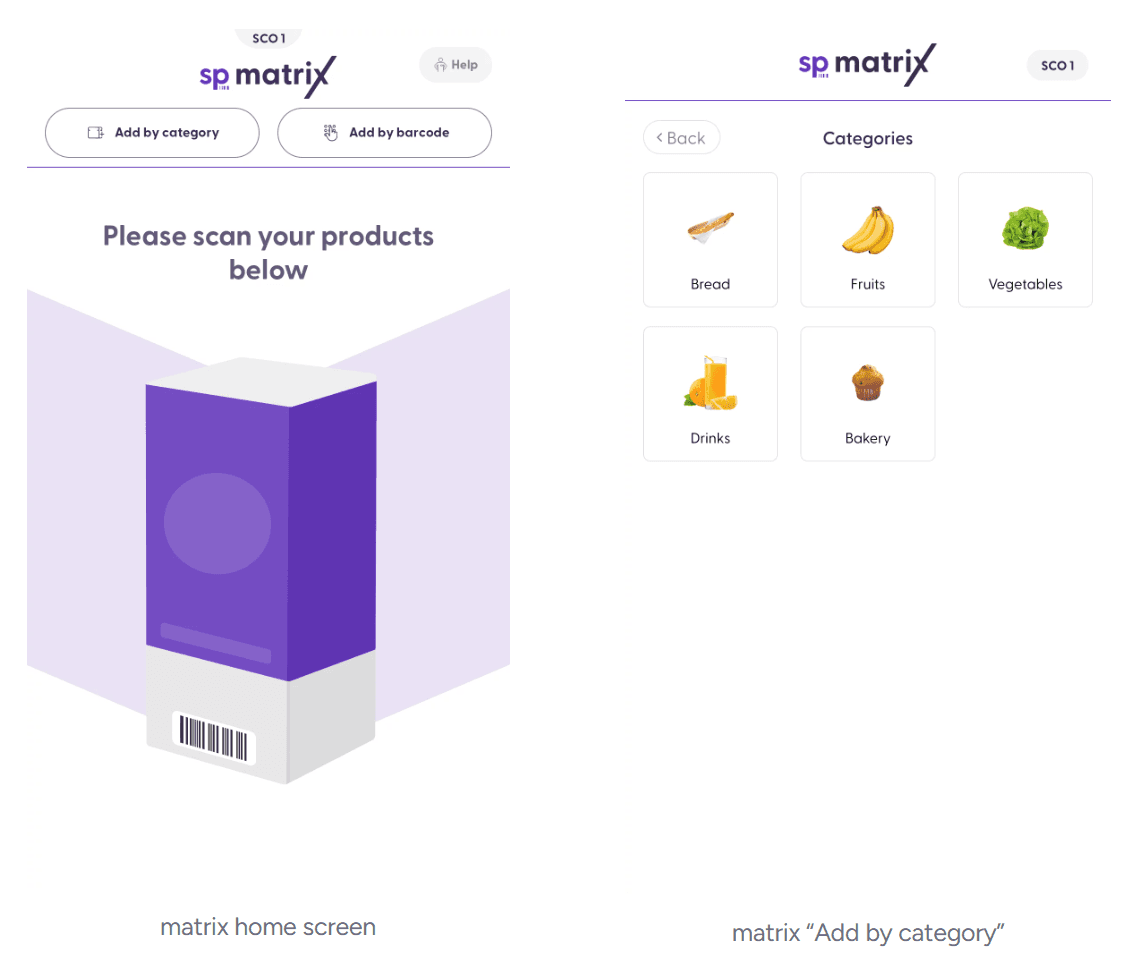
Products without barcodes can have “category information” that makes them searchable on the “Add by category” button on the matrix home screen. This category information should be provided to the shopreme system via import jobs, managed on the shopreme Management Console.
Clicking on the “Add by category” button will open a category-browsing page, with all the available categories on the shopreme backend.
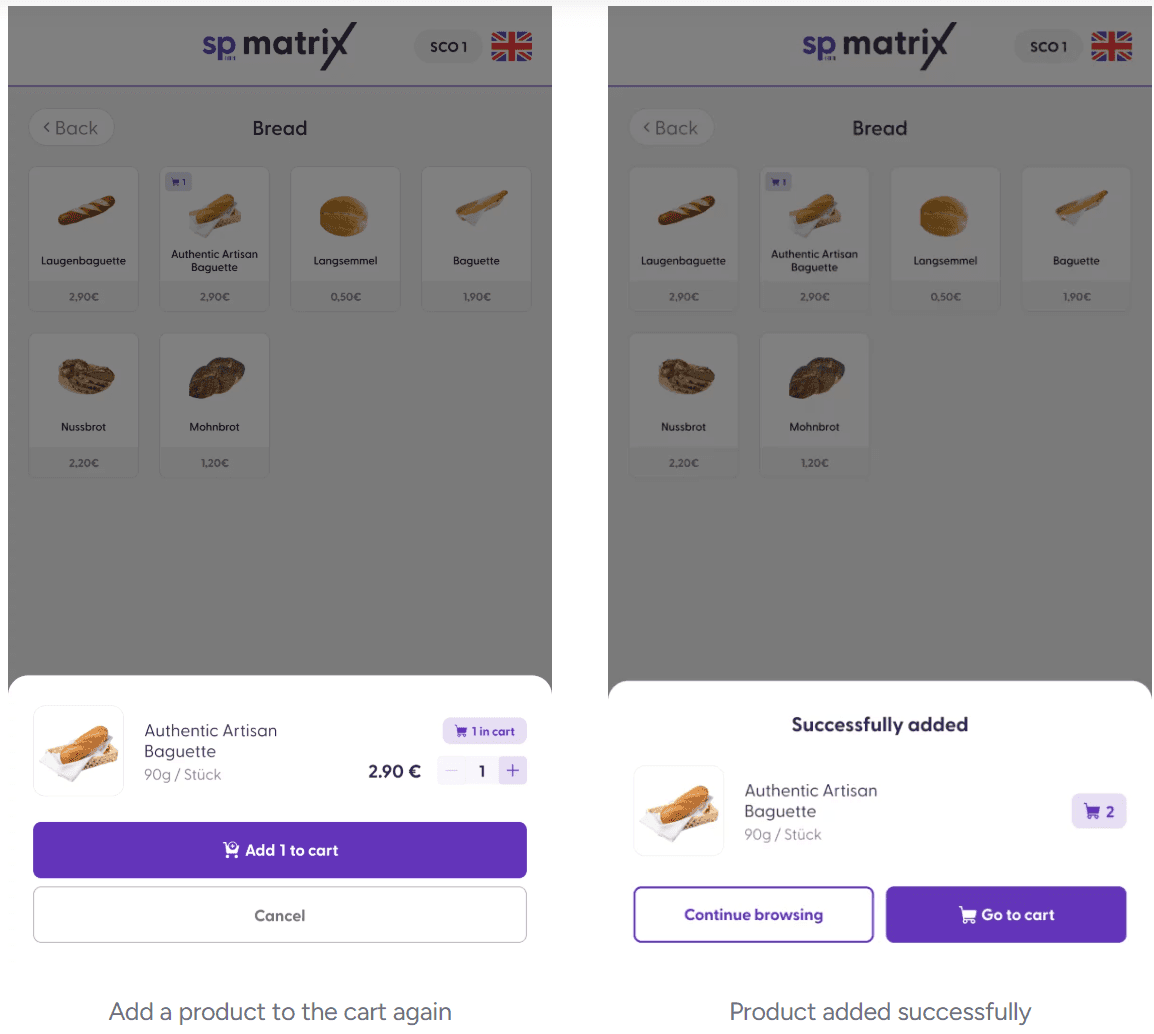
Inside each category, the individual products will be listed, and the shopper can click on them to add them to the cart. If the selected product already includes a unit in the cart, there will be an icon above the quantity button (as in the example below: 1 item of this bread type is already added to the cart). Adding one more to the cart will lead to a confirmation dialog with the total number of specific items in the cart. The shopper can then confirm whether to continue browsing and adding products without barcodes or go to the cart to proceed with their payment.
Entering a barcode manually
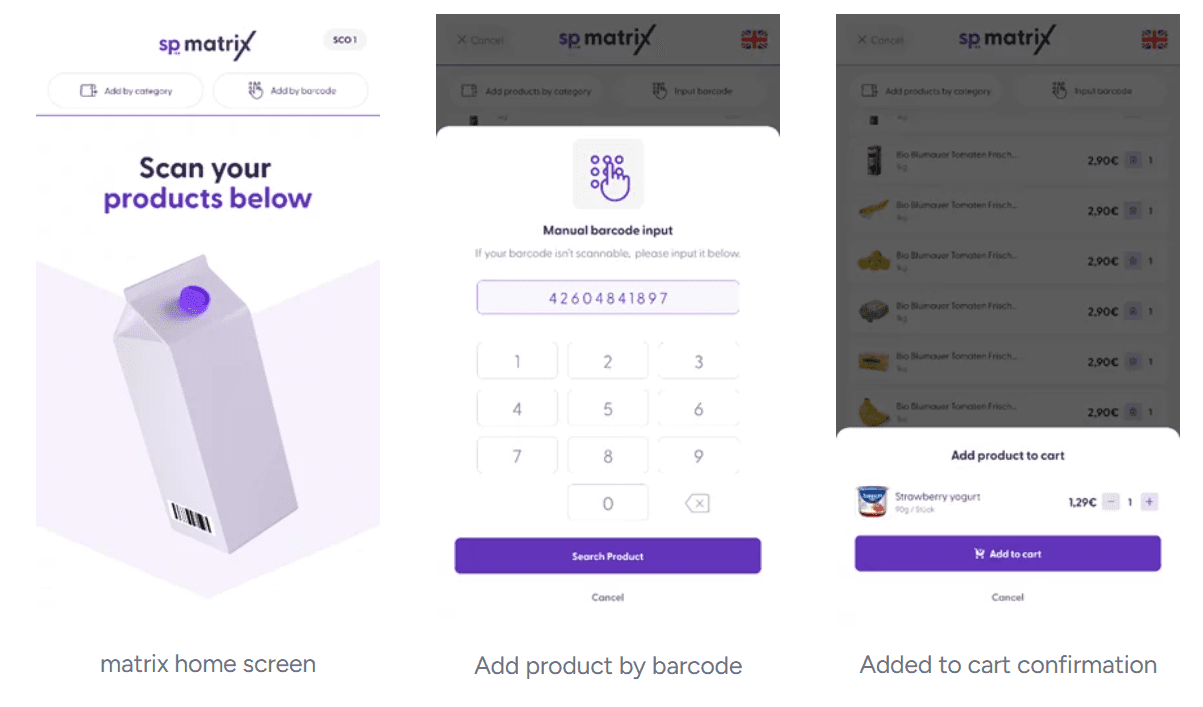
It can happen that a product has a barcode, but the sticker is defective or cannot be scanned easily by the laser scanner. If that situation occurs, the matrix app includes a default option called “Add by barcode”, located on the top bar.
When opening this menu, the shopper will see a field to type in the numbers of the barcode on the product. Then, after tapping “Search product”, the result will be displayed, and the shopper will need to confirm that the option is correct and should be added to the cart.
Purchasing age-restricted products
Age verification is a smooth and straightforward process on the shopreme matrix SCO.
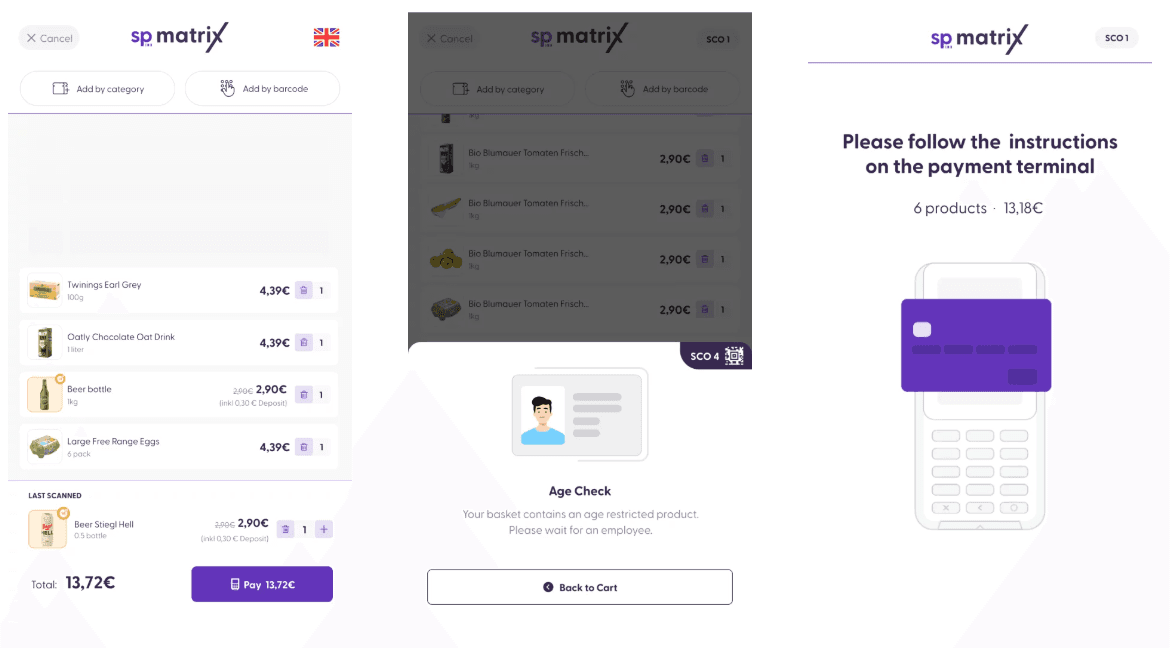
When a shopper has added an age-restricted product to their cart, the product will be highlighted in a distinct color with the age verification badge (orange, in the example below). Additionally, the Pay button will change its color and the text to “Continue”, to make it transparent to the shopper that the next action after tapping “Pay” will not be the payment directly.
When the shopper taps “Continue”, the employees in the store are notified via the shopreme Supervisor app, that a customer is waiting for age verification. For the SCO purchases, the employees have the option to verify the age remotely, as they may be able to identify the customer visually in front of a particular SCO. Once the shopper’s age is approved by an employee, the matrix will activate the payment terminal and allow the shopper to pay, print a receipt, and leave the store.
Security checks by employees
Spot checks are security controls carried out by the employees in a store. In short, employees can verify if the items in the customer’s shopping cart match the list of items that they scanned on the matrix SCO.
These checks are triggered automatically thanks to the shopreme algorithm, which evaluates the customer’s basket, as well as various backend settings. Depending on these configurations, spot checks may be enabled with different degrees of frequency. Employees are also able to manually select customers for a spot check if a situation requires them to do so.
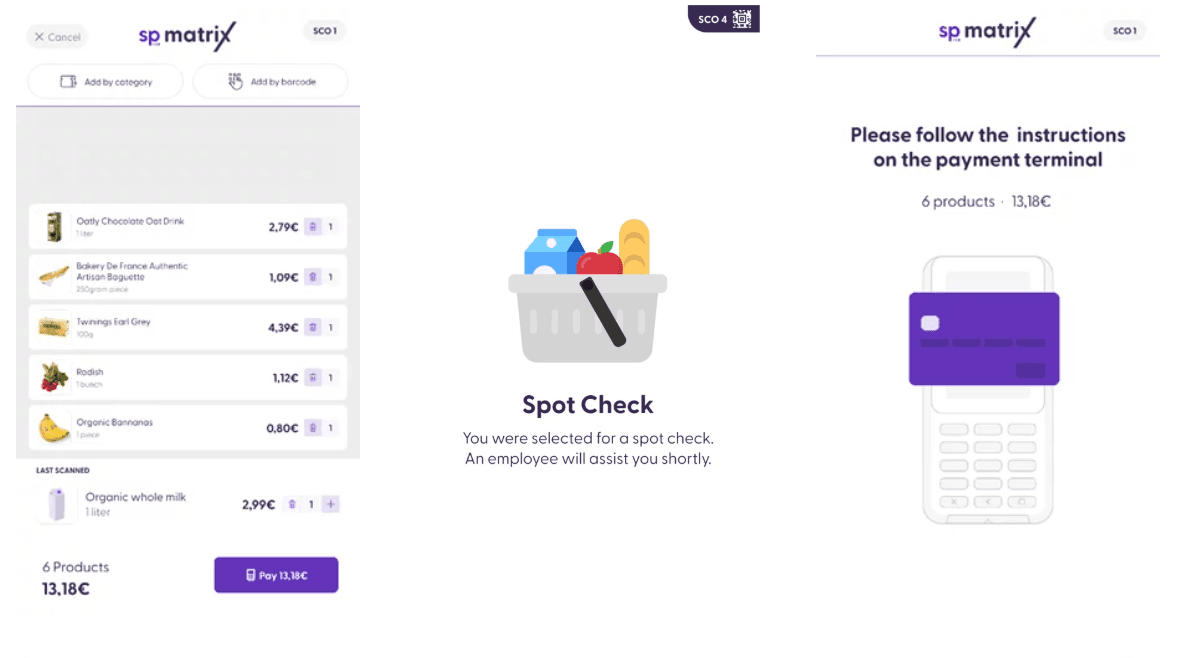
Regardless of whether a shopper was selected randomly or manually, the user experience on the matrix is the same. When the shopper taps “Pay” after having scanned all their products, the next screen will inform them to wait for an employee, as they were selected for a random check.
The employee will use the Supervisor app to mark the purchase as OK or Not OK, to allow the shopper to continue the shopping process. Once the basket has been marked as OK, the payment screen will be displayed, allowing the shopper to pay, print the receipt, and leave the store. If the basket is marked as Not OK, the shopper will return to the cart view, where they will need to make the necessary corrections to the basket, and then retry the payment.
Discount stickers
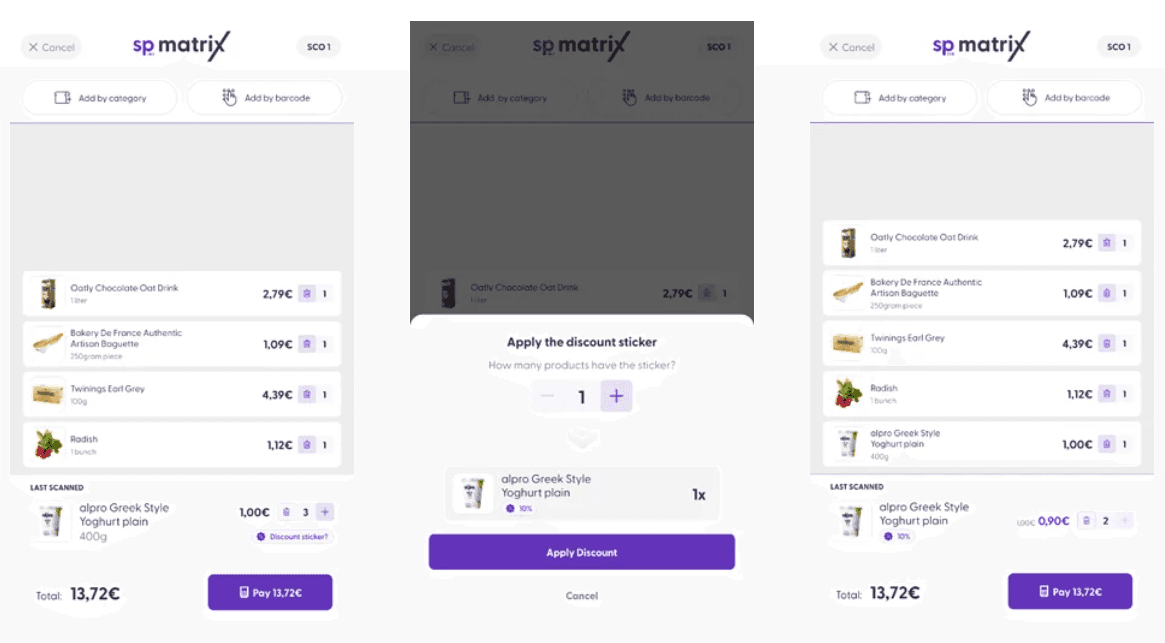
To learn more about the discount stickers feature, please visit our “Discount stickers” article. This feature allows shoppers to manually add a discount sticker for a product to their digital shopping cart if the product actually has a physical sticker on it.
On the matrix SCO, when the shopper scans a product that allows having a discount, the option “Discount sticker?” will be displayed under the product quantity buttons. When tapping on this option, a menu will appear for the shopper to confirm the number of products that have the promotional sticker, and the stickers and updated price will be added to the cart.