Scan & Pay and SDK
Product scanning
Product scanning is powered by a successful data import through the shopreme DataHub on the shopreme Management Console. In other words, you should first import products to be found on the Management Console before they can be scanned on client apps (SDK, standalone apps, or the matrix SCO app).
Individual products
Scanning individual products is the most straightforward way to add products to your shopping cart. When you open the scanner feature, you can approach your device to the product, and the barcode will be detected automatically with a dynamic animation. You will see the product being added to your cart!
Coupons
While shopping, you can also scan promotional coup
ons to receive special prices, receive discounts, or earn loyalty points on your purchase.
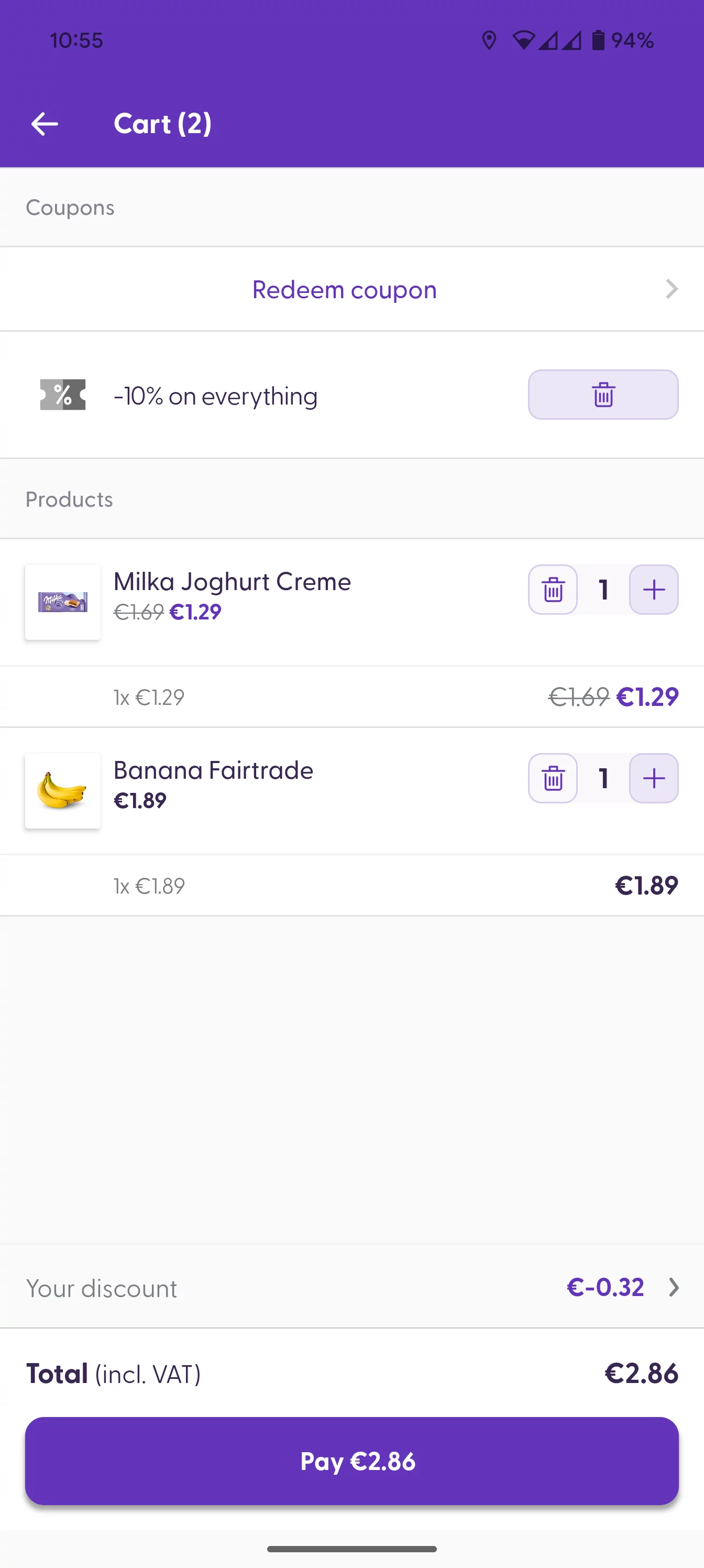
Scan your coupon QR codes using your scanner feature; if they are valid, they will be added to your basket automatically.
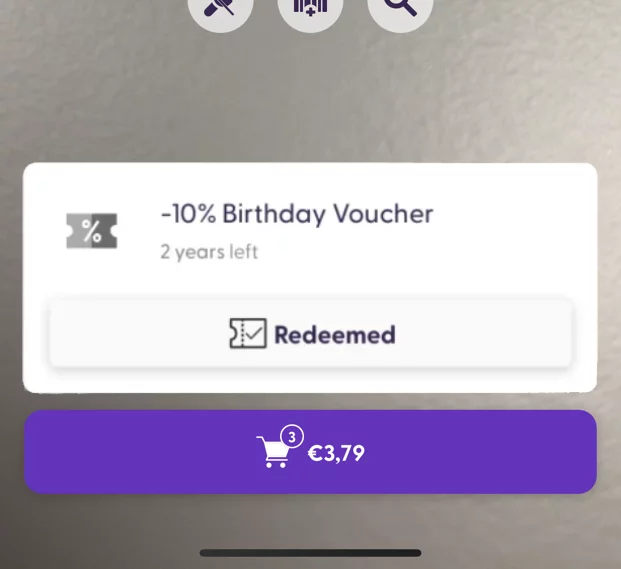
You can tap your cart button to see the applied discount or promotion.
Products in different packaging forms
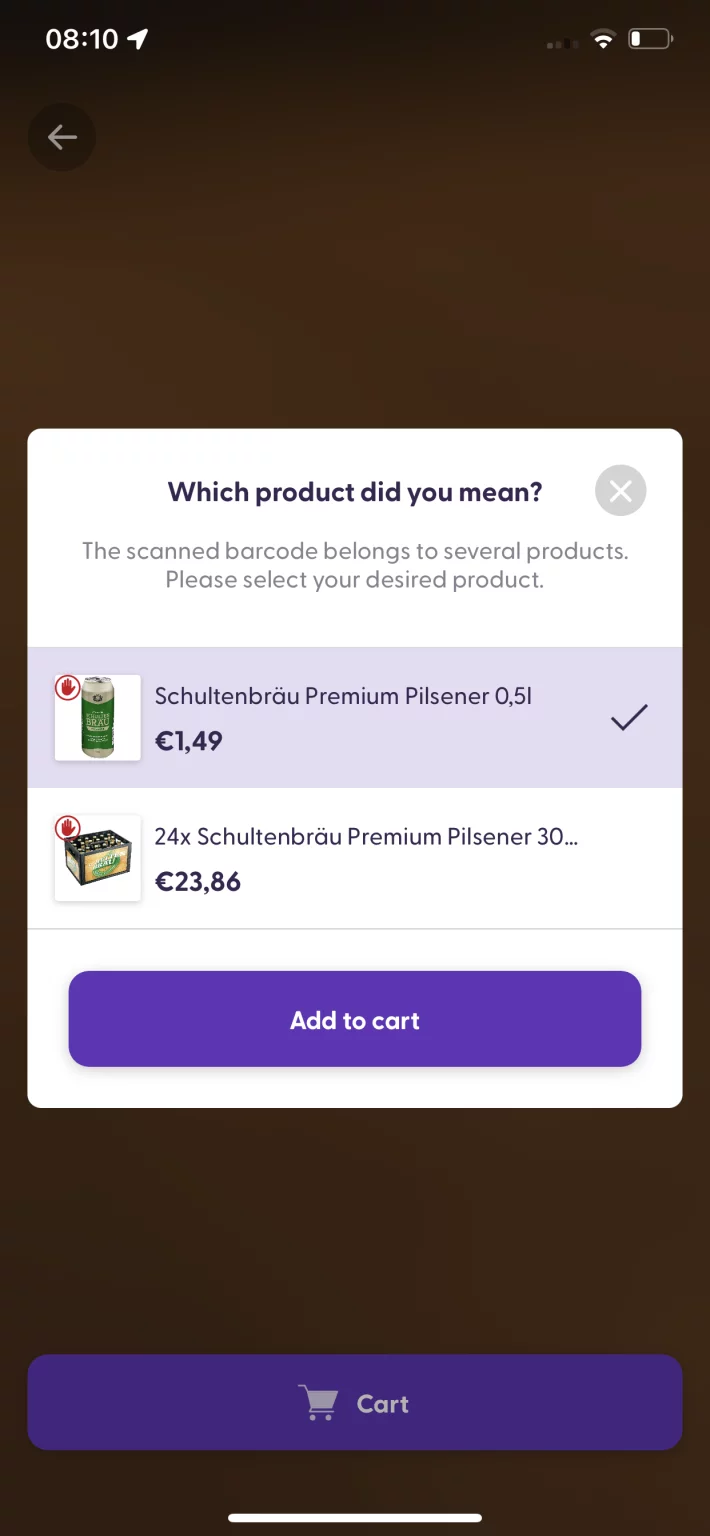
Some products may be sold in different pack sizes, especially drinks that can usually be purchased individually (e.g., one bottle of water) or in packs (e.g., a pack of 6 bottles). These products have the same barcode, meaning you will need to specify the correct product you buy when you scan it.
Age-restricted products
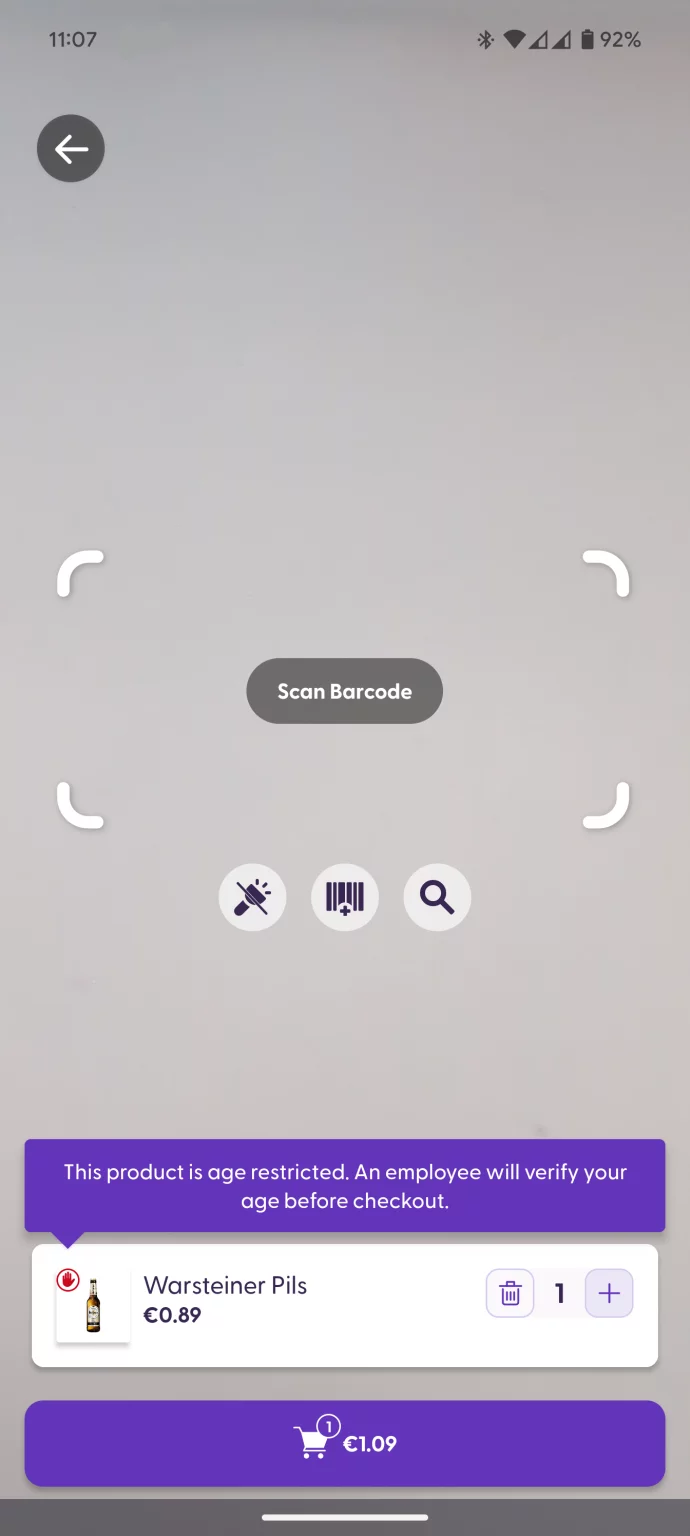
When you scan a product that is restricted to customers over a certain age, you will see a small red hand icon on the corner of the product picture. A message will also appear to let you know that the product you have scanned requires that you be checked before leaving the store.
You can also see the “restricted product” icon on the product picture in your shopping cart.
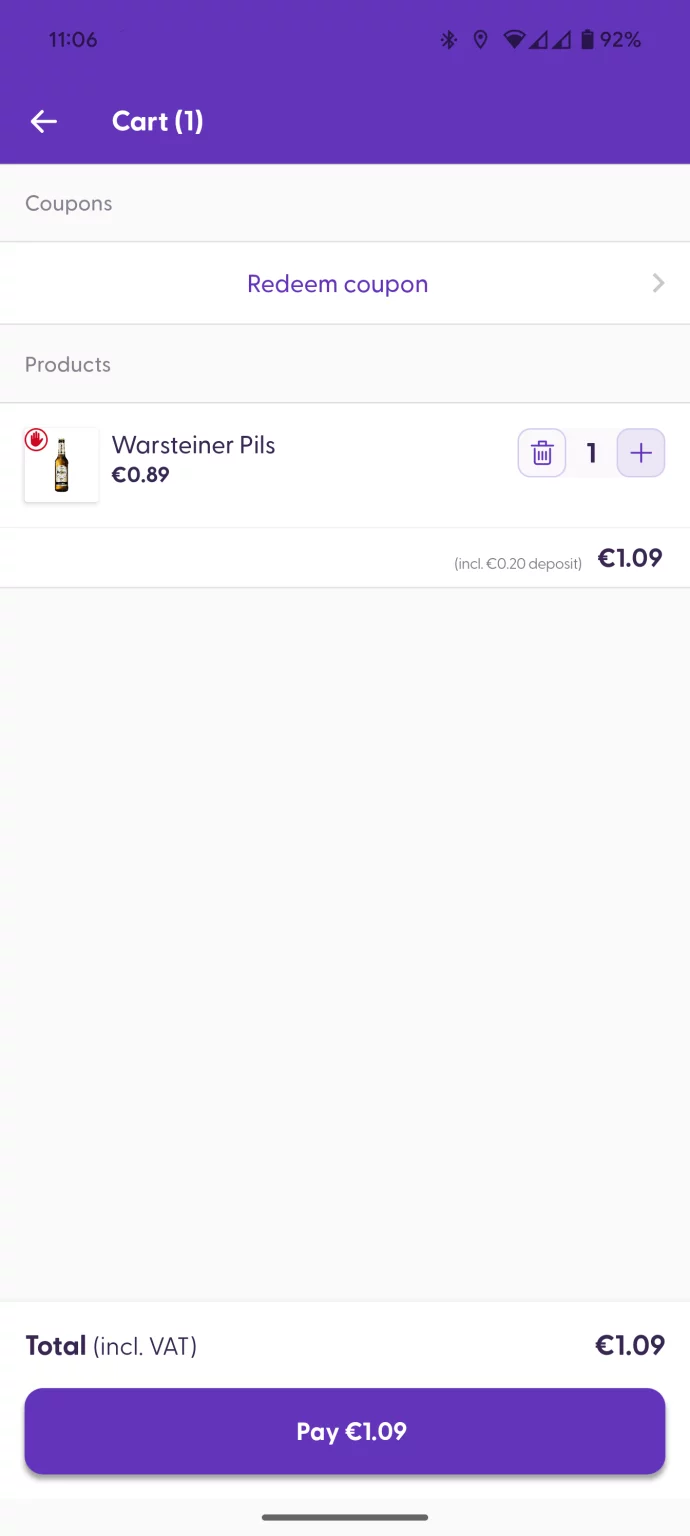
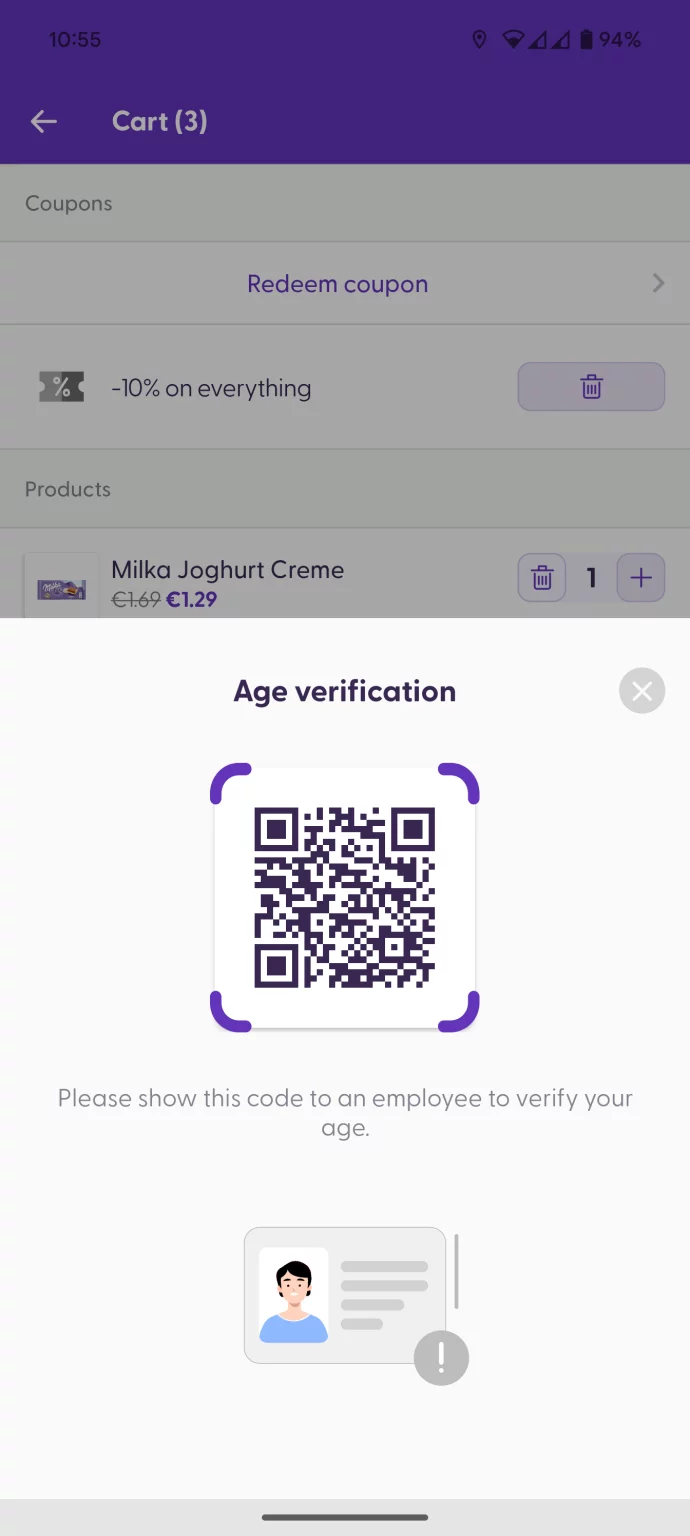
Before finalizing the purchase and being able to pay for the products, you will be asked to meet an employee to have your age verified. An employee will scan the QR code with their Employee app and mark your purchase as “Verified”. Afterward, you can proceed to payment and check out from the store.
Products requiring manual weight input
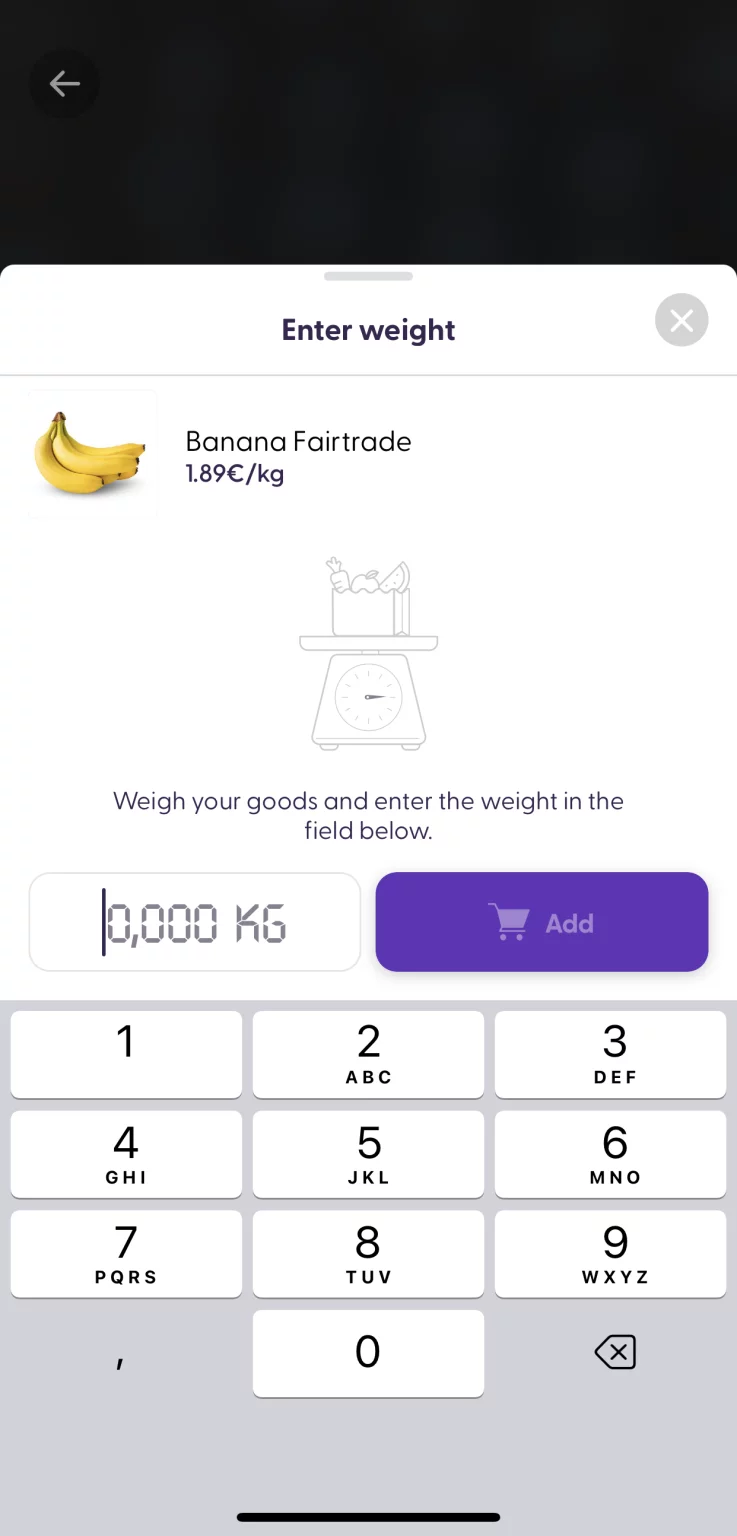
Some products, usually fruits and vegetables, may be configured to be weighted before they can be added to the shopping cart. First, you choose your products and weigh them on a physical scale at the store. Then, when you scan this product barcode, you will see a new screen where you need to enter the exact weight you see on the physical scale.
Special product cases
Here you can see some additional scenarios in which products can be customized for different store needs.
Products to be scanned individually
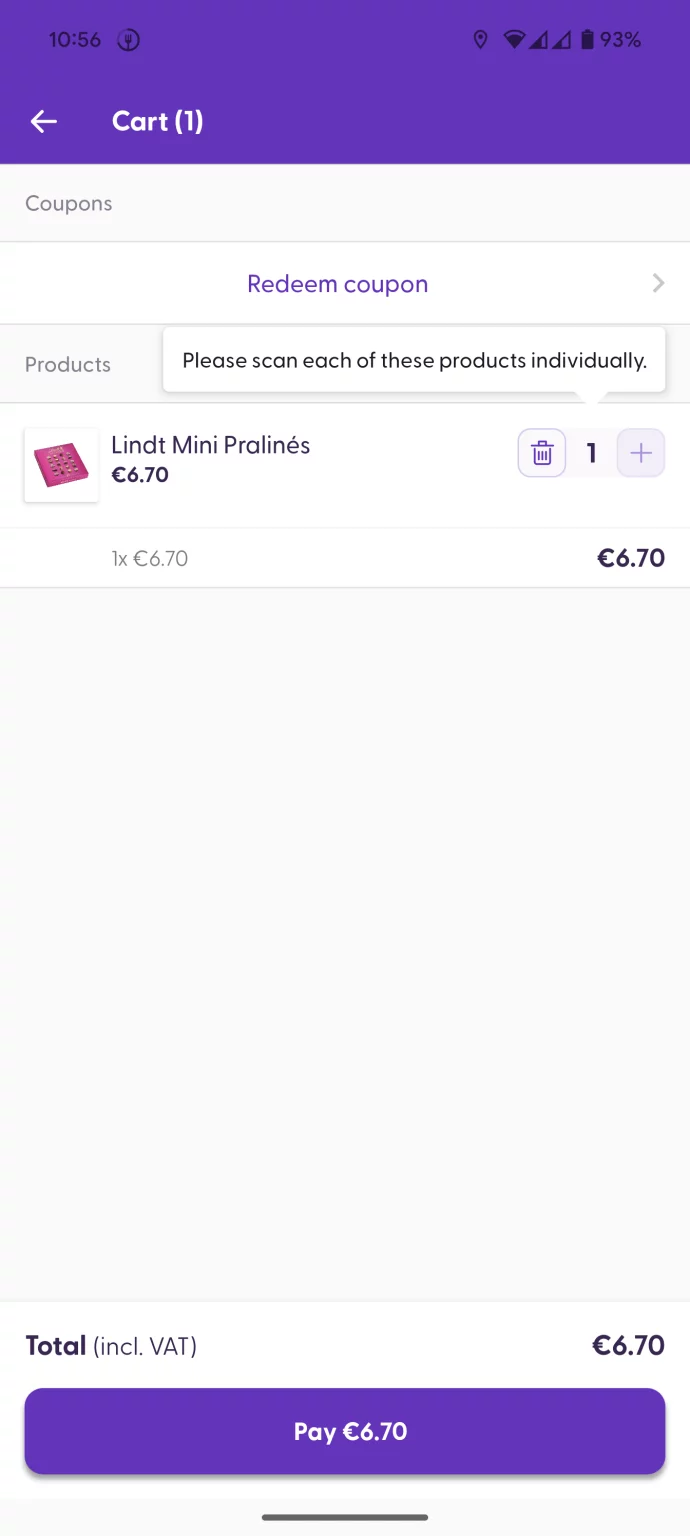
Some products with special prices or customized ingredients can only be scanned individually. This means that the quantity cannot be increased on the cart screen. The “+” button will be grayed out, and tapping it will show a message explaining that this type of product can only be scanned individually. To add more items of the same product, you will need to scan it again.
Offline scanning
Some stores offer customers the possibility of scanning products with cached (temporarily saved) data in case of a low-speed connection in some store areas. This means that customers’ shopping experience is not interrupted if they lose their internet connection, and they can continue scanning their products and adding them to their shopping cart.
A small note may signal this after scanning products, which says, “No internet connection”.
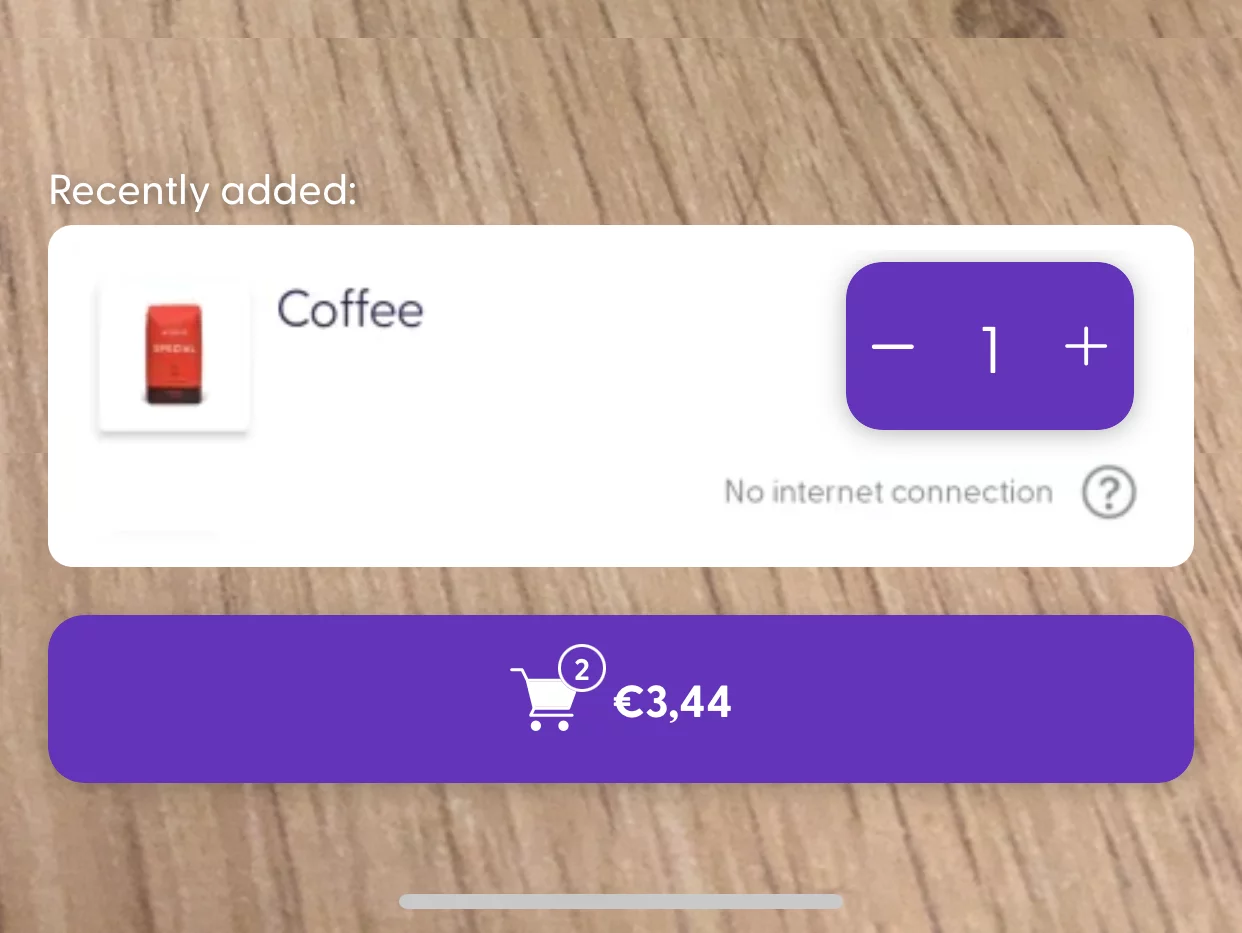
However, customers need to be connected to the internet to calculate the shopping cart’s final price or finalize the purchase and pay for the goods.
Other features
Increasing quantity with fast count
When scanning products, we have a “Fast Count” feature: You can long-press on the “-” or “+” symbols next to the product quantity, and the number of items will increase quickly. This is ideal when purchasing a large number of items, for which it would be cumbersome to tap +1 one by one. You can use this feature in the “Recently added” section:
You can also use the Fast Count with the quantity buttons on your Cart view:
Possible errors
Product not found
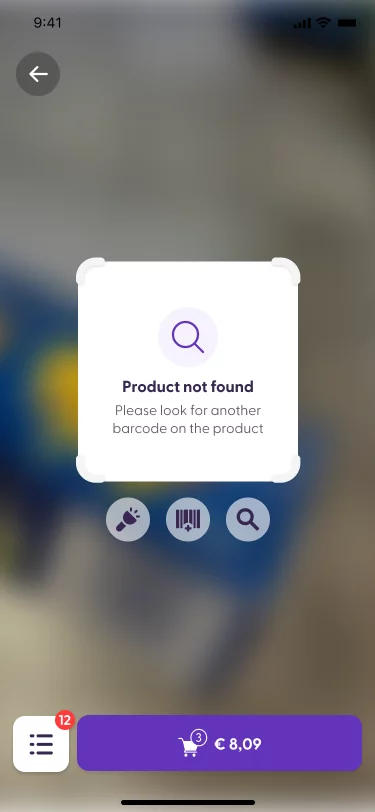
This error message appears when a product cannot be found in the store’s current inventory, so it cannot be purchased using the Scan & Go app at this time. An employee may need to review the product if the barcode is not easy to locate.
Already checked in
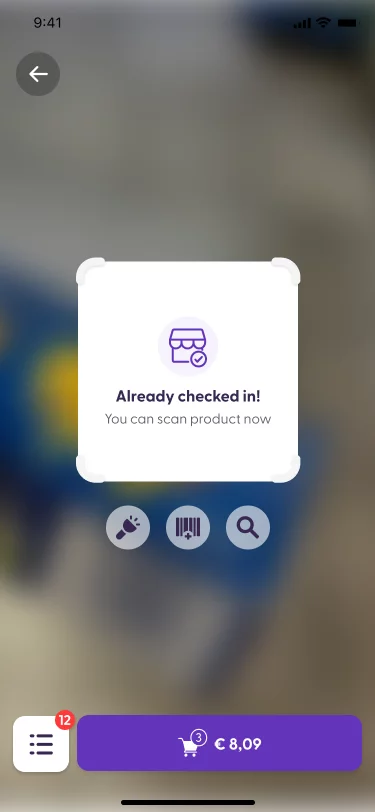
This message appears when a shopper scans a check-in code during the shopping journey. They have already checked-in to the store, so there is no need to scan this code again. This message informs the shopper about this.
Slow internet connection
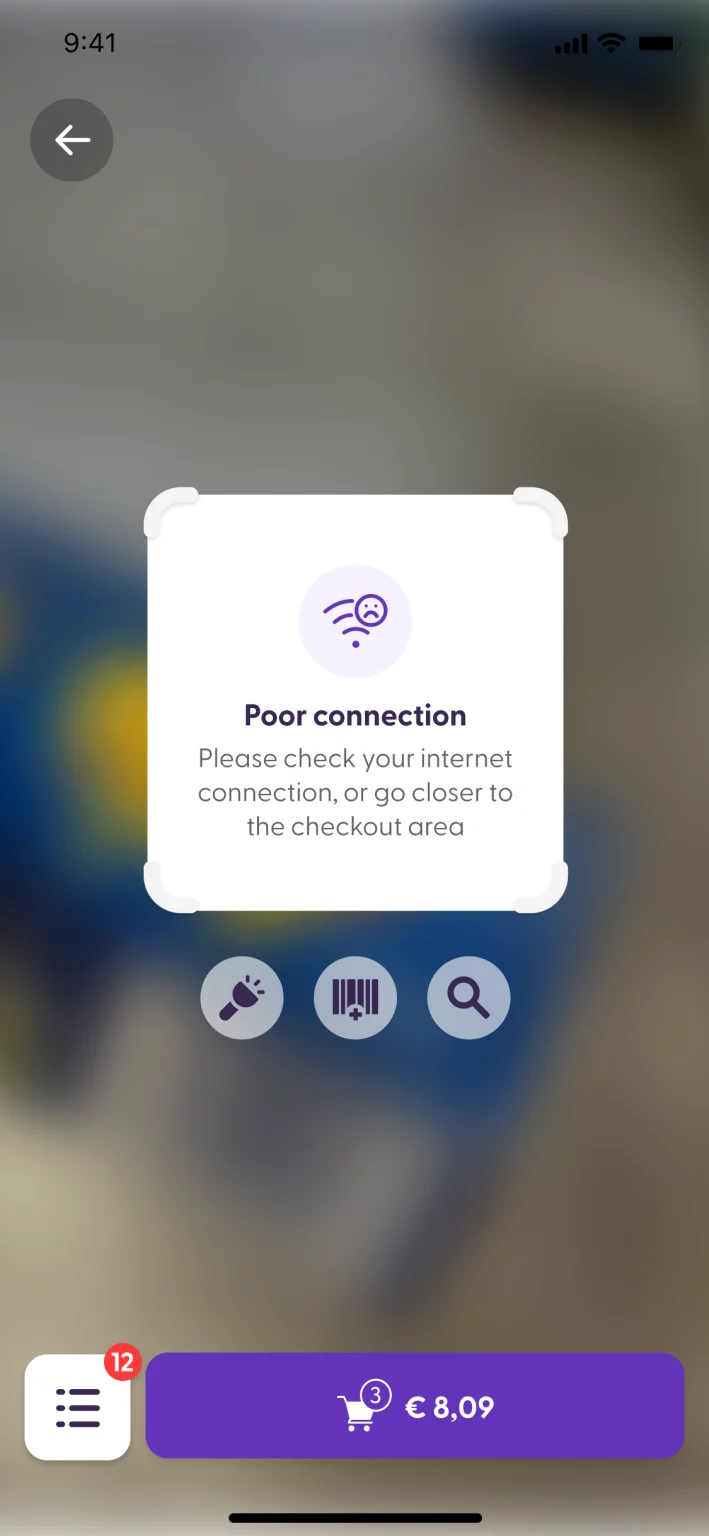
If your Internet connection is slow during the scanning process, you may see an error appear explaining so, and you will need to scan the product again. To solve this issue, ensure you have a stable Internet speed or try connecting to the local store’s Wi-Fi network.
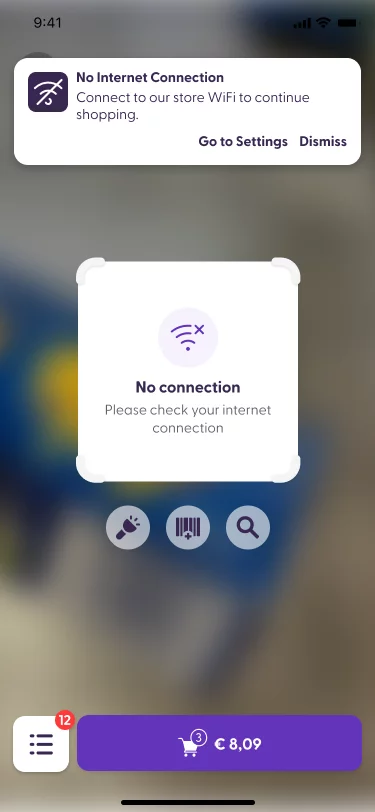
No internet connection
This message appears when there is no internet connection available, which may not allow shoppers to scan certain products that require being checked by the shopreme system (backend). If configured, the top banner will invite the shopper to use the retail store’s wifi service.
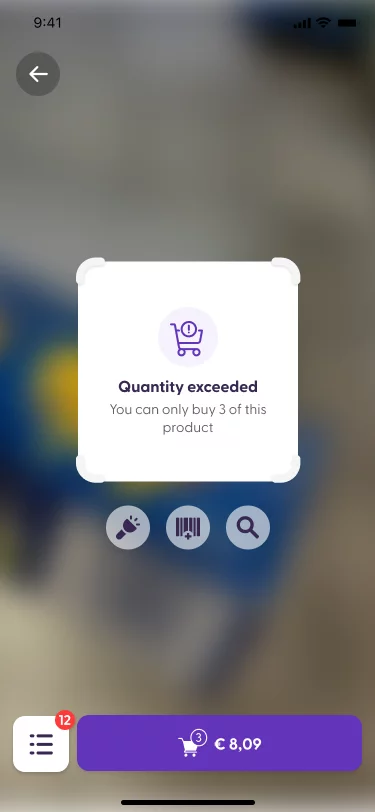
Quantity exceeded
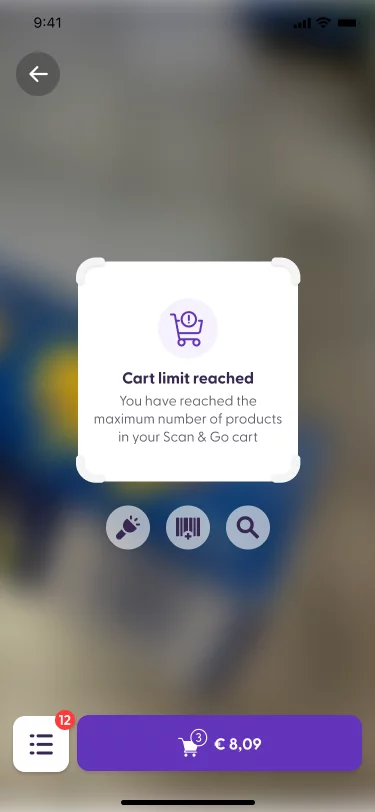
It is possible to set some products to only be purchasable in limited quantities in the same shopping cart. For example, a special promotional product may only allow shoppers to buy a maximum of 3 units at a time. Alternatively, a retailer can decide to limit the shopping cart for Scan & Go to allow a maximum number of products at a time.
Other errors
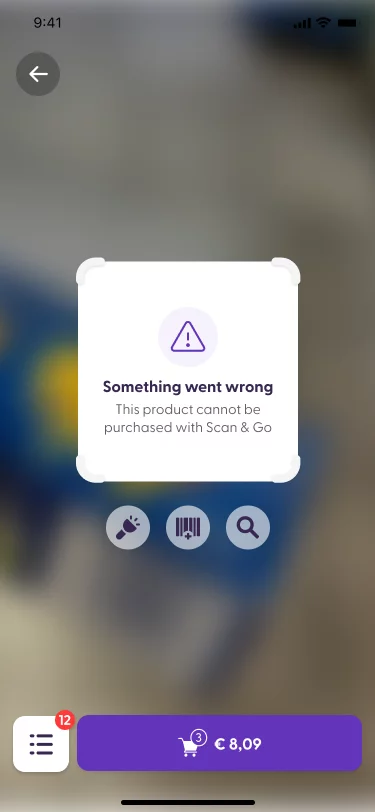
Other errors – such as blacklisting a product in the MGMT console or setting an explicit error message for a specific code – are shown alongside a generic “Something went wrong” error title. The error message that is shown depends only on the translations provided by the backend.
Overriding error messages
The ShopremeCore SDK comes with its default error messages and dialogs. However, each store can decide to rewrite (“override”) the standard strings with their customized text. You can see more details on how to override standard strings in the Android SDK here or in the iOS SDK here.
