Scan & Pay and SDK
Error messages on Scan & Pay (SDK)
Here you can find examples of the most common error messages that may appear when a user tries to pay – these include errors on the Cart screen and during the payment.
Cart evaluation errors
Case: User is offline
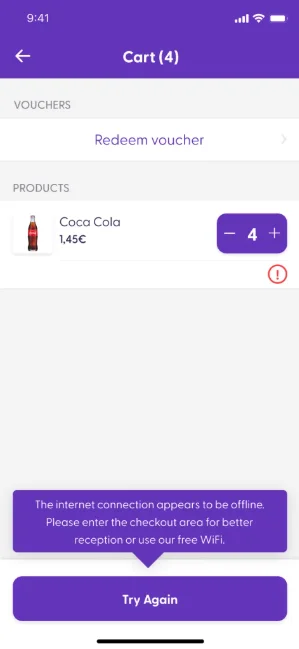
Description: Customers are required to be online to be able to calculate the total of their shopping cart. They are able to scan products while having a low-to-off internet connection, if the store settings allow offline scanning, but they should be connected to the internet to evaluate the cart (since the calculation is happening on the backend, not in the SDK). Otherwise, they will see the following error: “The internet connection appears to be offline. Please enter the checkout area for better reception or use our free WiFi.” 👉
Case: Slow internet connection
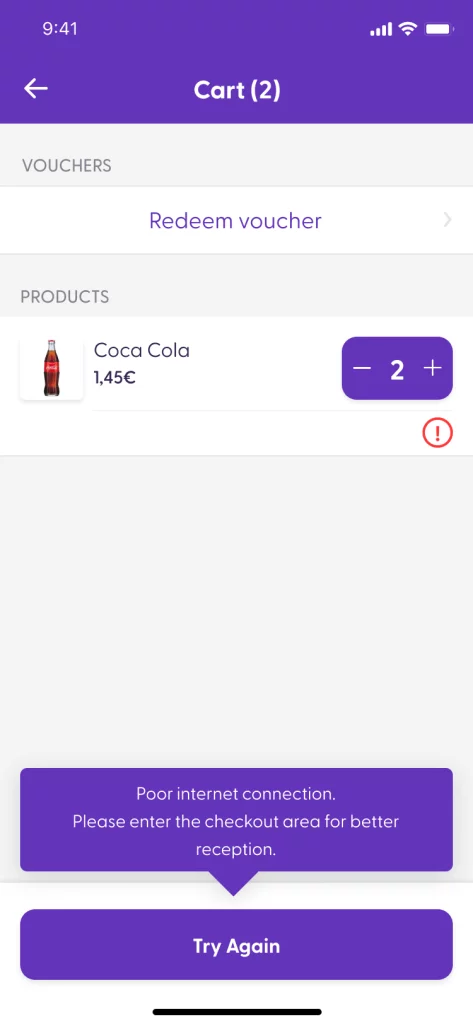
Description: Similarly to the previous case, a very slow Internet connection can also affect the cart evaluation if the app cannot reach the evaluation service within 30 seconds. In this case, the customer will see the error message: “Poor internet connection. Please enter the checkout area for better reception.”
This most commonly occurs in large stores with areas that are far from the entrance, where cellular internet may be limited and store WiFi may not be available. 👉
Case: Left the store
Description: As purchases can only take place while customers are in the store, the system must verify that they are still within the premises of the store before they can process a purchase. By default, the SDK verifies this via Bluetooth ranging, which requires that customers have Bluetooth turned on on their mobile device. If a customer has turned off (disabled) Bluetooth after scanning their products, they will see an error message in their Cart explaining that they need to start the store detection process to continue.
In Standalone mode, clicking on the “Go back” button will take the customer to the main screen, where they can see the map of stores and see the message that Bluetooth should be enabled (iOS) or the option to tap on “Turn on Bluetooth” (Android).
👉
In Embedded mode, there will be an error message in the Cart similar to the Exited Store error and a “Go back” button.
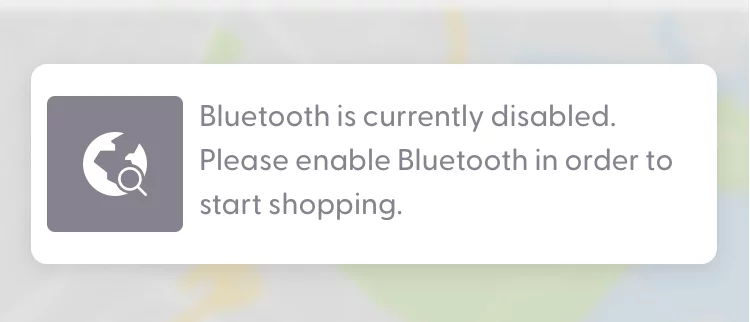
Standalone mode: Please enable Bluetooth (iOS)
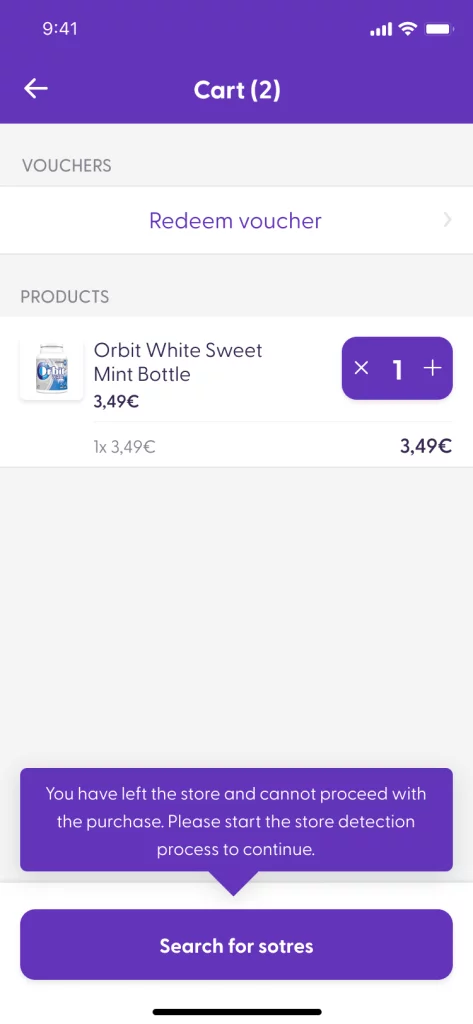
Embedded mode: “You have left the store and cannot proceed with the purchase. Please start the store detection process from the start screen to continue”.
The SDK can automatically restart the store detection if:
the user has given permission to use GPS & Bluetooth
Bluetooth is turned on and
the current store has at least one Bluetooth beacon.
The customer will see the button “Search for stores” in their Cart view. Clicking this button will perform the Bluetooth store detection right within the Cart view, without the user having to leave the screen. 👉
Case: Backend evaluation error
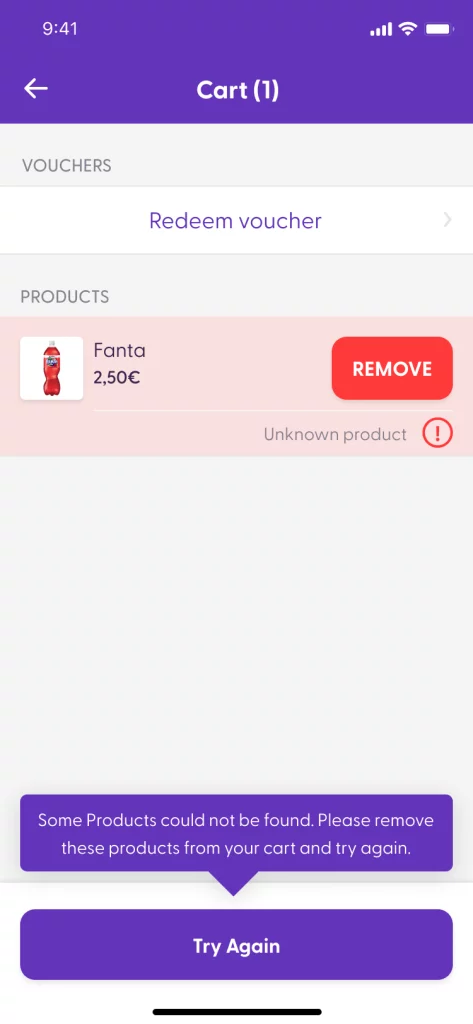
Description: Backend errors can occur when there is a mismatch between the product/price information retrieved when scanning products and the data received when tapping on the button “Pay now” in the cart view. This may occur if products or prices are updated while a customer is shopping. In such situations, the customer will see an error message explaining that some products have an error. They can retry the evaluation, but if the error persists, they will need to remove the product from their cart (the product may no longer exist in the backend database).👉
Note: The exact error message for each type of error can be configured on the backend.
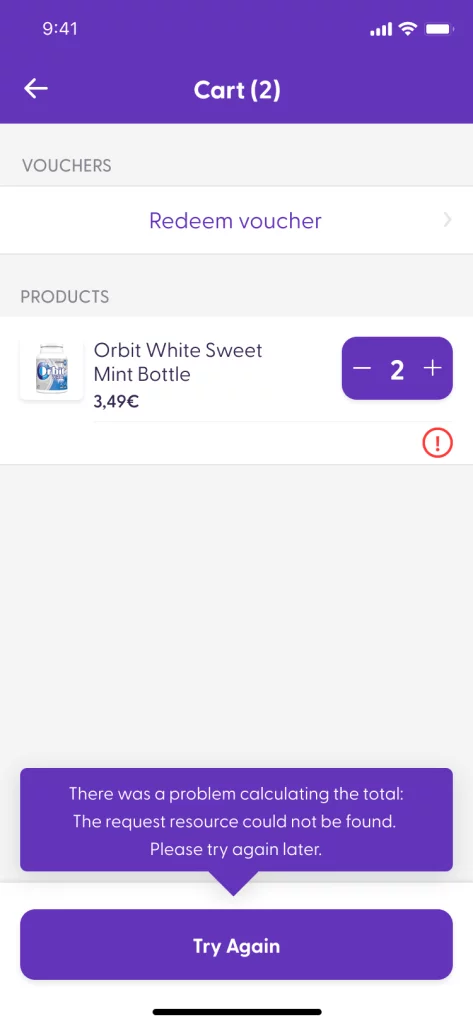
If, for instance, the backend server is down during the cart evaluation, the following message will appear in the customer’s cart view 👉
Case: Backend error with customized message
Description: Custom text can be added on the backend by the shopreme development team to display custom error messages for the specific needs of some customers. For example, to show an error related to a custom loyalty points system or for negative basket values.
The UI remains the same as for the other error cases, but the error message itself is customized.
Payment error messages
Payment-related errors may occur if, for example, a payment method is rejected or a user verification fails. When tapping on “Retry”, the customer can retry their payment or choose a different payment method.
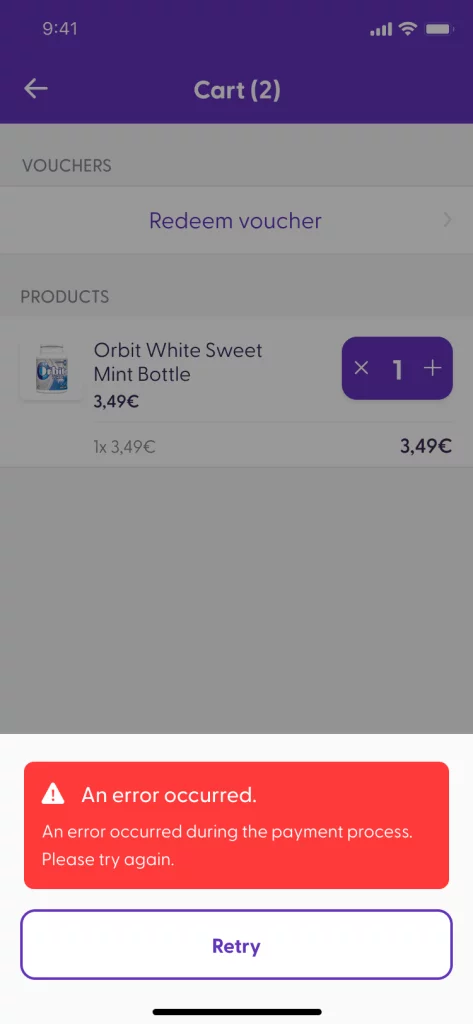
There are several different options for possible error messages. The following list shows the most common error messages. However, these appear depending on particular combinations of payment methods and payment providers.
To learn more about the specific errors for your solution, please reach out to the shopreme team as part of your integration project.
Error type | Message | Description |
|---|---|---|
General Error Message | “An error occurred during the payment process. Please try again”. | A generic error message for unspecified cases. Usually it is used when the PSP did not return an error code to identify the reason for the failure. |
iOS string key: | “We were unable to process your payment. Please try again. (\”%@\”)” | If the payment process fails but the server could connect to the PSP, we may receive a specific error message that provides further details upon reviewing the PSP documentation. If the PSP was not reached before the error, the generic error message will be shown instead. |
iOS string key: | “Card expired. Please check your input or use different card.” | The card used has expired. The customer will need to use a different payment method or a different card. |
iOS string key: | “Your account balance is insufficient. Please try again with a different payment method.” | The customer card does not have enough funds in their account to process the purchase. The customer will need to choose a new payment method. |
iOS string key: | “Invalid card. Please check your input or use different card.” | This card type is not valid or not allowed. A different card type or a different payment method is required. |
iOS string key: | “Invalid Card Security Code. Please check your input and try again.” | The CVV/CVC code for the card used is invalid. The customer will need to check the details entered and try again. |
iOS string key: | “The issuer returned Declined. Please check with Issuer, or use different card.” | The card issuer has declined the purchase without further details. A different payment method or card is required. |
iOS string key: | “You cancelled the payment process.” | The customer has interrupted the payment process, so it has been cancelled. |
iOS string key: | “This card type is not supported. Please use different card.” | This card type is not valid or not allowed. A different card type or a different payment method is required. |
iOS string key: | “Your purchase needs to be verified. Please ask an employee for help.” | This purchase needs to pass a spot check done by an employee. |
iOS string key: | “We were unable to process your payment. Please try again. (%@)” | If the payment process fails but the server could connect to the PSP, we may receive a specific error code that provides further details upon reviewing the PSP documentation. If the PSP was not reached before the error, the generic error message will be shown instead. |
iOS string key: | “We were unable to process your payment. Please try again. (400.1022)” |
