Scan & Pay and SDK
No-barcode search and category browsing
Feature overview
Many retailers have products located within the store that do not have any barcodes at all – these can be for example, freshly baked goods that typically do not have a barcode on them to scan.
No barcode? No problem. Our solution: the no-barcode search.
This ShopremeCore SDK feature allows shoppers to manually add an item to their basket via the no-barcode search when in the Scanner view. Understandably, having customers add any product they would like to their basket without scanning is not ideal – that is why we give retailers full control over which items are allowed to be added this way. Take a look at how we search for bread (“Brot” in German) without a barcode in the video below:
Employee-facing interaction
Category browsing
For products without barcodes, our shopreme SDK includes the “category browsing” feature in the scanner view. You can find this section when tapping the magnifying glass icon. Customers see a page of products, which can be grouped into custom categories. Tapping on “Show all” will bring up all products within that category. Simply tap on the purple add-to-cart icon for the product wanted and adjust the quantity as needed.

Scanner view
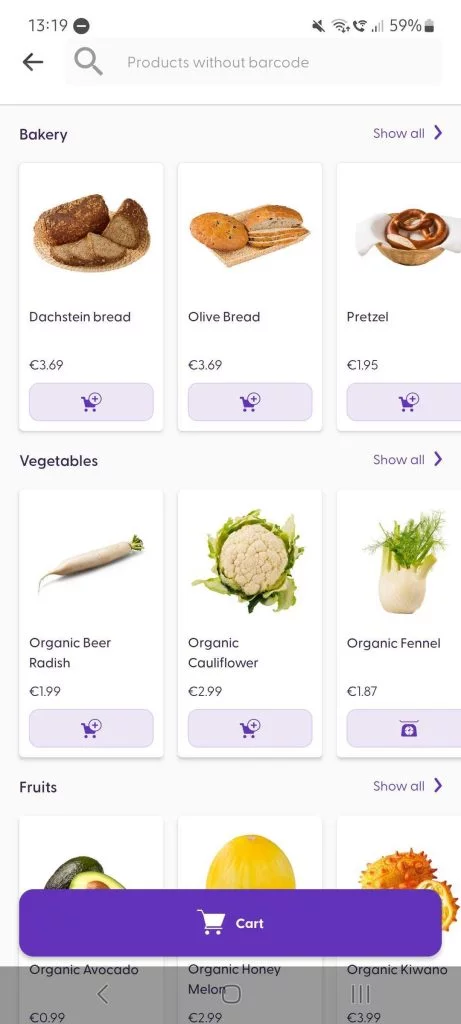
Category search
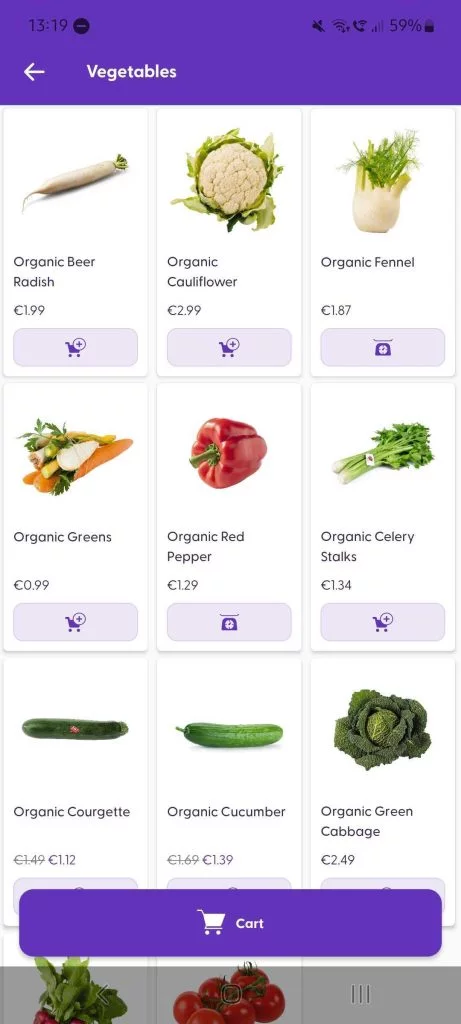
Products in a category
Search bar
If the product does not have a category, in just 3 simple steps, the product can still be added to the cart. There is a search bar on top of the category-browsing section. This allows shoppers to enter a term and the results will be displayed in a list, along with the product images and pricing (if available).
Scanner view

Type to search
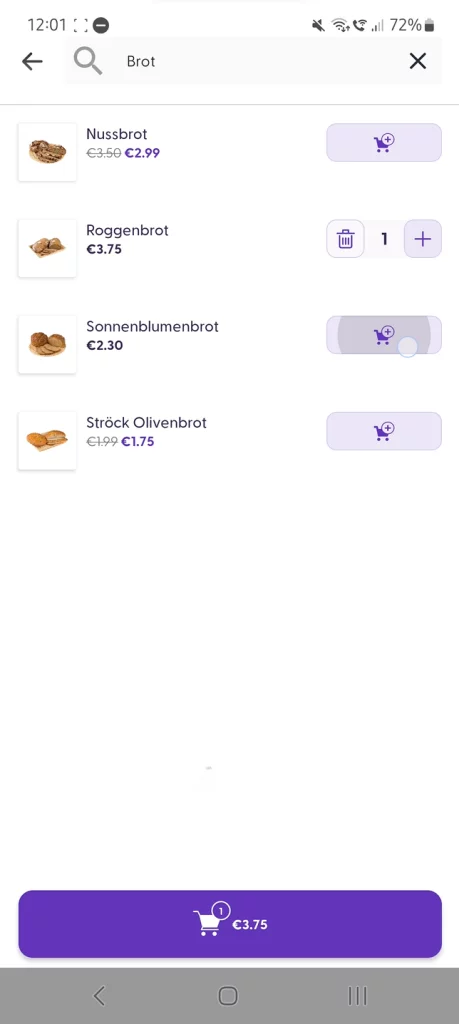
See results
How to enable these features
There are some conditions for the no-barcode search and category-browsing features to work:
The features must be enabled on the SDK. You can find more information on the Android implementation here, and the one on iOS here.
The product must be set up correctly either in the import (which includes the list of specific products that should be searchable) or if you manually change it within the shopreme Management Console.
Product import
The simplest way to enable this feature is to import the products with the correct flags set.
showInProductScannerSearch: Datatype
boolean, default value:false. Indicates whether the product should be displayed in the search accessible from the scanner, which allows adding the search results to the cart without scanning them.categoryIds: Datatype
Array<String>, default value:null. The list of categories IDs (e.g.,["extCat-fruitsAndVegetables"]) this product belongs to. If not provided (field non-existent ornull), existing values will not be updated. In order to remove previously assigned categories, set an empty array as a value here. The category should already exist in the shopreme DataHub before importing the data in the product import.canManuallyIncreaseQuantity: Datatype
boolean, default type:true. Ensure this value is not set tofalse. This flag defines if the customer is able to use the quantity buttons in the app to increase the amount after scanning. If set tofalse, the customer needs to scan each individual item.
For more information about the product import, you can find the jobs documentation, here.
Management Console
These product fields can also be manually edited in the shopreme Management Console.
Under the Configuration section, on the Products page, you can search and find the product you need to edit. Click on the product and you will see the Edit button on the top-right corner.
In the advanced tab, you can see the section to add Categories, as well as the field “Show in scanner search”:
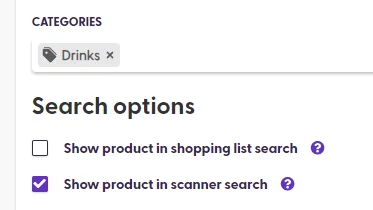
It is important to note that any product import updates can override changes that have been made manually in the Management Console.
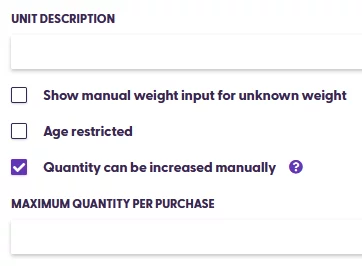
Please be aware that the shopper must be allowed to manually increase the quantity (using the “+” button in the app). This is done by checking the box “Quantity can be increased manually”, which will also unlock the “+” button for those products, no matter if they were scanned or added via the search: