Management Console
DataHub import jobs
Scan & Go is mainly powered by the data provided through the DataHub import jobs on the Management Console. The first steps in the Scan & Go customer journey primarily use this data. In this article, we will focus on the available import jobs and how they are used in the shopreme ecosystem. Please note that some details may vary depending on your custom implementation. The information presented here shows the shopreme “vanilla” case, without customizations, and can be used by retailers right out of the box.
Product import
The product import is the most important import job, as it allows shoppers to scan products, which is the key component of Scan & Go. It can be set up in the Management Console under the Jobs section. It imports products “globally” for the whole system; in other words, uploading products for specific stores only is not supported. However, pricing can be store-specific by adding a storeId to the storePrices array.
We explain the details of how the information in the product import is “translated” into the product’s information on the Management Console in this article here: Product import in the DataHub.
Basics to consider
To start using the Product Import for the first time, you first need to check the basic requirements for the JSON import file. The requirements will depend on your backend’s version and any customizations specific to your implementation.
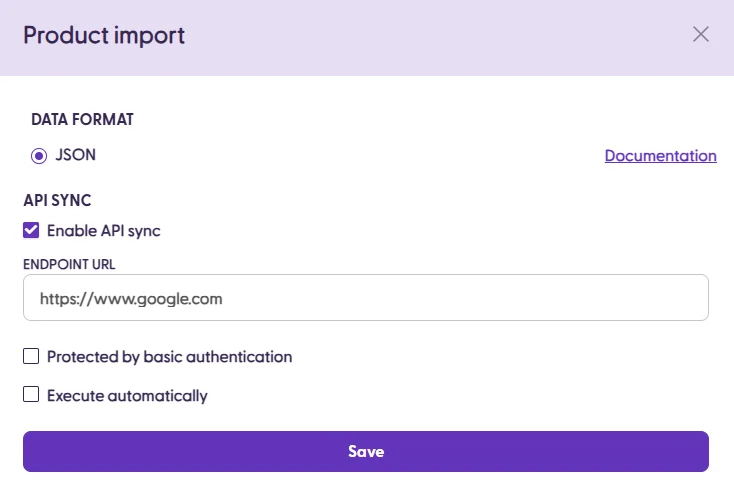
You can go to the DataHub section > Jobs, and then click on “Edit” within the Products import box.
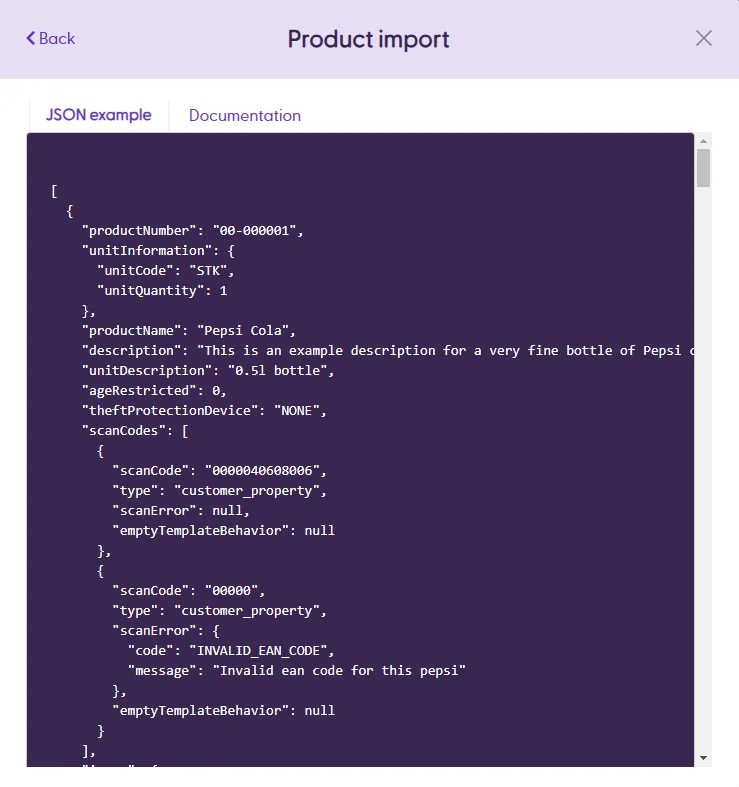
Then, click “Documentation” next to JSON to see the example JSON file and the documentation for each field.
The JSON example tab shows sample products in the expected format and with some basic fields, such as productName, description, ageRestricted, scanCodes, storePrices and scanError.
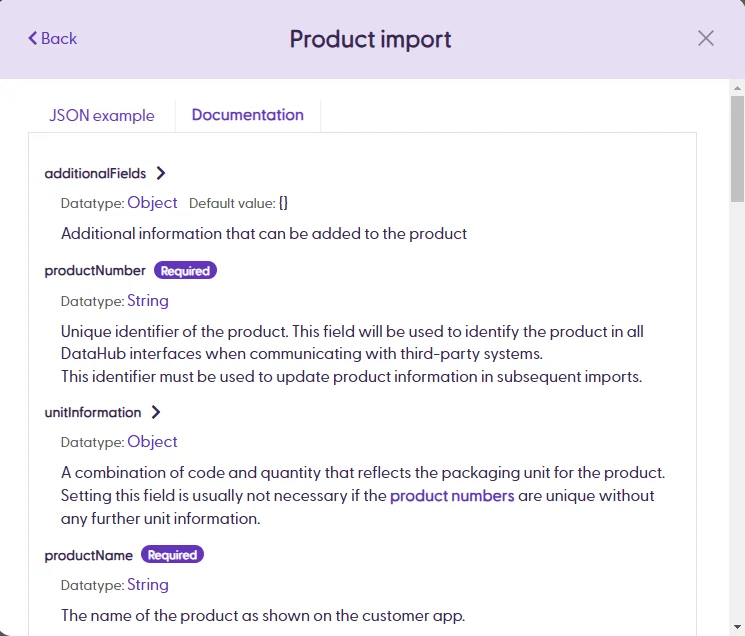
The Documentation tab displays all the accepted fields by default, what value type they accept, and what they are for.
The mandatory fields that cannot be ignored are highlighted with the “Required” label.
For a first test, you can upload a JSON file manually using the menu below. Once the file is processed, you can also see the Status of the job’s last execution. To see the full log for the complete import processing, click “Show details,” and a pop-up will appear.

If any unexpected issue arises, this job summary section will show the Status: Error, and a message will explain what happened. Clicking on “Show details” will display more information in the logs.

Price import
The price import is complementary to the product import, as its purpose is to update the pricing information for existing products in the DataHub. This import also allows updating prices for specific stores, so each product can have different prices for different stores. This can also be done on the product import, but the price import is quicker for delta updates, as it does not need to update all the other product data fields.
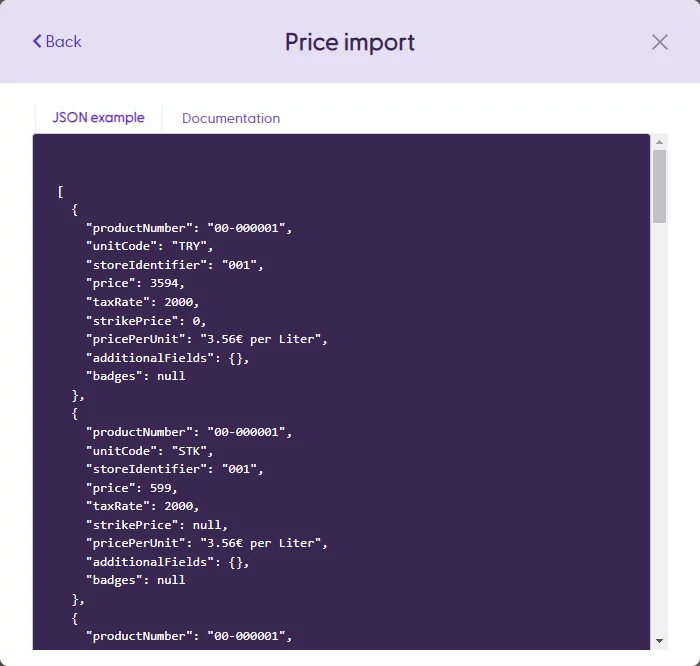
To see an example of the Price Import JSON format, go to the DataHub section > Jobs and then “Edit” in the Price import area.
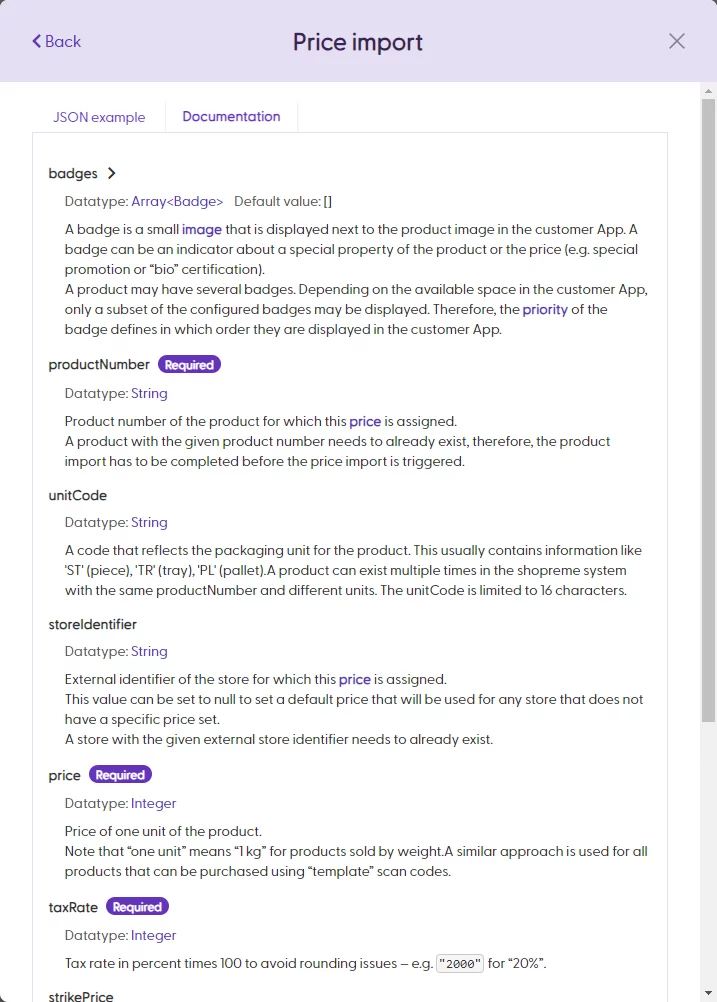
Similarly to the product import example, this JSON example tab shows the expected format and some basic fields, such as productNumber, price, strikePrice and taxRate.
You can copy the example and download it, to see it in detail.
The Documentation tab will provide the descriptions for each field and also highlight the mandatory fields with the “Required” label.
Once a price import runs (either through a manual upload or an API sync), the summary on the DataHub page will show the last execution summary along with its status and a message summarizing the result of the update. To see the full log for the complete import processing, click “Show details,” and a pop-up will appear.

Store import
The store import allows you to upload and sync information about stores, instead of manually creating them. In the main article of the Management Console, we mentioned how to create stores manually in the Configuration Section > Stores. However, for retailers with tens or hundreds of stores, it may be a quicker and more efficient option to upload this information via the Store Import (either manually or via an API sync).
Just like the other types of imports, click on “Edit” to see an example of the JSON that can be uploaded and read the Documentation to learn what fields are Required and the data types allowed for each of them.

Categories import
Categories are used for grouping products, usually those that do not have barcodes. This means that this products can be browsed and found by searching by category on the shopreme matrix or the Scan & Go app.
Categories can be created manually on the Management Console > Categories, but they can also be uploaded though a JSON import file or synced via an API endpoint. This Category Import is what you need to accomplish that.
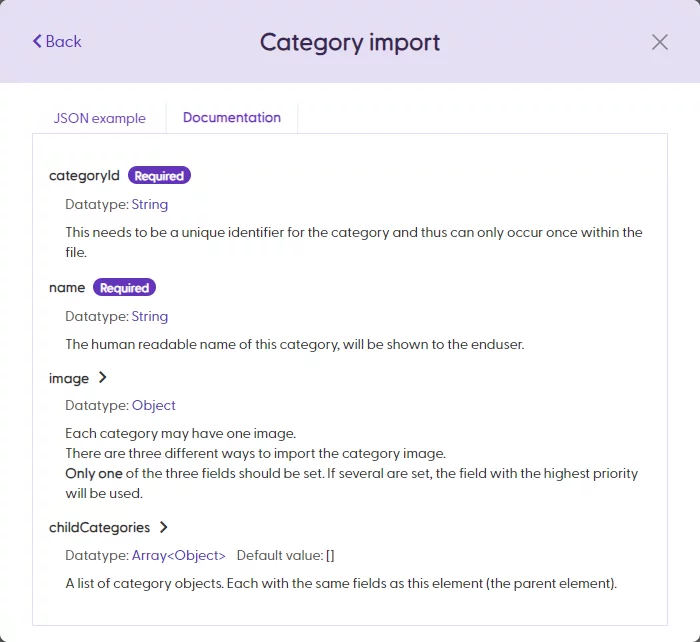
The fields for the Category import are the following:
After uploading a JSON file manually, it will be processed like any other import job. Once the update is completed, you can also see the Status of the job’s last execution. To see the full log for the complete import processing, click “Show details,” and a pop-up will appear.

