Management Console
User management details
On the shopreme Management Console, there are currently three types of “users”:
Management Console users: Individual accounts that can be used to log in to the shopreme Management Console.
Supervisor App users: Individual accounts that can be used to log in to the Supervisor app.
API tokens: Tokens used for basic authentication when using the shopreme DataHub. You can read more about the DataHub outbound API here.
Keep reading to learn more about each type of user and what they can do depending on their permissions.
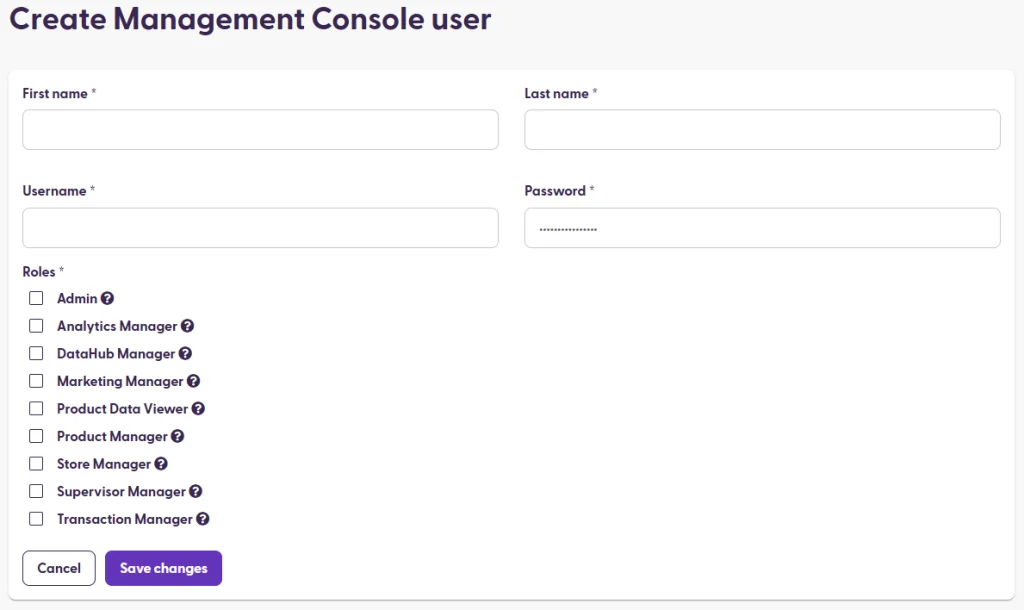
Management Console user
When creating a new user, you need to enter the name, last name, username and password for the user. Additionally, at least one Role will need to be selected. Manager roles allow editing, viewing, creating, and deleting, whereas viewer roles only allow viewing. They are as follows:
Admin: This role contains all other roles in the list, so granting the admin role overwrites any limitations in any other role.
Analytics manager: Has access to all analytics pages (Analytics section) and can view stores. The access can be limited to specific stores or store types.
DataHub manager: Can manage DataHub jobs, the API connector page, and view Stores.
Marketing manager: Can manage Products, Media, Coupons, and the Storefront, as well as view Stores.
Product data viewer: Can view Products and Stores pages.
Product manager: Can manage Products, Storefront content, Categories, and Media, as well as view Stores.
Store manager: Can manage Stores, Store types, and Beacons, as well as view shopreme hardware devices. Can be limited to specific Stores or Store types.
Supervisor manager: Can manage Supervisor app users. Can be limited to specific Stores or Store types.
Transaction manager: Can view Transactions and Store pages.
Supervisor app user
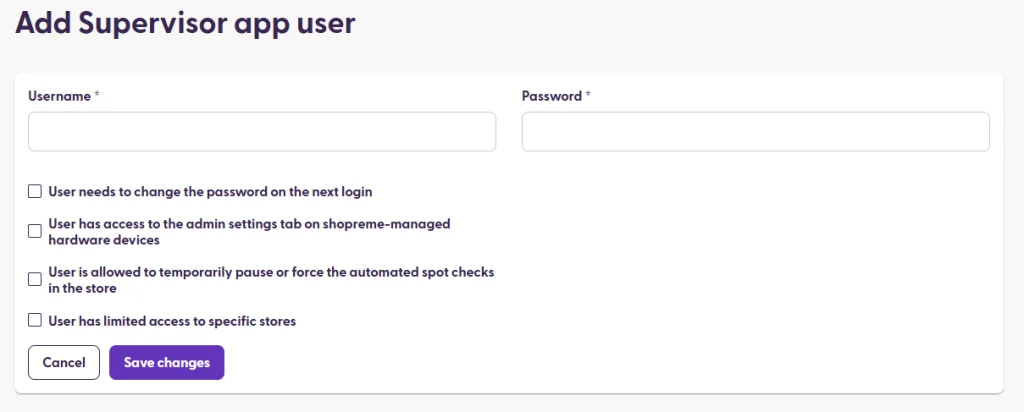
Only a username and password are required to create a Supervisor app user. However, there are additional options that can be selected:
User needs to change the password on the next login: This option forces the user to set a new password after logging in for the first time. Currently, resetting the password can only be done on the Management Console > Supervisor App user section by manually setting up a new one.
User has access to the admin settings on the shopreme hardware devices: This option allows users to access sensitive options such as registering vector/matrix devices or making other changes to a device.
Is allowed to temporarily pause or force the automated spot checks in the store: This option adds the menu “Force or pause spot checks” in the Settings section of the Supervisor app.
Limit access to specific stores: This option allows Supervisor users to only sign in for a specific store and thus see only the customers and activity for such store.
API tokens
The API tokens are only required when interacting with the shopreme DataHub endpoints. When you create an API token, you must select a name to identify it and then choose only one scope, similar to a role, depending on the token’s purpose. The available scopes are the following:
Clearing API: Allowed to access endpoints related to Clearing, Report, and Invoicing, as described in the Inbound API section in our documentation articles.
ExternalCashRegister API: Allowed to access endpoints related to Cash Registers, as described in the Inbound API section in our documentation articles.
GDPR API: Allowed to access endpoints related to GDPR, as you can see in the corresponding API documentation.
Jobs API: Allowed to access endpoints related to Jobs, as described in the Inbound API documentation articles.
After entering a name for the token and selecting the scope, it will be created, and a similar page will be displayed:
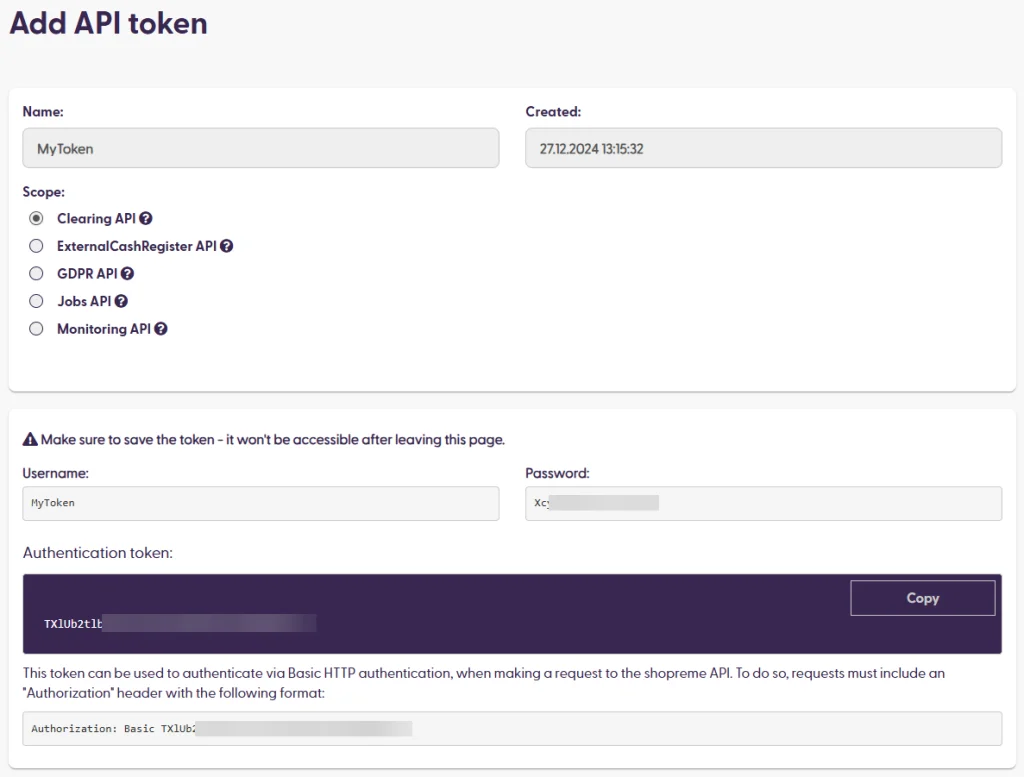
In this confirmation screen, you need to copy the auto-generated password and the authentication token, which you will need if you want to use Basic HTTP authentication when making requests to the shopreme API.
This information will only be displayed once right after creating the token.
