Scan & Pay and SDK
Discount stickers
Feature overview
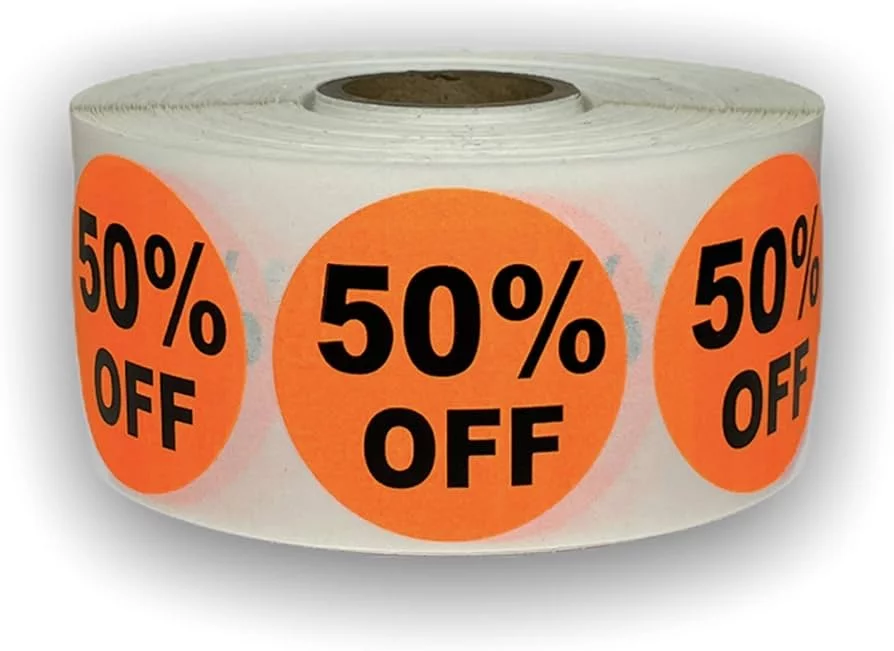
Many retailers place stickers on products when they are on sale or they will expire soon. Usually, such stickers are simple and only say “-25%” or “50% off”, and this subtracts a percentage from the product’s total price. However, these stickers could also follow other rules, such as “replace the price X with price Y” and then have a sticker on the product that says “Only 0,99€”.
One challenge is that retailers usually only place discount stickers on the product, but the barcode and product number are not modified. How can a shopper scan and add this type of discount to their cart, then, if it does not include any special scan code?
shopreme has designed and implemented a feature called Discount Stickers for the SDK, as well as the matrix SCO. This allows shoppers to manually add a discount sticker for a product, from the client Scan & Go app. There are some conditions for this to be possible, though. First, the discount stickers feature should be enabled on the shopreme backend. Then, the product should be imported with an added field that allows the product to have a discount, and the type of discount should also be specified. This means that product “A” could accept “-25%” discount stickers, and product B could allow both “-30%” and “-25%” discounts.
Customer-facing user journey
On the shopreme SDK, the Discount Sticker feature can be found in the Scanner view. If the feature is enabled on the backend and a product can contain a discount sticker, the option to apply a sticker will appear on top of the product overlay after scanning a product scancode (Picture 1). After choosing the discount, it will be added to the product with a confirmation box (Picture 2). Then, the product with a discount sticker can be identified in the Cart view (Picture 3). The total pricing will be updated automatically for the shopper to verify, but the single price will be hidden with the badge, as the correct price can only be known after a basket evaluation.
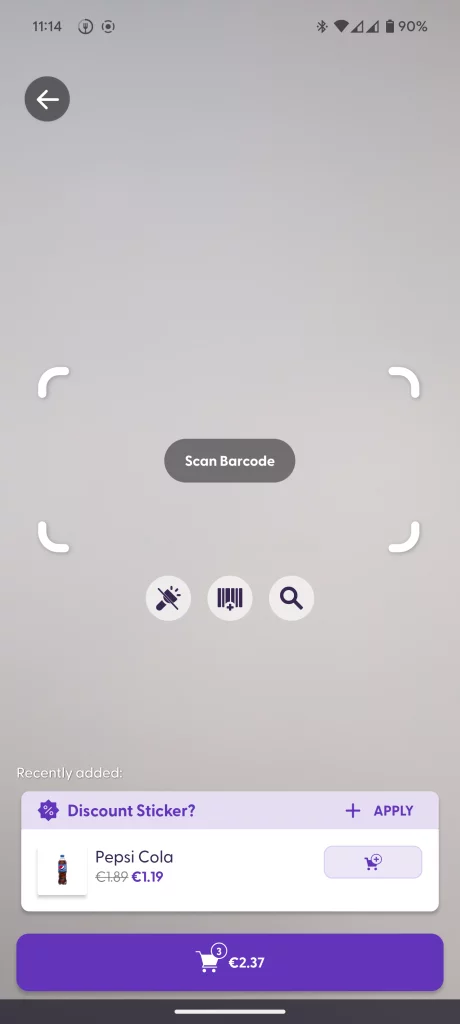
Product offers discount stickeer

Sticker is applied
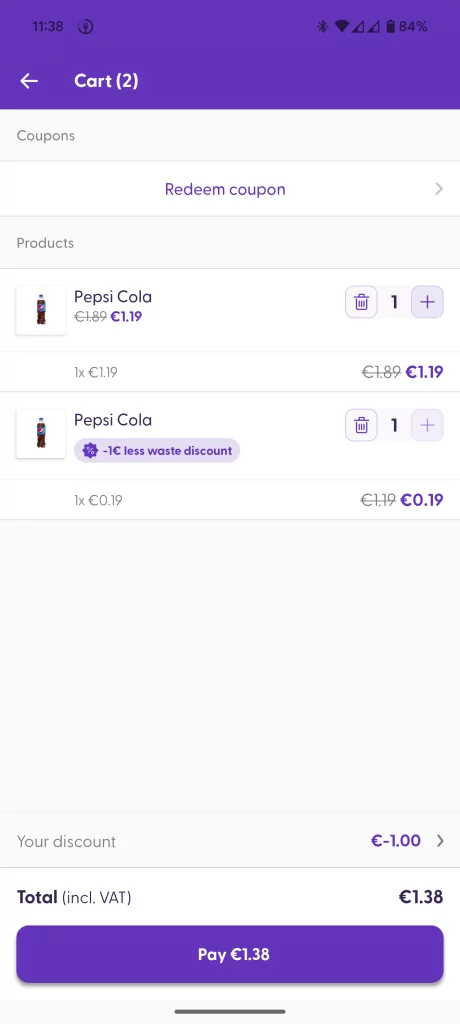
Sticker visible in the cart
One limitation that is worth mentioning is that the product quantity cannot be increased (See the “+” option grayed out on the product position with a discount sticker). This allows shoppers to only add discount stickers after scanning to avoid any mistakes.
Special cases
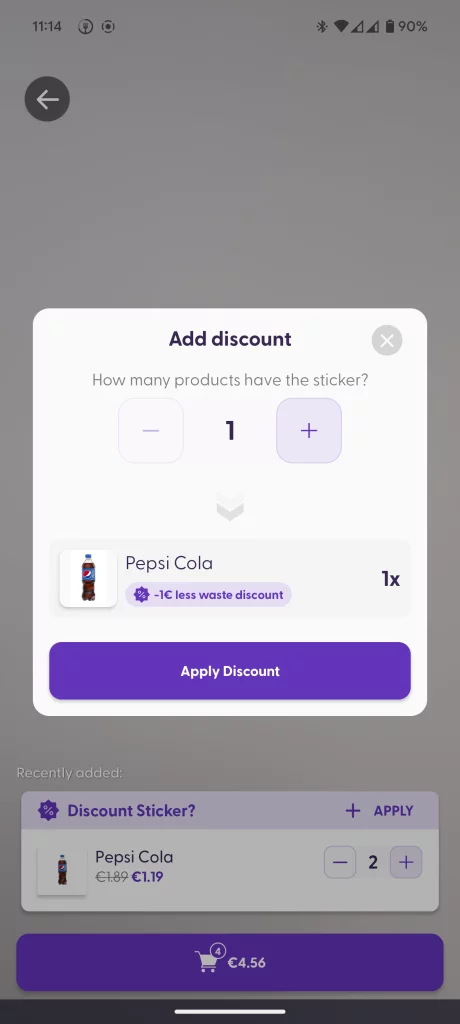
When the shopper taps “+ Apply”, the confirmation dialog will change depending on the product conditions. See the following cases:
Product quantity = 1, available discount options = 1: As there is only one choice, only the “Apply discount” button will appear to confirm the option (Picture 4).
Product quantity > 1, available discount options = 1: As the shopper added more than one product to the cart already, they will need to confirm the number of products with a sticker if they want to apply a discount sticker (Picture 5).
Product quantity = 1, available discount options > 1: As different discount types are available for this product, the shopper will need to confirm the type of sticker the product has, by first tapping the sticker type and then “Apply discount” (Picture 6).

One discount type available
More than one product available
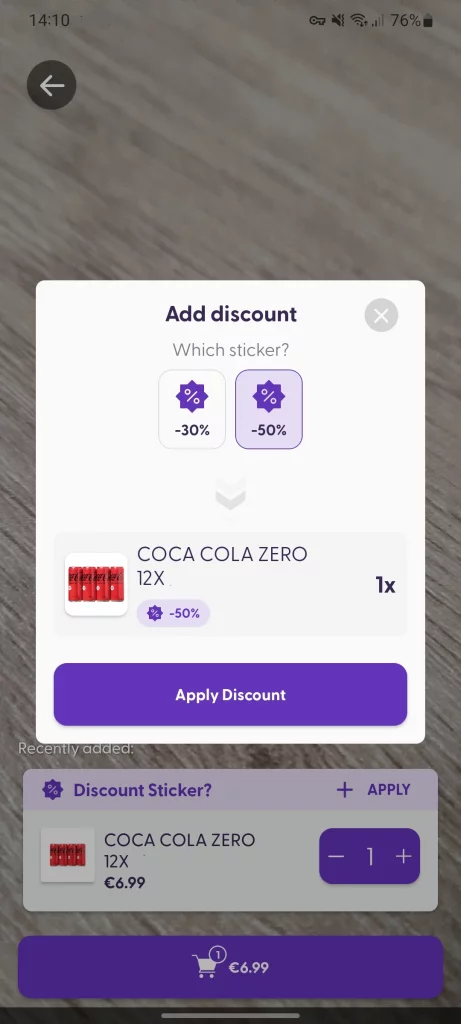
More than one discount type
Employee-facing interaction
The discount stickers can also be seen on the Supervisor app, as the stickers by default increase the chance of being selected for a spot check. For example, the backend setting can determine that more than two discount stickers in the cart will increase the spot check chance by 30%. To learn more about these configurations or if you want to adjust them to your needs, please contact your shopreme Integration Consultant.
When a shopper is selected for a spot check, the employee will see the products with discount stickers in the “Highlighted products” box to pay more attention to those products.
When the employee scans a product, and the app knows that it was marked as “with discount” by the shopper, the employee will see the dialog to confirm if the product had the sticker (and which one) or not. For example, if the shopper claims to have a discount sticker on a product, but the employee cannot see any sticker present, the employee will need to tap the option “Without,” and the product will be considered a scanning mistake (Quantity exceeded). The process to follow after confirming a shopper’s mistake (intentional or not) will depend on the retailer’s internal policies and processes.
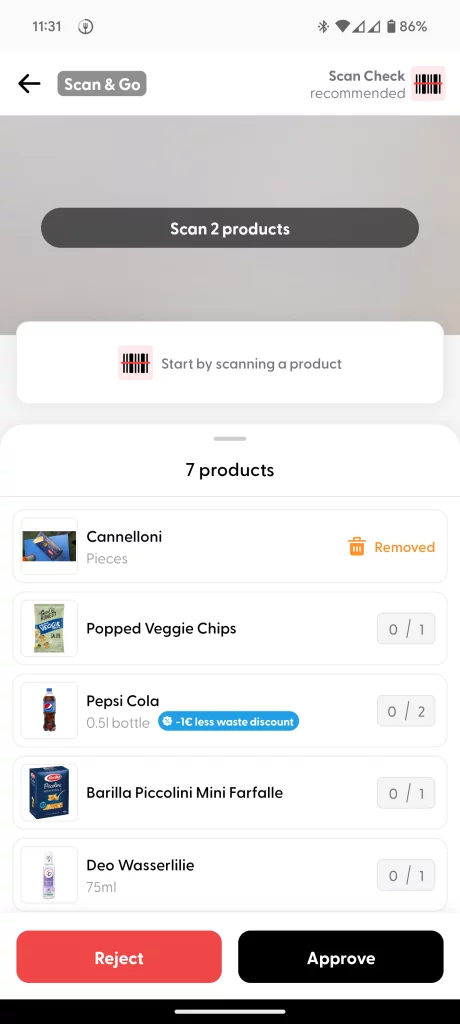
Ready to rescan products
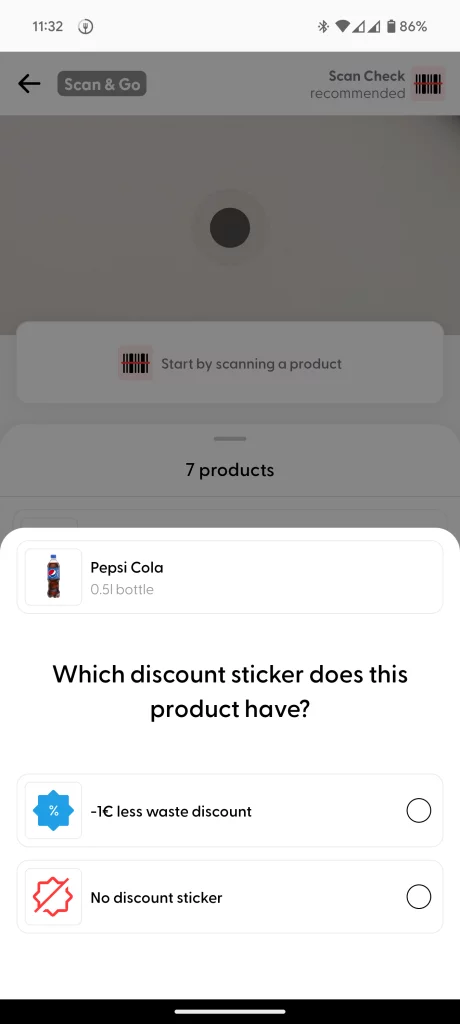
Select the product type
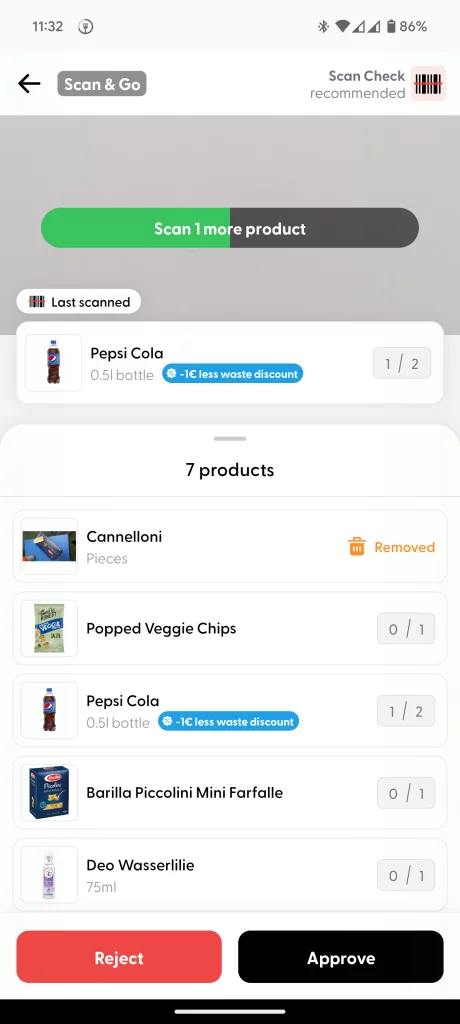
Confirmation of product rescan
DataHub: Importing and processing
The first step is enabling the feature on the shopreme backend to allow it on the server as a whole, as well as defining the available discounts that shoppers can choose from. This refers to all discounts possible: for instance, some retailers may only use -30% discounts, whereas other retailers may use -25% and -50% stickers.
Once the backend changes are done, the products need to be imported with a new additional field. See below:
Product import
For a product to display the “Discount sticker?” banner on the Scan & Go app after scanning it, it should be imported via the Product Import job, including the following fields:
userSelectableDiscountStickers: (Array<Object>) Defines if (and which) discounts the shopper should be allowed to manually apply to this product.customerFacingName: (String) The name of the discount as seen by the shopper in the Scan & Go app. It should be short and unique, such as “-25%”.externalId: (String) The identifier that is used by the external pricing system to correctly apply the promotion to the cart if this manual discount is added to a product in the cart.discountClass: (String) This value is passed through to the shopreme mobile SDK and can be used by SDK users to adjust the style of the manual discount.
For example:
By default, userSelectableDiscountStickers is set to null, so there are no “default stickers” and they need to be explicitly added for each product.
Note: Discount stickers can only be used with an external price calculation service, which must return the discounted price.
