Data import
Scan errors and barcode templates
As we described in previous articles, some barcodes require additional information to be scanned by customers, such as the weight or the price. The logic and pattern are configured beforehand by the shopreme team during the implementation phase. However, the retailer can customize certain behaviors through the product import, such as showing a scanning error or the exact action after scanning a barcode.
Scan errors
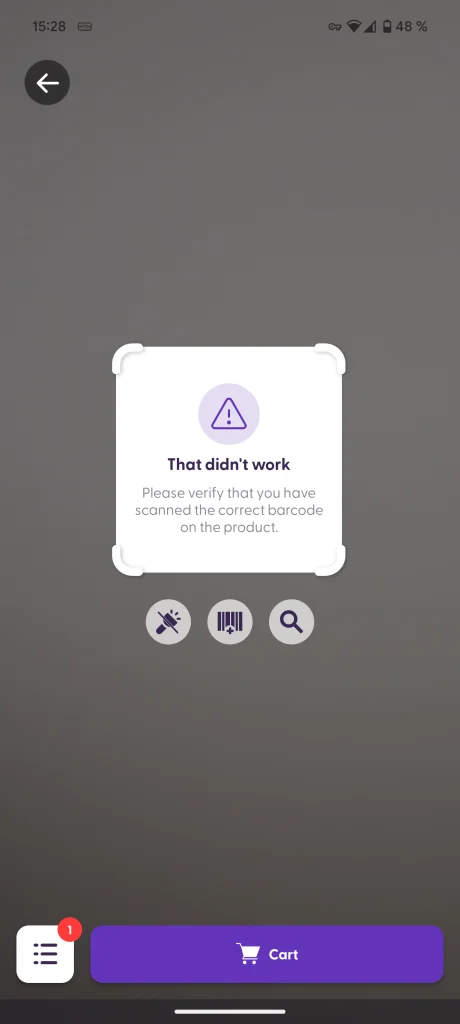
A scan error refers to the message that is displayed to customers on their Scan & Go when they scan a specific barcode.
Setting a scanning error can be helpful in a situation like this: A product should be weighed on a scale before its barcode can be scanned. However, the product’s PLU is printed in some shelf-label barcodes to help employees when stocking up the shelves. Customers may scan this barcode thinking it should add the product to their cart. Retailers can set up an error message for that specific barcode that explains to customers that they should scan the correct barcode.
Setting up scan errors
To set up an error message, the scanCodes array in the product import should include a scanError object along with the scanCode. For example, let us consider the following JSON example for a barcode and its error code:
This example may apply to a barcode displayed close to the product in the store but used for logistical or organizational purposes by employees. The scanCode is the encoded value in the barcode. The retailer can establish the code to group behaviors into specific categories ( barcodes not allowed to be added to the Scan & Go shopping cart in this case). The message field contains the actual message displayed to the customer in the app (see picture above).
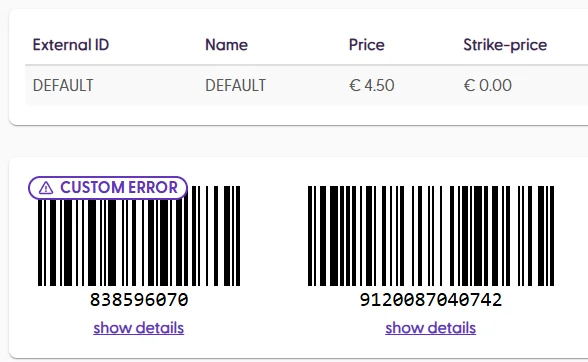
Once the product is available in the Management Console, the barcode with an error message is marked with a purple label.
Then, clicking on the “show more” option will display a summary of the error information.
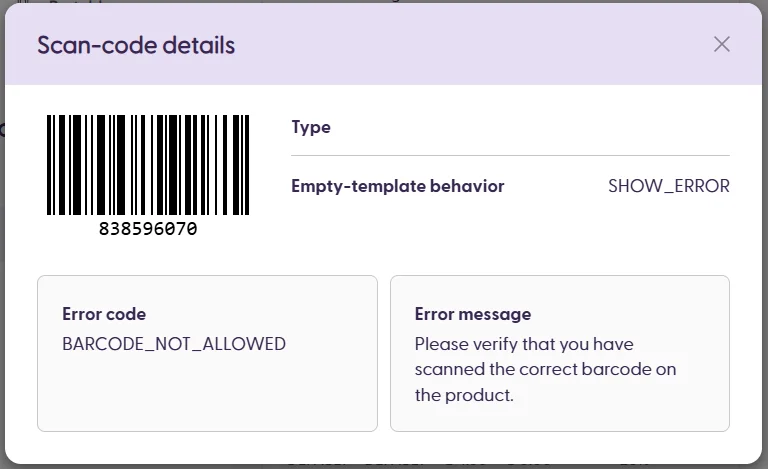
The
messagefield in thescanErrorobject can be translated in the Scan & Go customer app by registering thecodeusing the ShopremeCore SDK. The default message imported to the Management Console will be displayed if no translation is available.
Empty template behavior
In addition to general error messages, it is possible to determine the expected behavior for incomplete barcodes. As we previously mentioned, special EANs may require to have encoded weight, price, or unit information to be scannable by customers. However, it may be possible to determine the behavior of the empty template barcode. Following the same example from before, if the scannable barcode is 2298331022501, then the empty template would be 2298331000001 (the unit information is not included).
Depending on the retailer’s business needs and requirements, it is possible to define through the product import job what should happen when scanning a template barcode. We do that by specifying the emptyTemplateBehavior of the specific PLU we are importing.
Let us consider the following fragment of a product import JSON file.
This JSON fragment shows that we import the PLU “98331”. The field for emptyTemplateBehavior for this PLU is MANUAL_INPUT. This means that when a customer scans the empty template barcode (in this example, 2298331000001), we want to display the screen to input the missing unit manually on the customer’s app. The missing unit can be weight, length or another unit, based on the two digits of the barcode. Again, this should be set up on the server during the integration process.
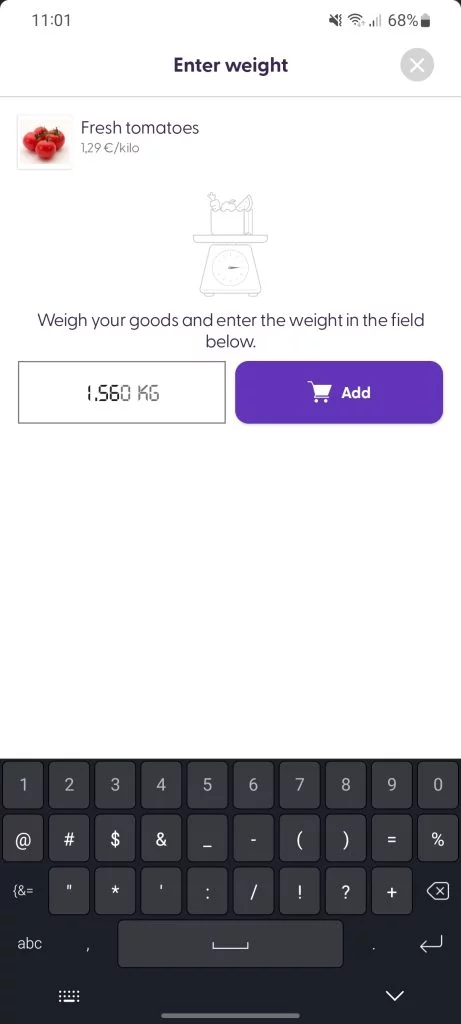
“Weight input” screen on the customer’s app
Some pre-defined values that shopreme offers for the emptyTemplateBehavior field are the following:
| Scanning the empty template barcode will trigger the “manual input for weight” screen on the customer’s app. This allows the customer to enter the weight of the product as displayed on the scale in the store. |
| Scanning the empty template barcode will add one item (one unit) to the customer’s shopping cart. If the product unit is kilograms, then 1 Kg and its corresponding price will be added. |
| Scanning the empty template barcode will show an error message to the customer, and the product will not be added to the shopping cart. The behavior is complete after adding the |
Contact your integration consultant if you need further details on a particular implementation or a special case you want to add to your shopreme solution.
