Data import
Product import
Scan & Go is mainly powered by the data provided through the DataHub import jobs on the Management Console. The first steps in the Scan & Go customer journey primarily use this data. In this article, we will focus on the product import and how this import is essential to scan products on the customer app.
The product import is one of the available import jobs out-of-the-box in the shopreme DataHub. It can be set up in the Management Console under the Jobs section. It imports products “globally” for the whole system; in other words, uploading products for specific stores only is not supported. However, pricing can be store-specific by adding a storeId to the storePrices array.
This is a quick overview of where the product import is most relevant during the Scan & Go journey:
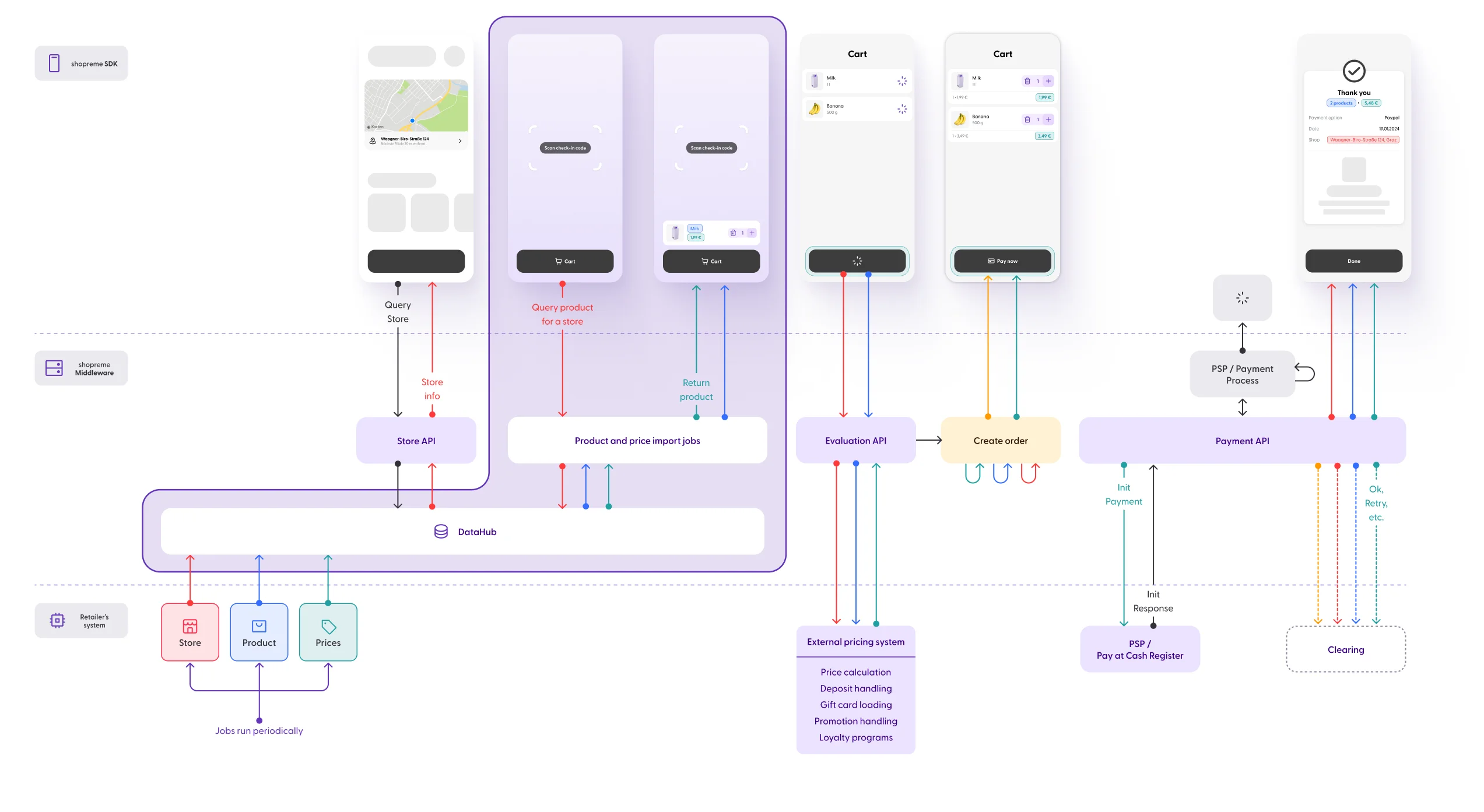
We understand that an international retailer would have a different logic for the product information, pricing, and tax details. Because of that, for a multi-country setup, shopreme provides a separate server for each country.
Required fields
The two required fields in the product import so that a product can be imported and visualized on the Management Console are productNumber and productName. These two fields should be consistently the same for all products in one server (i.e., in the same country or fiscal region).
The
productNumberidentifies the specific product entry and be used to update the same product information in subsequent imports. It should also be recognizable by the cash register (if an external system is implemented). TheproductNumber, in combination with theunitCode, must be unique. This means that, for example, theproductNumbercan be imported twice only if theunitCodecan distinguish the two products from each other (e.g., theunitCodecould be “ST” for a Single item or “PK” for a Pack).
The
productNameis the display name that the customer will see on the Scan & Go app.
However, to be able to scan a product on the Scan & Go customer app right after running the import jobs, it is necessary to include information in the scanCode field. The data type is an array of strings: it is possible that the same product can be purchased by scanning more than one barcode. In that case, all allowed barcodes for that product should be provided.
All product import fields
In the shopreme DataHub section of the Management Console, you can find some JSON examples and documentation that explains in more detail what each field represents and what the resulting JSON file would look like. You can check this under DataHub > Jobs > find the relevant job type, and then click “Edit” on the Job type. A new menu will be displayed, where you can click “Documentation” – there you will see the JSON example and its documentation.
All the available fields in the shopreme import are the following:
Field name & data type | Parent field | Description |
|---|---|---|
| Additional information that can be added to the product | |
|
| Maximum character limit: 10000 (Excess characters will be truncated) |
|
| Maximum character limit: 10000 (Excess characters will be truncated) |
| Maximum character limit: 255 (Excess characters will be truncated) | |
| A combination of code and quantity that reflects the packaging unit for the product. Setting this field is usually not necessary if the | |
|
| Maximum character limit: 16 |
|
| The quantity for the given unit. For example this should contain 6 for a six pack of drinks. |
| Maximum character limit: 255 (Excess characters will be truncated) | |
| Maximum character limit: 10000 (Excess characters will be truncated) | |
| Maximum character limit: 255 (Excess characters will be truncated). | |
| Default value: null. | |
| Default value: NONE. | |
| List of all the | |
|
| Maximum character limit: 255 (Excess characters will be truncated) |
|
| Maximum character limit: 255 (Excess characters will be truncated) |
|
| This field defines what should happen when a template scancode is scanned with the ‘unit’-part being empty. Templates are scancodes that contain encoded information (e.g., weight or price). Such templates usually consist of a product identifier and unit information. Example: 24 12345 06789 1 24: Prefix to identify the specific template (“weight” in this case) 12345: Product identifier, imported into shopreme as a scanCode 06789: The unit information, i.e. 6789 g = 6.789 kg 1: Checksum This field specifically defines the behavior if the ‘unit’-part of the scancode is all 0 (for the example above, that would be “12 3456 000 1”). |
|
| If this field is set, an error occurs when a product is scanned with this |
|
| Maximum character limit: 255 (Excess characters will be truncated) |
|
| Maximum character limit: 255 (Excess characters will be truncated) |
| Default value: null. | |
|
| Name of the image that was previously imported into the shopreme system, in the Media section. |
|
| URL to the image. shopreme will download the image once during the first import, and the image will be stored and served via the built-in shopreme CDN. The image will never be updated as long as its URL does not change. |
|
| URL to the image on an external CDN. The image will not be downloaded in the import but directly served to the customer app. The customer app will request the image directly from the CDN. |
| Default value: true. | |
| Default value: 2147483647. | |
| Default value: null. | |
|
| Maximum character limit: 255 (Excess characters will be truncated). |
|
| Quantity of the referenced |
| Default value: 0.00. | |
| Default value: null. | |
| Default value: null. | |
|
| The name of the discount, as seen by the customer in the app. It should be short and unique, for example: “-1€”, “-20%” |
|
| The identifier used by the external pricing system to correctly apply the promotion to the basket if the manual discount is added to the cart. |
|
| This value is passed through to the shopreme mobile SDK and has no semantic meaning to shopreme. |
|
| Default value: null. |
| Default value: null. | |
|
| Default value: true. |
|
| Default value: false. |
|
| Default value: 1.00. |
|
| Default value: []. |
Basic product import
The term “basic product” refers to a simple item with a unique ID, a unique barcode, no special characteristics, and no special requirements. When a customer scans such type of product, a single item will be added to the cart without additional steps or settings to configure. Here is an example of what a basic product looks like in a JSON import file:
Once this product is uploaded to the Management Console through the product import job, it will be available to view, as in this example:
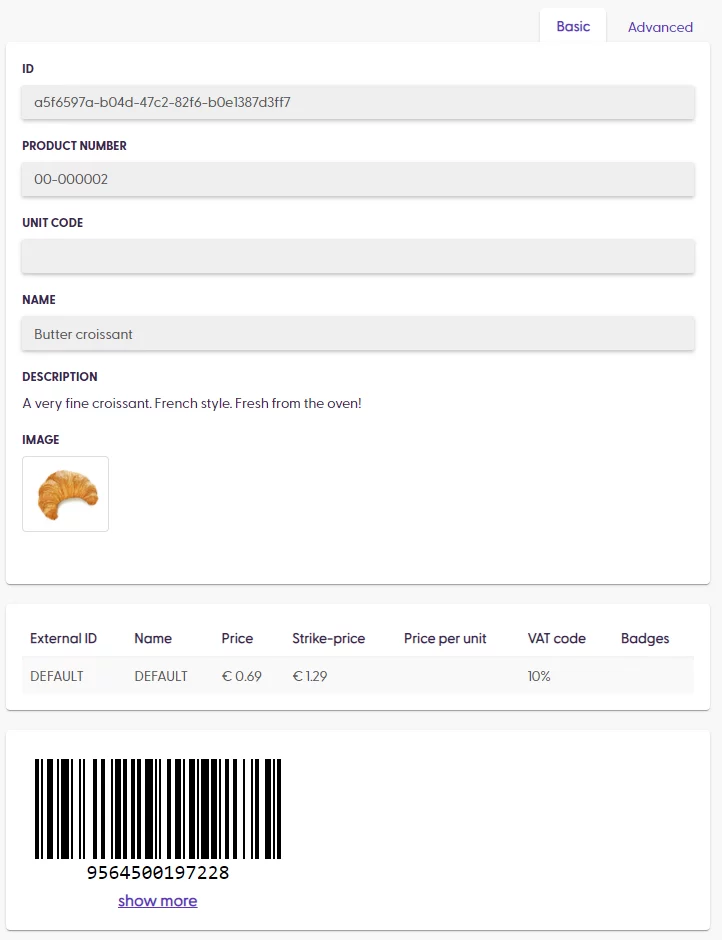
As soon as the product is available in the Management Console and has a barcode and a price, it can already be scanned by customers using Scan & Go (assuming the cart evaluation is done by shopreme and no further adjustments are necessary on the cash-register side to be able to process the final price of the product). Here is an example of what the imported data will look like on the end-user side:
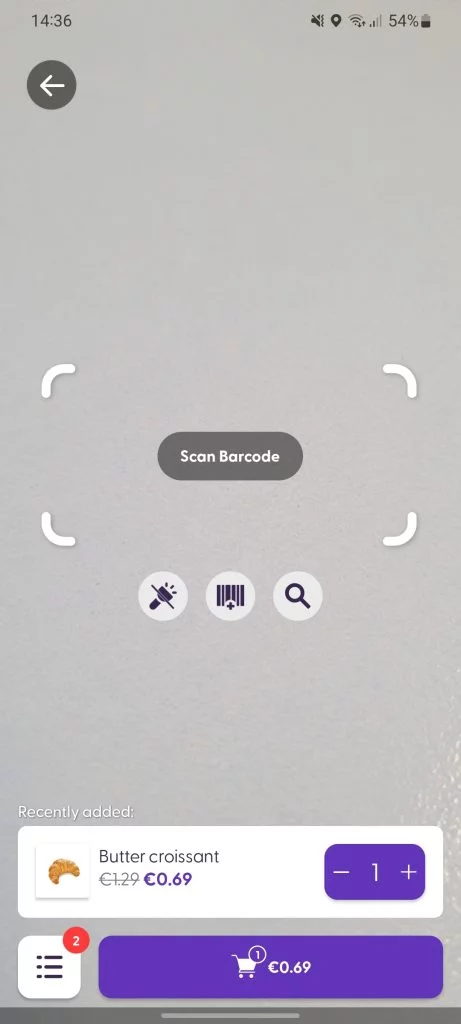
Product import data in scanner overlay
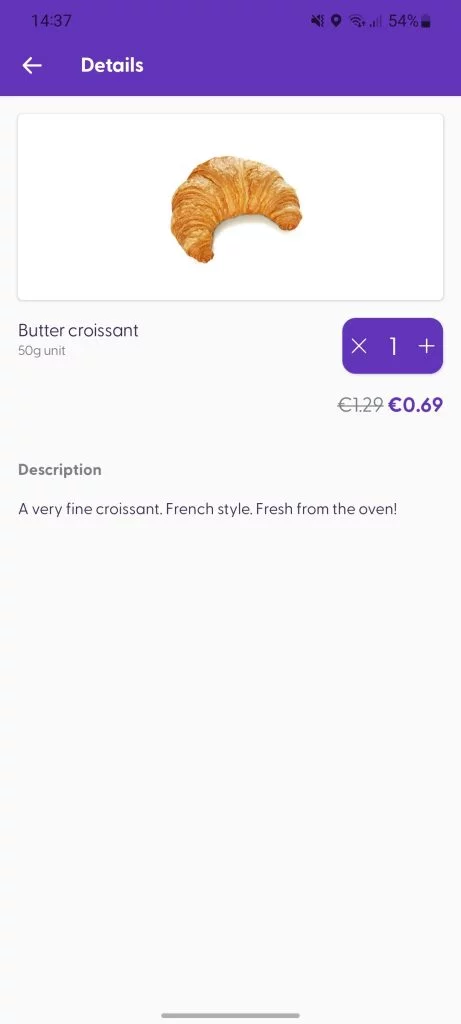
Product import data in product detail page
Special EAN products
In addition to basic products, some products are not simply sold per unit. For example, fruits and vegetables are sold by weight, and some retailers may sell arts-and-crafts materials by length or area. To allow customers to buy such products with Scan & Go, retailers should generate “special EANs” that follow a regular expression (regex) and contain a PLU (“Price look-up code”).
When it comes to importing these products, a product sold in fractional quantities (e.g., per kilogram) will include the PLU as a string in the scanCode array. It is also recommended to add a string in the pricePerUnit for a user-friendly description.
Here is a simple example of a product imported with a PLU, which will need to be sold by using fractional quantities:
Once this product has been imported, it will be available in the Management Console, with a corresponding price and price per unit (only to display to customers in the app). The imported PLU will appear in the list of barcodes.
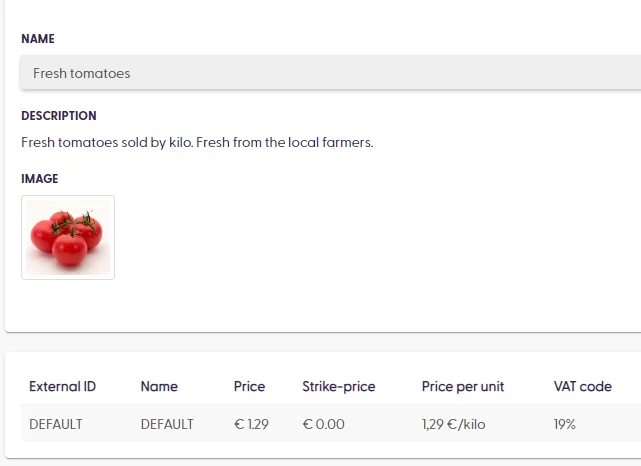
Product with PLU in the Management Console view
Depending on the business needs, different rules can be set up during the integration process. The underlying rules and regular expressions can only be configured by the shopreme development team. Please consult your shopreme integration consultant if you need to implement a change to the scan code logic.
The patterns to recognize different types of barcodes cannot be modified on the Management Console. However, the most common format is generally structured following this pattern:
An EAN with variable weight: XX-PPPPP-GGGGG-C
X (2 digits): A prefix that determines the unit, e.g., centimeters, square centimeters, grams, etc. This prefix is configured on the shopreme backend during the integration stage.
P (5 digits): The product PLU, which is padded with leading zeroes if it is shorter than five digits.
G (5 digits): The weight in grams.
C (1 digit): A control number.
For our sample product above, the following special EAN with encoded weight could be generated: 2298331022501. The barcode would then be interpreted as follows:
22 | This number signals that the barcode corresponds to a product that is sold per weight. The default unit is grams, but the customer will see it as kilograms. |
98331 | The PLU for this product, as provided in the product import JSON file, in the scanCode array. |
02250 | The weight of the product in grams: 2.25 Kg. |
1 | A control number. |
To complete the example, when customers scan this special barcode with encoded information, they will see the correct weight, product name, and price. Moreover, the “increase quantity” button is disabled.
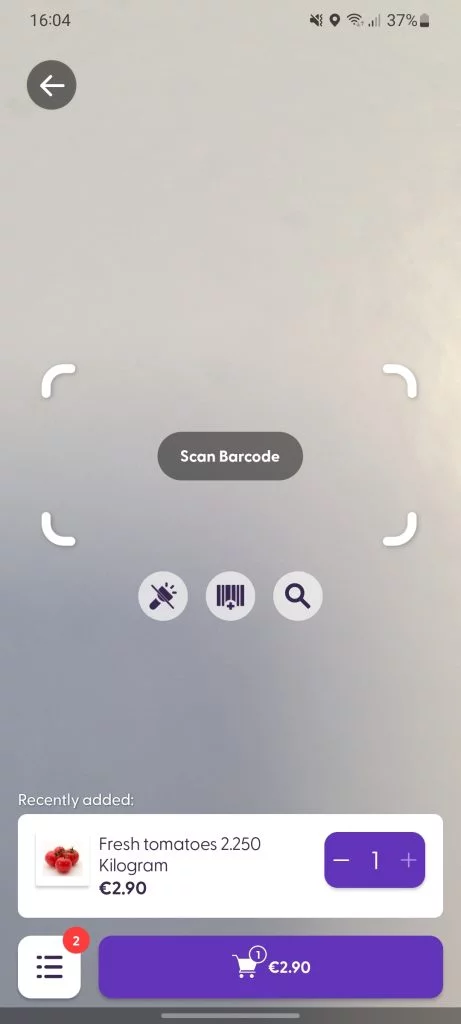
Weight-encoded barcode in scanner overlay
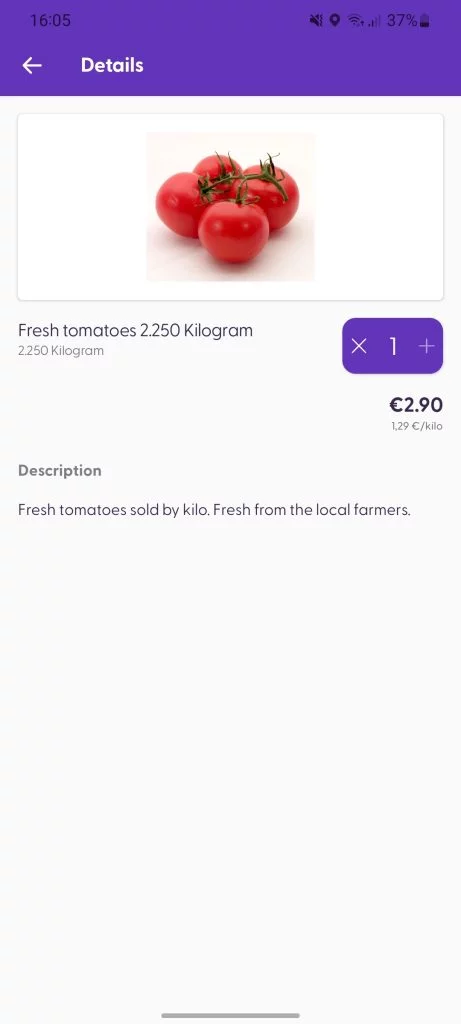
Weight-encoded code – Product description
Cart evaluation of special EANs
For these special EANs with encoded information, shopreme sends the actual scanned barcode information to the /evaluate endpoint instead of the imported PLU. The unit information in the barcode is also sent in the field salesUnitPerPiece. This allows any external pricing engine to parse the barcode and calculate the correct price. The external system can then take the information from the barcode or the salesUnitPerPiece field to calculate the unit price.
Offline product export
For shoppers to scan products as quickly as possible and avoid loading times, shopreme Scan & Go downloads an offline product export to the shopper’s app. This export file is downloaded the first time the app is opened and updated once a day (only if the Scan & Go app is opened again).
In other words, this feature allows that when a shopper scans a product, it is first looked up on the local offline product export. If it is not there, it will be searched on the product database on the shopreme server.
What products are included in the offline export?
Only products that are imported with default prices in the import file are included in the offline export. Alternatively, the products should have a price for every store that is included in the export file.
This means that weighed products, among others with special EANs, cannot be included because the scan codes are variable.
