In-store processes
Age verification and age caching
Our age verification feature is one of the key features that make Scan & Go robust and secure for retailers. When customers add an age-restricted product to their shopping cart, their shopping session is “flagged” to be verified by an employee after selecting a payment method.
Age verification process
When customers start their payment process and require age verification, they will see the Age Verification screen. Once the employee approves it, the customer can continue with the payment (the “Continue…” button will change depending on the payment method the customer chose beforehand). If the verification is rejected (not allowed), the customer must remove the restricted item from the cart to retry the payment.
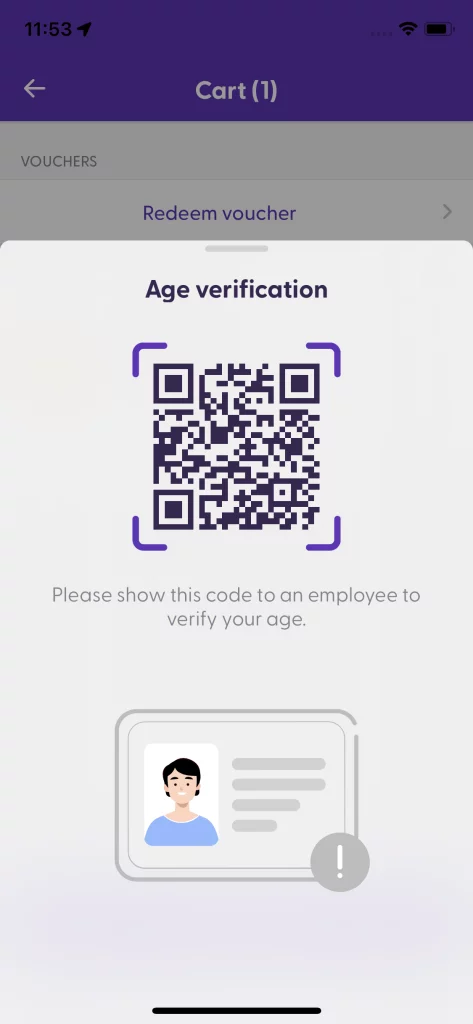
Waiting for employee
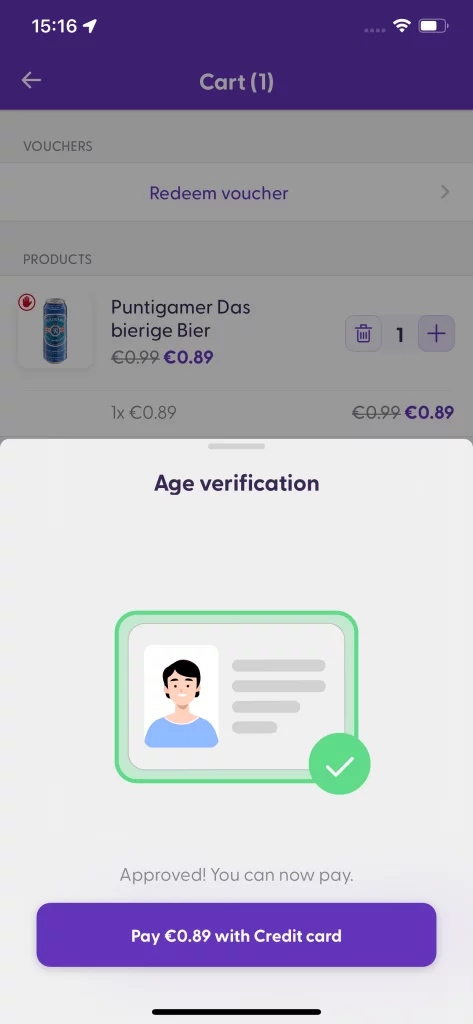
Employee approved
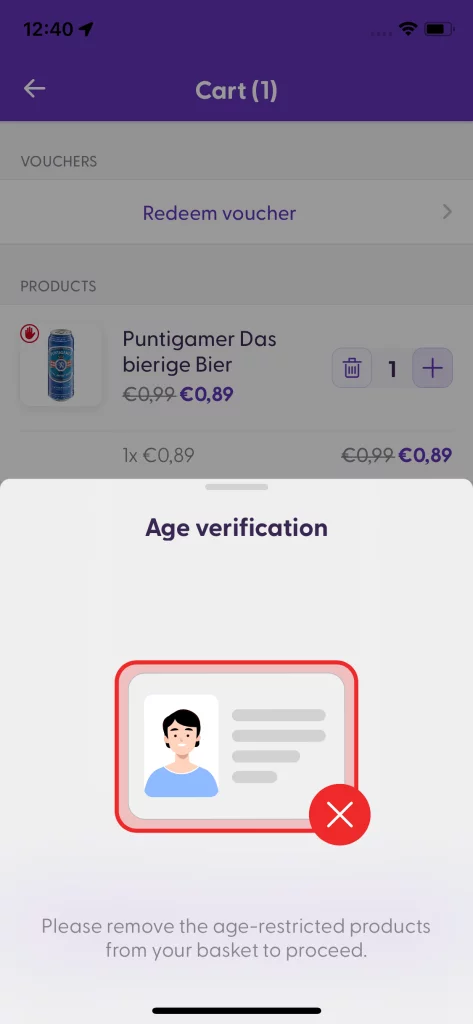
Employee rejected the check
Age caching (biometrics)
If you are an SDK user, starting from our ShopremeCore SDK 1.11.0, you can enable the age-caching feature. This feature uses biometric authentication to validate a user’s identity.
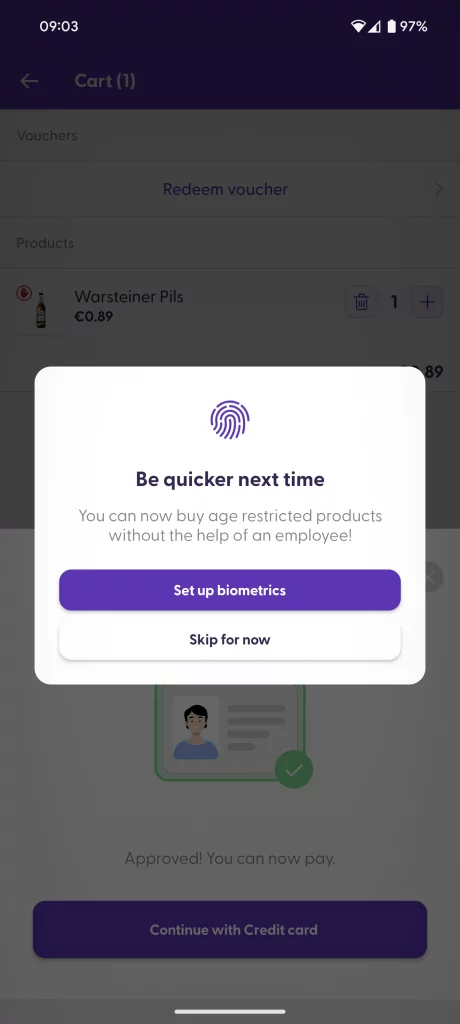
When a customer is age-verified and marked as approved by an employee (through the Supervisor app), the customer will see a notification on their Scan & Go app, offering them to set up biometrics on their device to save their approval for next time.
The options displayed here may differ depending on the device type (Android or iOS) and the type of biometric authentication available on the device (fingerprint or facial recognition). In the example on the left, this Android device uses fingerprint, and the customer would need to tap on “Set up biometrics” and confirm their already-registered fingerprint to continue.
The next time the customer visits the store and wants to purchase an age-restricted product, they will see the age-verification menu. Still, they can pass the verification on their own by tapping the “Verify now” button.
The customer will need to confirm their fingerprint on their device, and then they will be able to move on to the payment screen:
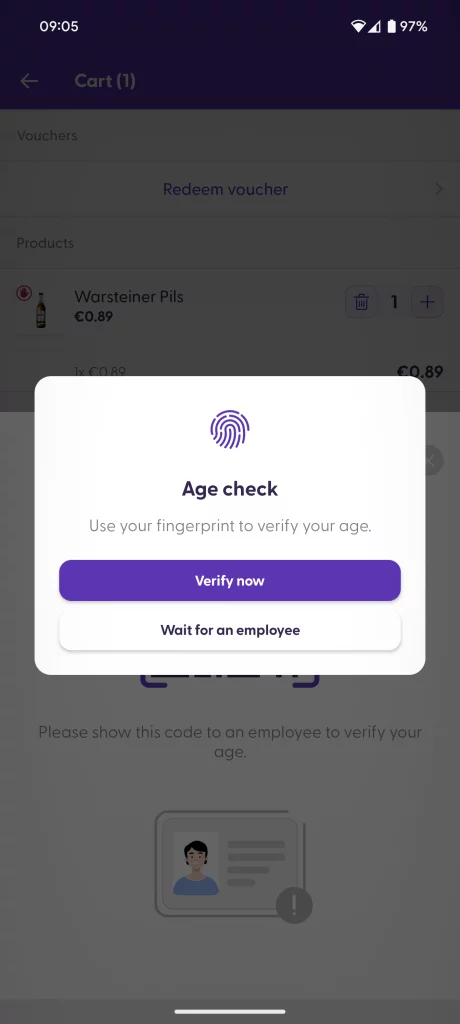
Self-verification is possible
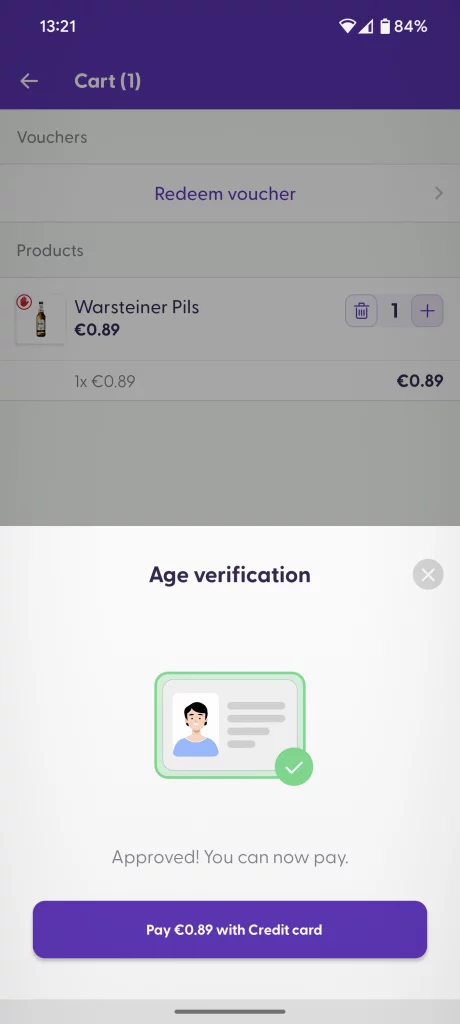
Self-verification successful
This feature requires enabling a setting on your backend server configuration. For more information, please get in touch with your shopreme integration consultant.
