Employee solution: Supervisor app
Age verification: Employee process
A quick overview
You can watch the following video, which you can use to present the process to store employees (enable sound!):
Summary
If the store where you work sells products that are age-restricted (e.g., alcoholic drinks), the Age Verification feature helps you verify customers’ age quickly and securely.
When a customer has an age-restricted product in their cart and they proceed to pay, they will be asked to reach out to an employee to verify their ID. At the same time, employees will receive a notification and see the customer in the Highlighted Customers area in their app.
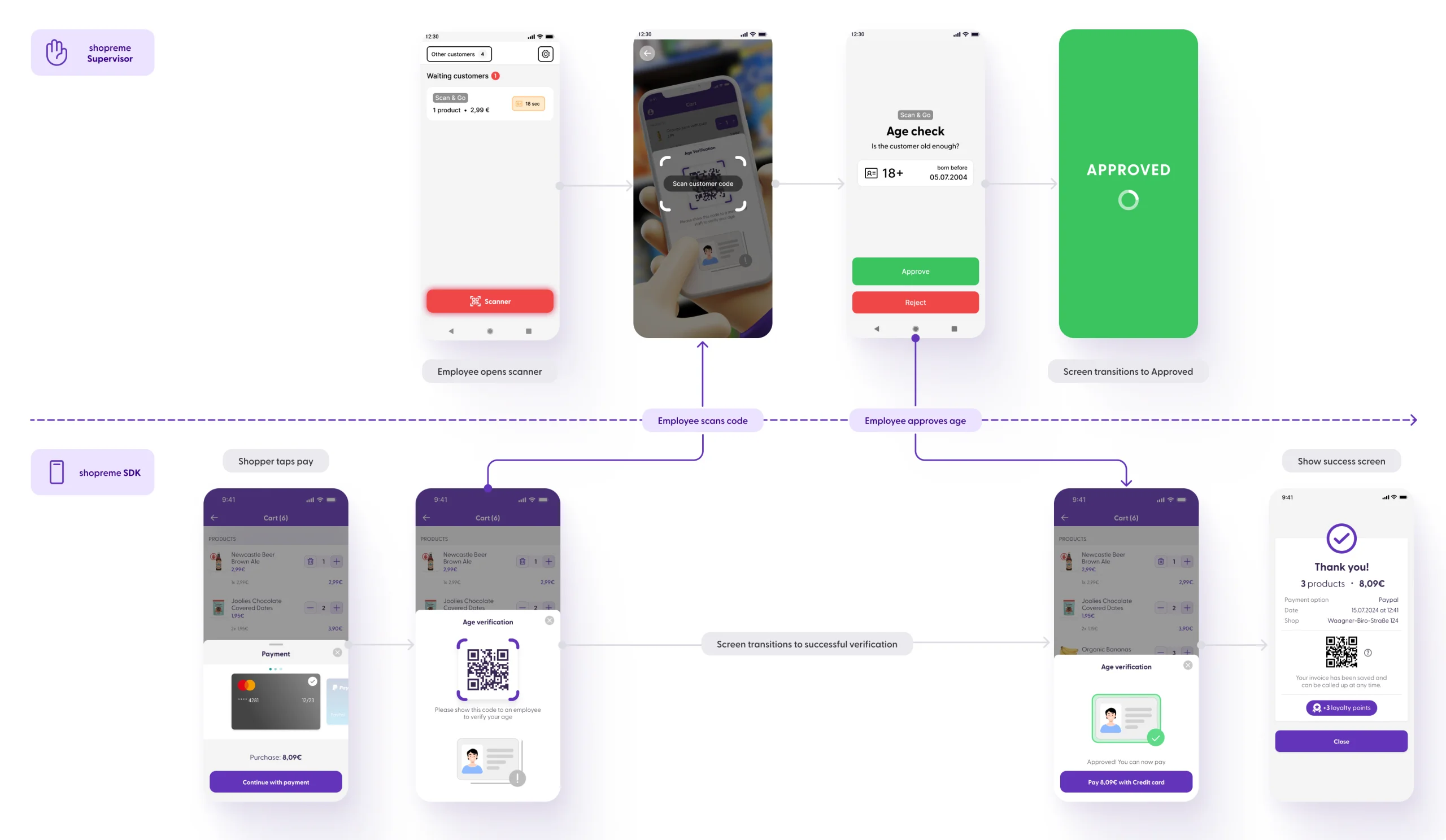
Here is a quick overview of the flow and interaction between an employee and a customer during the age verification:
Customer’s view
When a customer starts their payment process and age verification is required, they will see the Age Verification screen. Once the employee approves it, the customer will be able to continue with the payment (the “Continue…” button will change depending on the payment method the customer chose beforehand). If the verification is rejected (not allowed), the customer will need to remove the restricted item from the cart to be able to check out, and retry the payment.
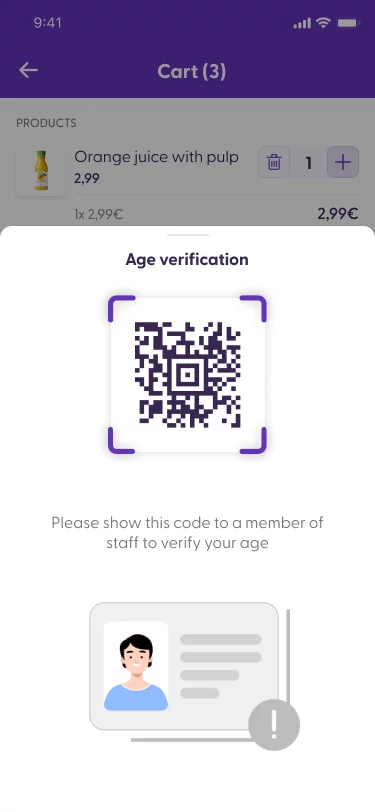
Age verification code
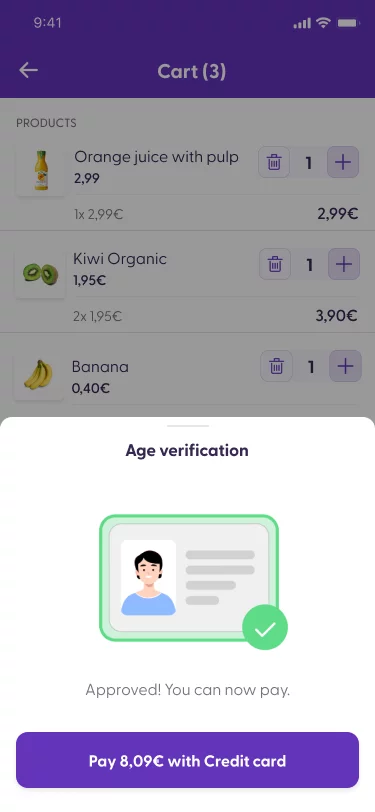
Successful verification
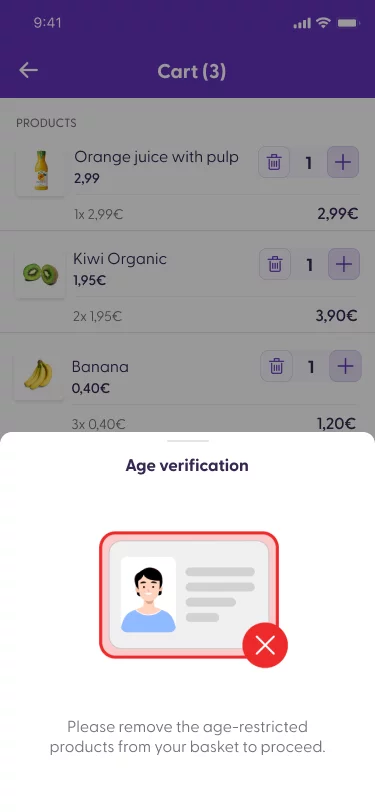
Verification rejected
Employee’s action
As an employee, when a customer is waiting to be age-verified, you will see the customer basket in the “Waiting customers” section. The waiting time is displayed next to the customer card.
You can start the verification in two different ways:
Tap on the shopper card as you see it in the picture below, which has either the “Scan & Go” or “SCO” badge, depending on the options available in the store.
Tap the Scanner button, and scan the QR Code or Barcode that the shopper’s app sees on their Scan & Go app.
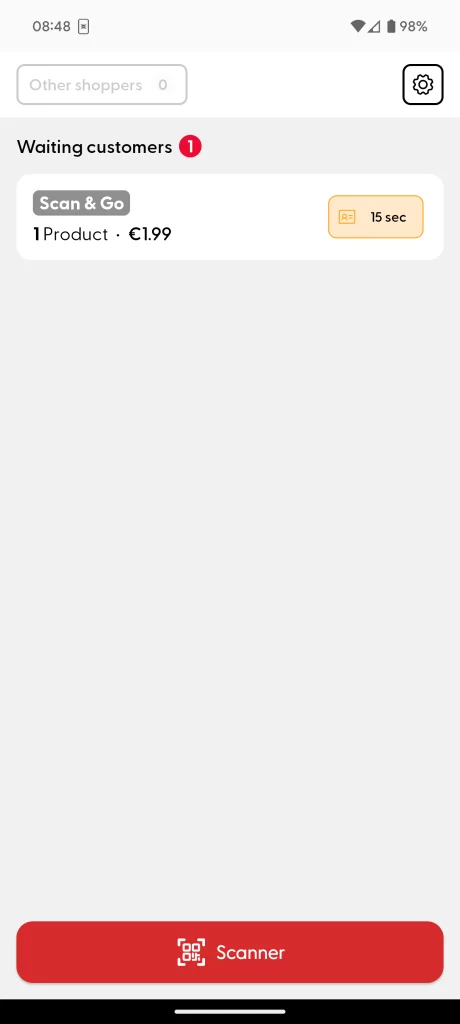
The quickest way to start an Age Verification is to simply tap the Scanner button, and scan the barcode or QR code displayed on the shopper’s screen (Picture (1) below). This is helpful if several customers are waiting in the Waiting Customers section and it is difficult to identify the correct customer.
After scanning the code, you will see the minimum date of birth that the shopper should have on their ID card to be able to purchase the restricted item in their shopping cart (Picture (2)). The age displayed here is provided in the product information. For example, shoppers in Germany can buy beer from age 16 but spirits (stronger alcoholic drinks) from age 18. Other products can also contain restrictions, and this is handled by our Scan & Go system to help employees verify customers quickly and efficiently.
If a shopper is allowed to buy the products, tap the “Approve” button and the shopper will be able to continue with their payment (Picture (3)). Otherwise, you can hold on the big “Reject” button and the shopper will need to remove the restricted product from their shopping cart to continue. Do not worry if you accidentally reject the purchase: the shopper can retry the payment process and the Age Verification will open again if it has not been approved.
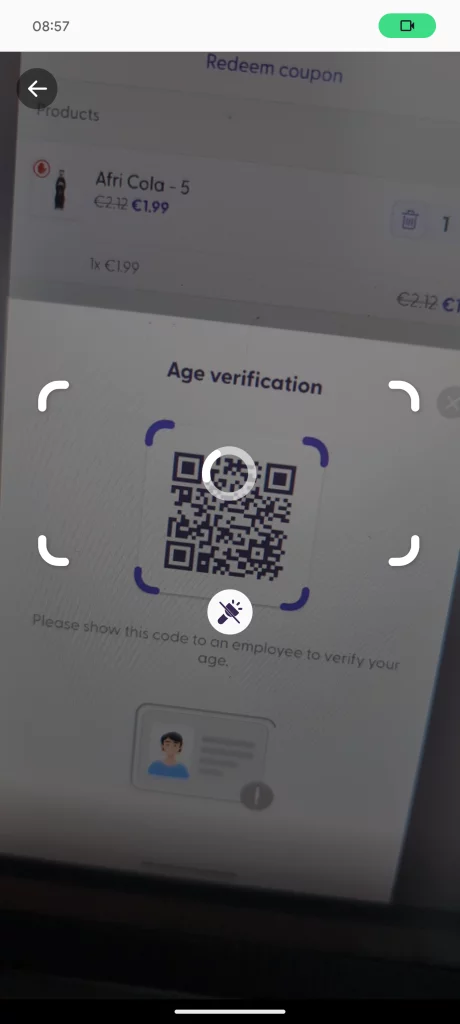
(1) Scanner tab
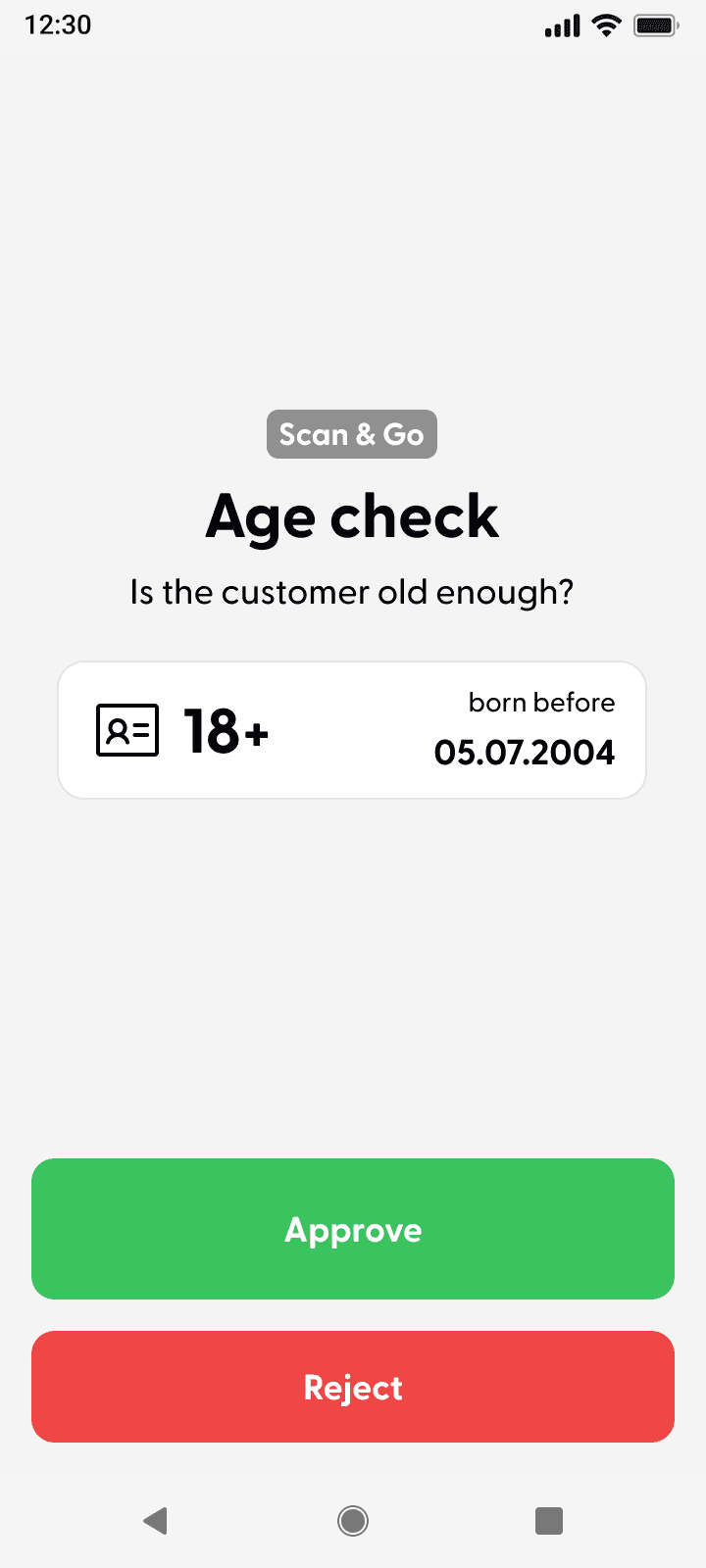
(2) Approval view

(3) Approval confirmation
