Employee solution: Supervisor app
Supervisor notifications
Overview
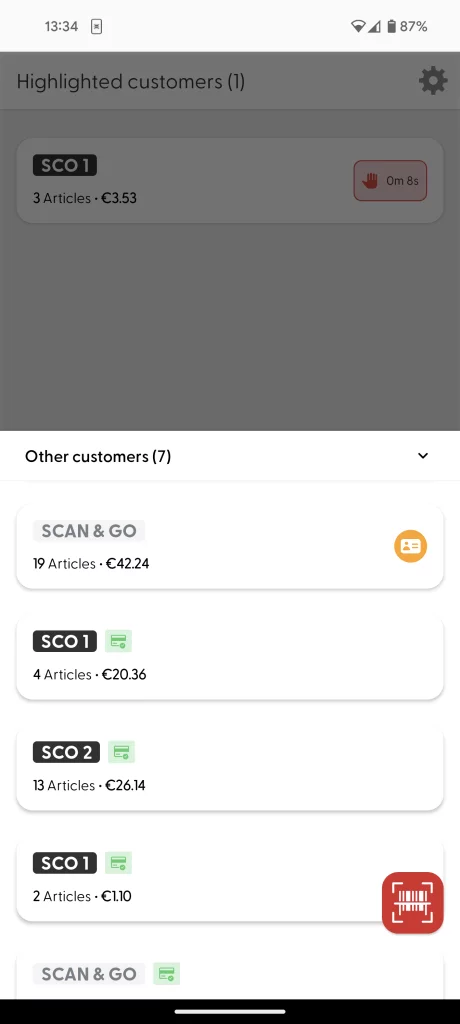
The Supervisor app is the essential companion for employees in a store. It allows employees to monitor shopping activity in the stores, check shoppers’ ages for age-restricted purchases, verify baskets in random checks, and set up shopreme POS hardware devices.
Most of these actions, however, require notifications to be received in the Supervisor app in a timely manner. We currently support the following notification actions:
Age verification
Spot check
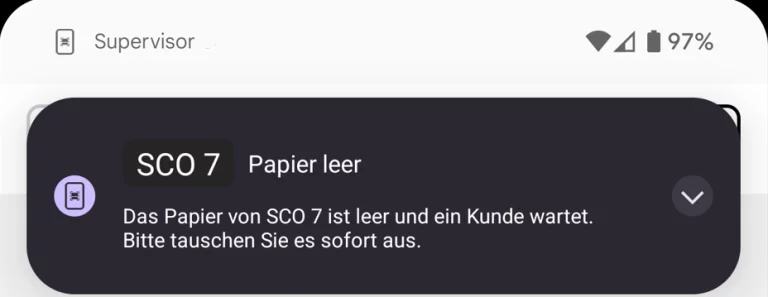
matrix SCO is out of paper
Request for help
Notification types
At this time, the Supervisor app will receive two kinds of notifications: simple notifications or the new revamped notifications (with action buttons and timers).
Type | Supervisor 21.2.4 | Supervisor 24.0.0 |
|---|---|---|
Age verification | Available. Legacy style. | Available. Revamped style. |
Spot check | Available. Legacy style. | Available. Revamped style. |
SCO out of paper | Available. Legacy style. | Available. Revamped style. |
Ask for assistance | Available. Legacy style. |
Legacy notifications
These notifications are supported by all Supervisor apps and were the only type of notification available until the release of version 21.2.4.
The format and styling of these notifications is more simple: they have a title and a description.
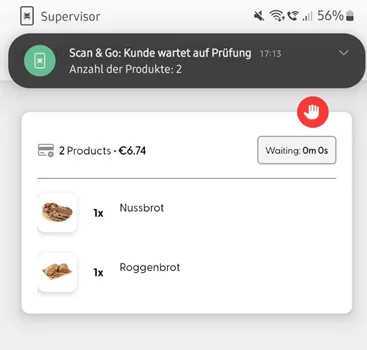
The notifications until app version 21.2.4 were broadcast to a whole store using Firebase topics. This means that the Supervisor app only listened for notifications related to a specific store. These notifications expire but cannot be canceled individually per device.
Revamped notifications
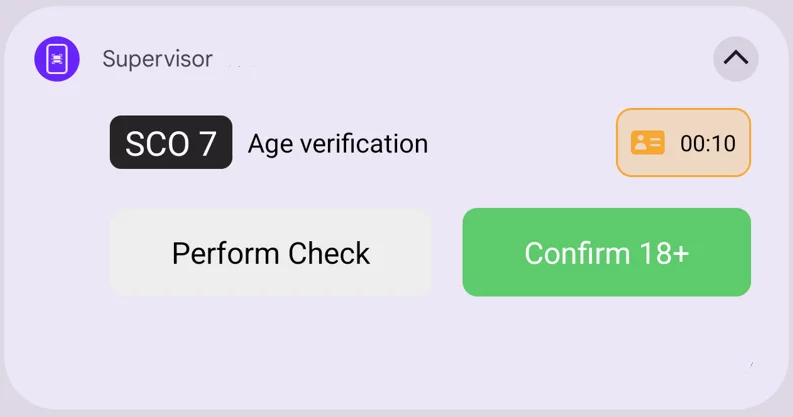
A new notification styling has been introduced starting with Supervisor version 24.0 or newer. Notifications show custom buttons, timers, and client app labels (SCO vs. Scan & Go).
The custom buttons allow employees to take quicker action, as the timer is visible. For Scan & Go, the employee can tap the notification to start an age verification or spot check process. For SCO, in addition to that, it is also possible to complete age verifications remotely – employees can approve a verification by only clicking the confirm button (see image below). Naturally, this feature can be configured in the shopreme backend.
The new Supervisor app also uses an improved technology under the hood for notifications. The app registers the device for the notification service for a specific store. This means that the notifications are not broadcast to a store in general but to specific devices. This allows for a more precise behavior. Notifications are sent to specific devices that need them, not to all devices without filtering.
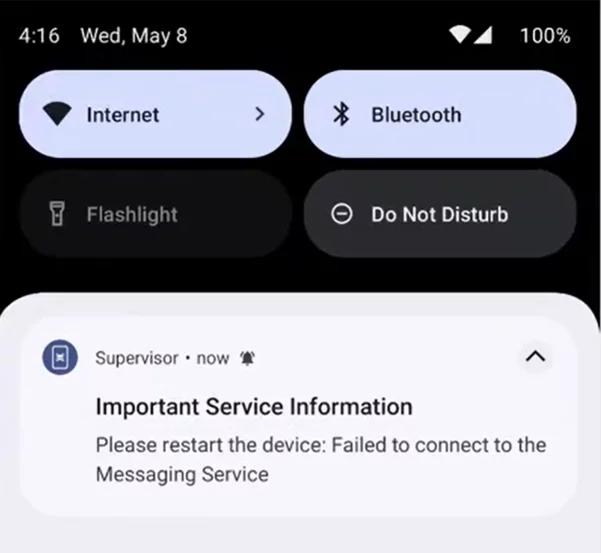
This new device-bound technology also allows the device to report if a problem occurred when trying to register itself to the Firebase notifications service: A red info message will be written in the Settings section, and a notification may be shown in the device to inform the employee that they may not receive notifications due to a network or hardware issue.
Multiple Supervisors
There might be multiple employees in a store, so there are mechanisms in place to control the notifications:
The shopreme backend sends notifications to all the registered Supervisor devices. When an employee taps on a notification and starts a process (spot check or age verification) with a shopper, the shopreme backend is notified and requests cancellation of all notifications for the same event on all other devices that previously received them, so there are no duplicate efforts.
Notification topics
Age verification
Type of notification: Revamped (Supervisor 24.0 and newer)
When a shopper is waiting to verify their age, the Supervisor app will receive a notification, with a timer. For Scan & Go purchases, the employee will need to approach the customer to scan the confirmation code.
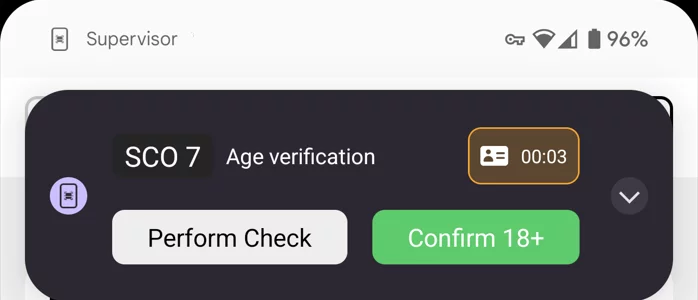
On the other hand, for matrix SCO purchases, the employees will be able to verify age remotely. In this case, in addition to the timer, there is a button to confirm the age from a distance. The employee can see the number of the SCO and, if visually clear, confirm that the shopper is above the specified age.
By default, if a shopper has not been assisted for 2 minutes, a new notification will be resent to all Supervisor apps to take action.
Notification description:
SCO label: Device info
Age verification: Required action
Timer: How long the customer has already been waiting
Confirm 18+: Confirm in place
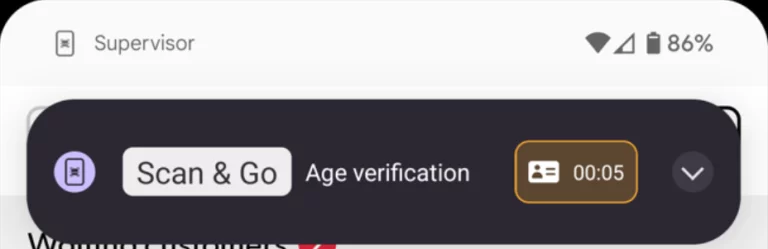
Notification description:
Scan & Go label: This customer cannot be verified remotely
Age verification: Required action
Timer: How long the customer has already been waiting
Spot check
Type of notification: Revamped (Supervisor 24.0 and newer)
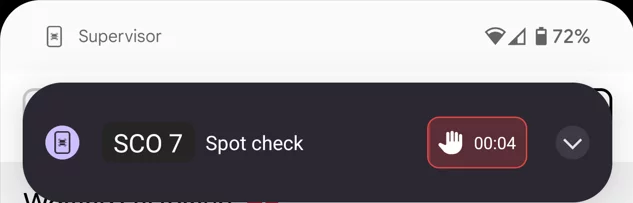
If a shopper is selected for a random check, what we call a spot check in our Scan & Go system, the Supervisor app will receive a notification with a timer that shows how long a customer has been waiting.
Tapping on the notification will open the screen to verify or rescan product codes.
By default, if a shopper has not been assisted for 2 minutes, a new notification will be resent to all Supervisor apps to take action.
Spot check expiry: Spot checks can be configured in the backend to allow their expiry. This means that if the spot check is not attended after a set amount of time (e.g. 5 minutes), it will be marked as approved to prevent blocking customers for too long. This is disabled by default.
Notification description:
SCO label: Device info
Timer: Shows elapsed time
Notification expires or gets canceled.
SCO out of paper
Type of notification: Legacy (Supervisor 21.2 and older)
Paper empty: If a matrix SCO is out of paper, a notification will be sent to all Supervisor users in the store to take action and replace the paper roll in the SCO printer. This message will not be resent automatically if no action is taken.
Notification description:
SCO label: Device info
“Papier leer”: Name of the event
Description of the event under the notification title
Notification expires or gets canceled.
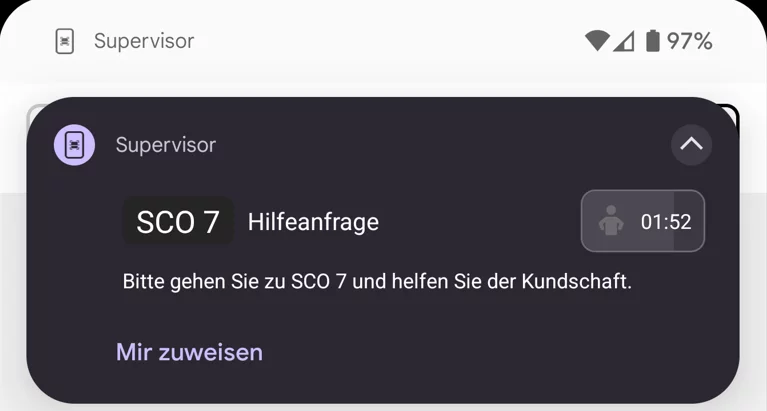
SCO Request for help
Type of notification: Legacy (Supervisor 24.0 and newer)
SCO shoppers can request assistance from an employee when using the matrix app 26.2.0 or newer. This matrix version introduces a new “Help” button on the top right corner, where shoppers can tap to call an employee for help.
Notification description:
SCO label: Device info
Timer: Show elapsed time
Description of the event under the notification title
“Mir zuweisen”: Button for employees to acknowledge the event to themselves