Employee solution: Supervisor app
Spot check: Employee process
A quick overview
The following video sums up the spot check process when using Scan & Go, and you can use it to give an overview to the employees:
Summary & user flows
Spot checks are security controls carried out by the employees in a store. In short, employees can verify if the items in the customer’s shopping cart match the list of items they entered in the Scan & Go app.
Depending on your store configuration, spot checks may be enabled with different degrees of frequency. The advanced logic and configuration of the spot checks are described in this article.
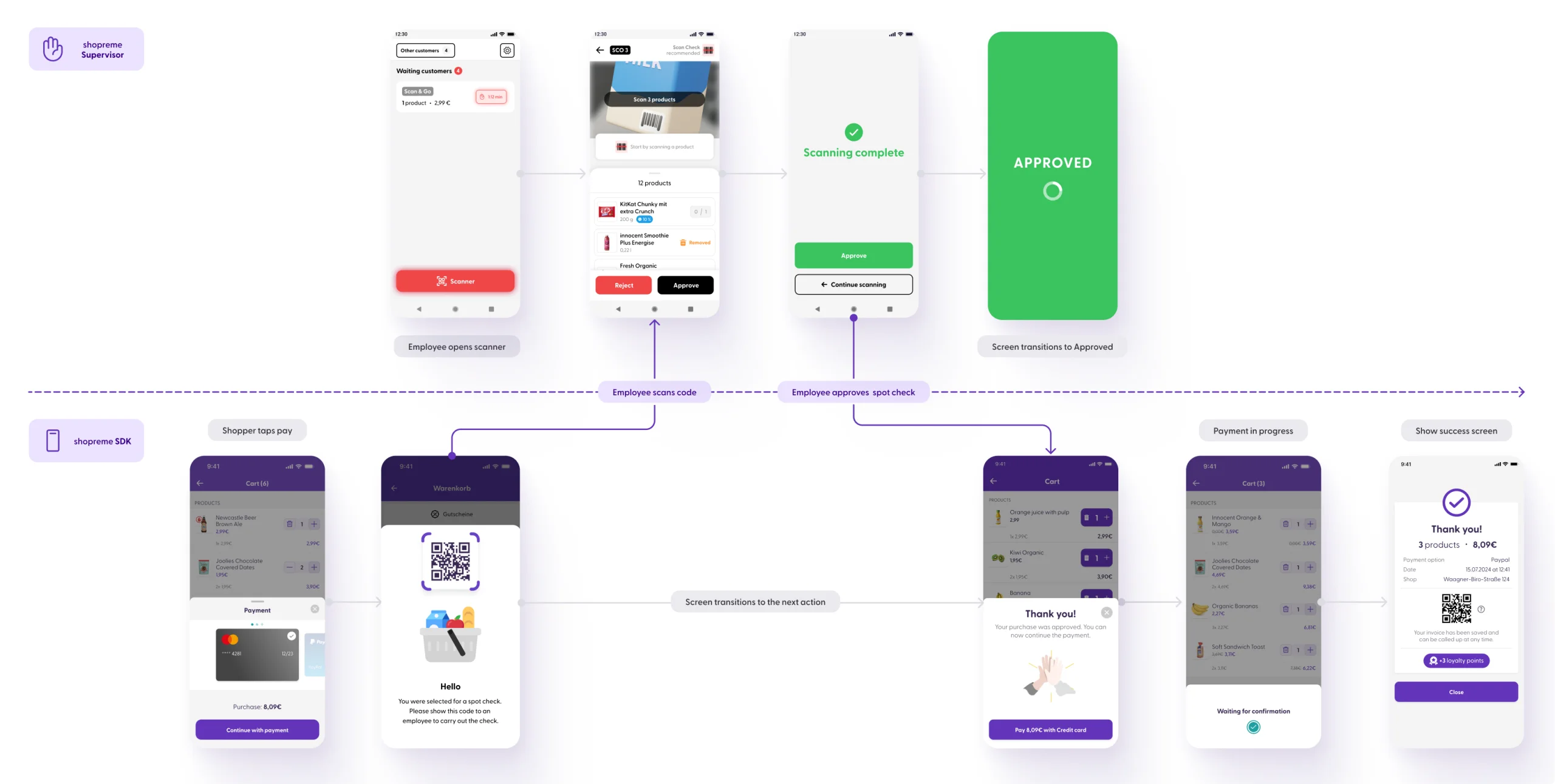
Here is a quick overview of the flow and interaction between an employee and a customer during a spot check:
When a shopper uses Scan & Go with mobile payment (thanks to the shopreme SDK), the interaction for the spot check is between the shopper’s app and the Supervisor app (employee’s device).
We can illustrate the interaction as follows:
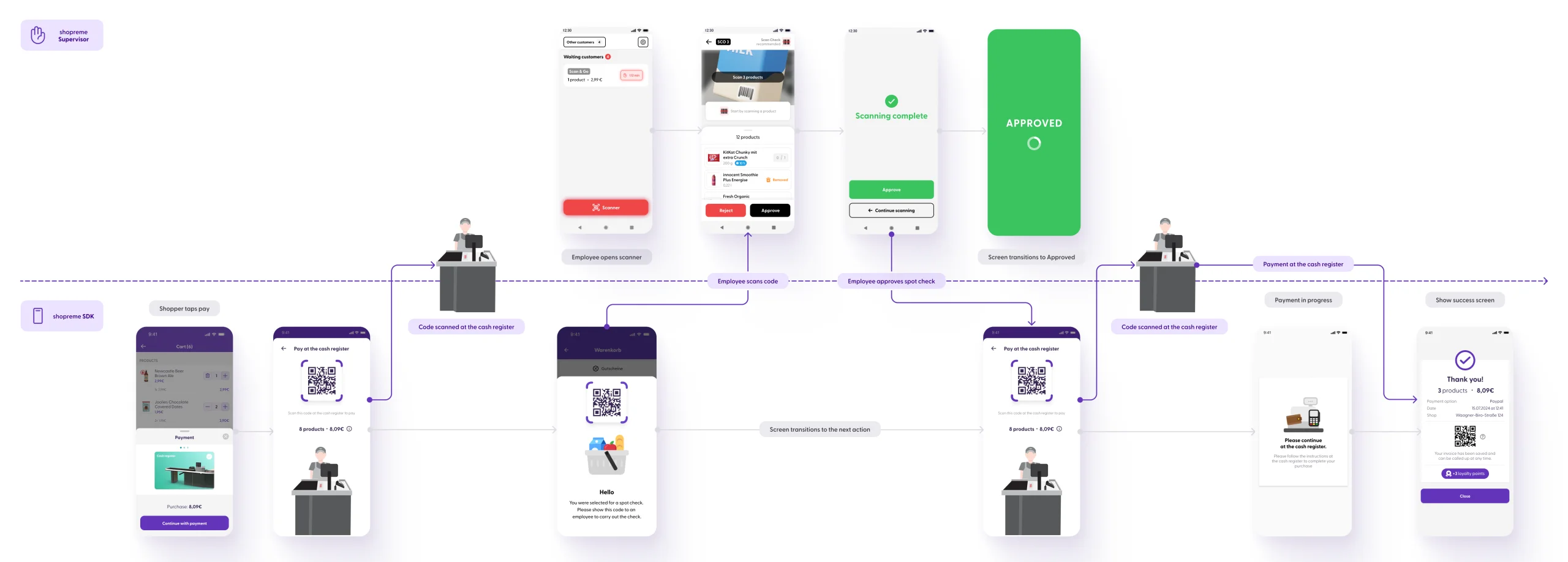
If a store allows using Payment at the Cash Register as a payment method, the customer will be able to pay at the traditional cash register by scanning a QR code. This user flow also involves the spot check, and the user flow of a shopper would be the following:
The shopper scans products as usual on Scan & Go
In the payment methods, the shopper chooses “In store payment – Cash register”
A QR code will be generated on the shopper’s app
The shopper scans the QR code at the cash register
If the shopper was selected for a spot check, a message will be displayed at the cash register to block the customer from being able to pay
The shopper will see the “spot check screen” on the Scan & Go app and will need to wait for the employee to verify them using the Supervisor app (like on the mobile payment process above)
Once the employee approves the purchase, the shopper will see the Payment QR code again (as on step 3) to scan it at the cash register
The payment will be enabled on the cash register.
We can illustrate this flow as follows:
Customer’s view
When a customer starts their payment process by tapping on Pay now in their Cart screen (Picture 1 below), they can be selected for a Spot Check. They will see a new screen with a Barcode and they will be asked to wait for an employee (Picture 2 below). After the employee verifies the purchase and everything is correct, the customer will see a confirmation to be able to continue with their payment. If the payment has already been completed, the customer will be able to leave the store.
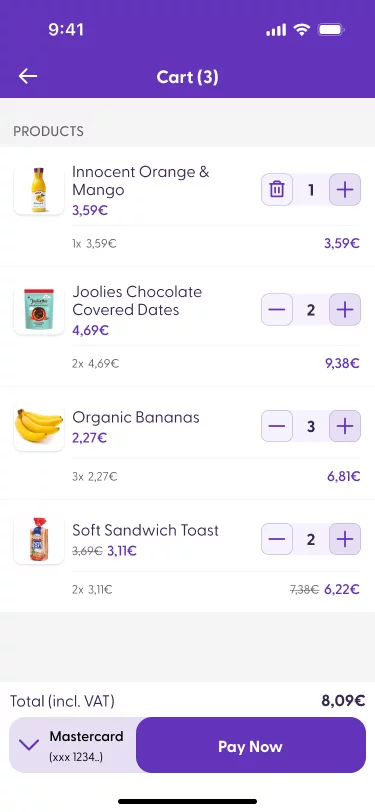
(1) Cart screen
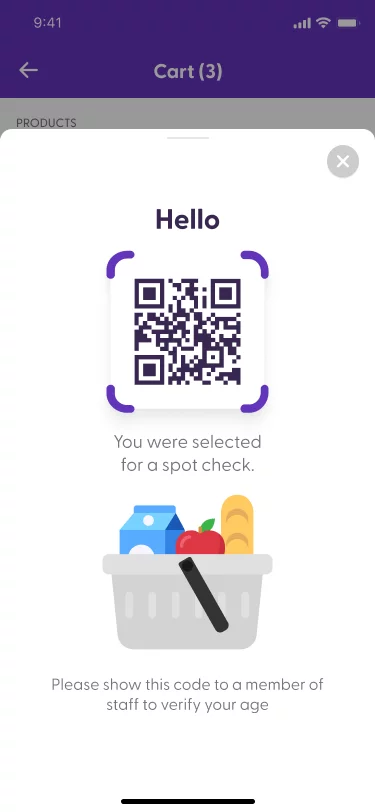
(2) Spot check barcode
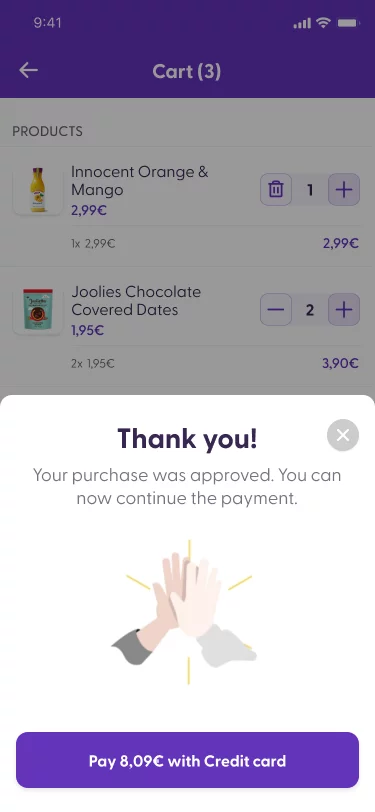
(3) Spot check is successful
Employee’s action
Using the camera scanner
When a customer is automatically selected for a Spot Check, you will see the customer card in the Waiting Customers section, in the home screen view of the Supervisor app. The Spot Check action will be highlighted with the red timer (Picture4).
You can start the Spot Check process in two ways:
Tap on the Waiting Customer card to start the spot check process.
Tap on the Scanner tab and scan the spot check code displayed on the customer’s Scan & Go app.
After that, the spot check view will open (Picture 5).
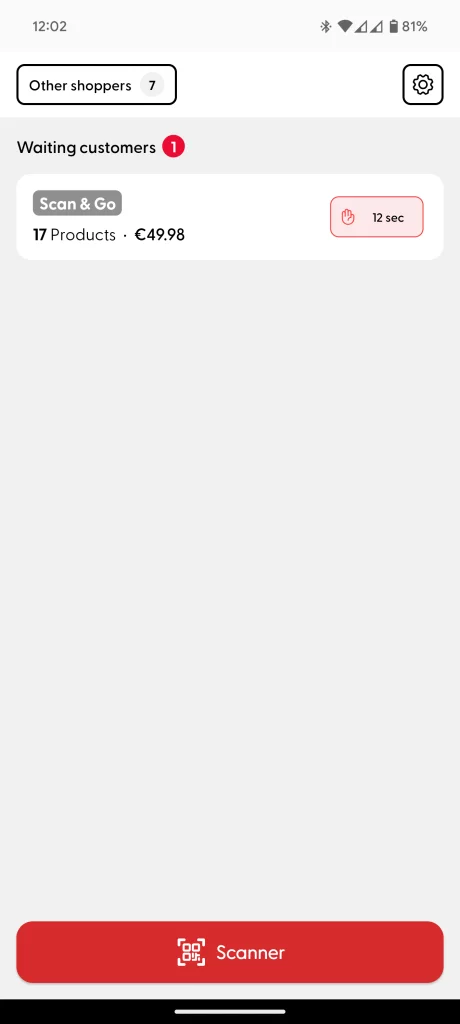
(4) Waiting customers section
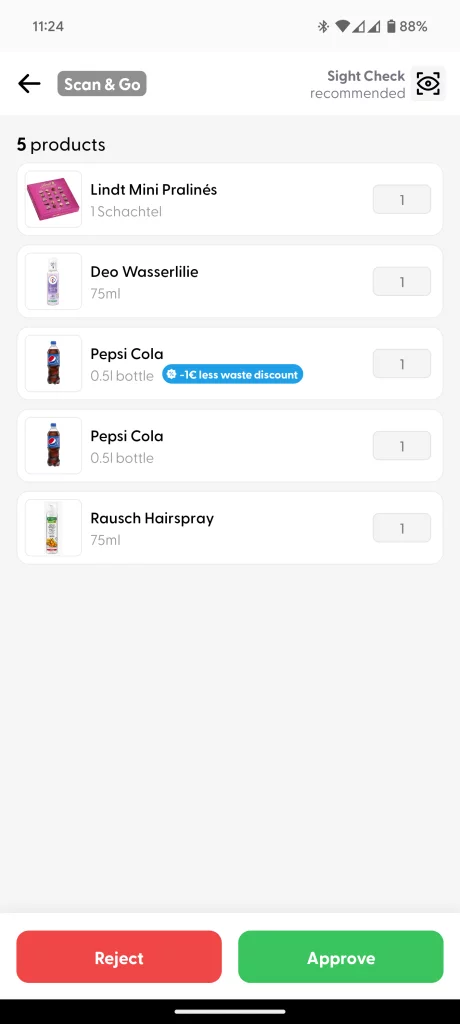
(5) Sight check view

(6) Sight check OK
In the spot check view, you will be able to review the products on the customer’s shopping cart to confirm that the items and quantities match. If the items are few (value set in the shopreme backend), the app will suggest a Sight Check (Picture 5). This means that you can visually check the items, count them, and compare them with the list in the Supervisor app. To confirm, you can tap on “Approve” or “Reject” at the bottom of the screen, depending on whether the check was OK or Not OK. Picture 6 shows what the approval looks like.
If the cart is bigger, the app recommends that you perform a Scan Check: scanning the products instead of visually checking. A colored bar will help you count how many products need to be scanned to complete the review (This value is configurable on the shopreme backend). The black bar will become green when scanning products. When the employee reaches the recommended number of scanned products, the Approval screen will be displayed for them to be able to approve the purchase right away or continue scanning. The goal is to make employee’s review time efficient and help them streamline the process.
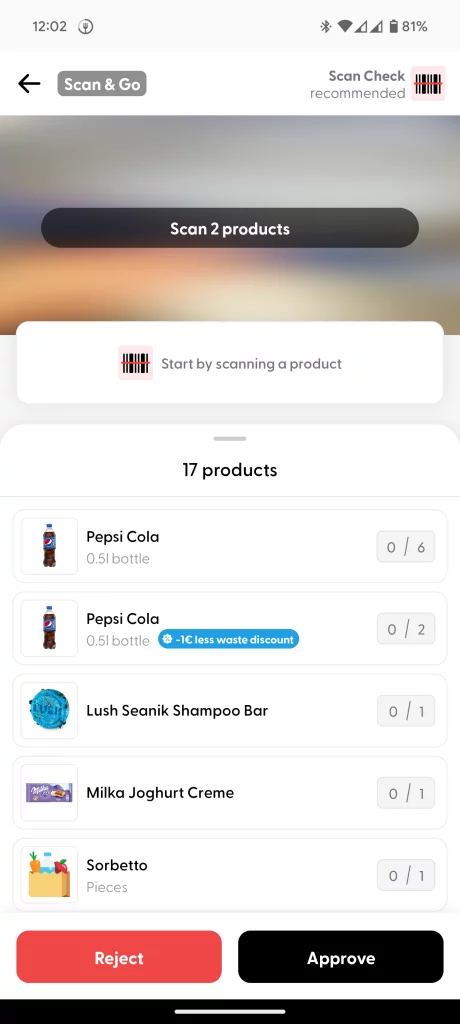
(7) Rescan below threshold
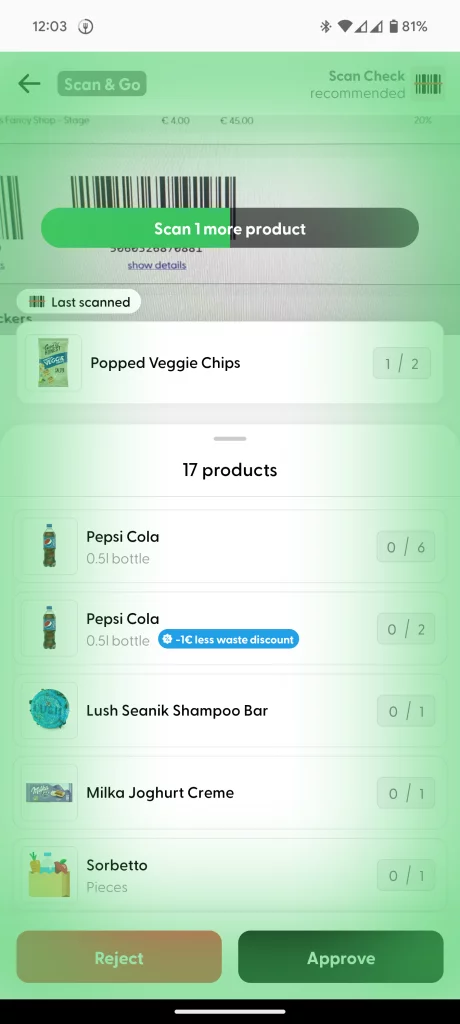
(8) Rescan bar is green
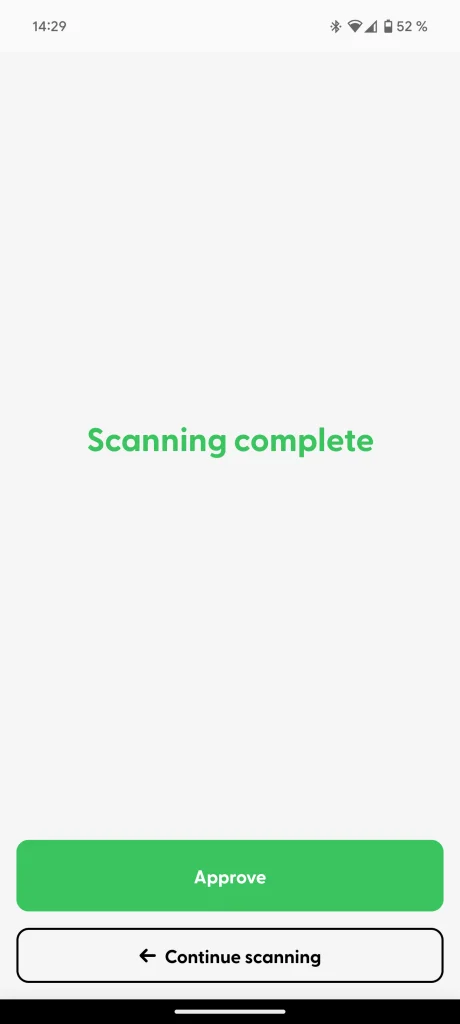
(9) Finish the spot check process
Using the hardware scanner
The shopreme Supervisor app is compatible with built-in laser scanners in special retail devices, such as the Point Mobile PM90 or the Zebra TC5X series. This means that the Spot Check can be completed using the hardware/laser scanner instead of the device camera.
The process is the same as in the camera-based spot check, except that the hardware is activated anytime by pressing the buttons on the side of the device, instead of “opening” the camera with a button (Pictures 10 to 12).
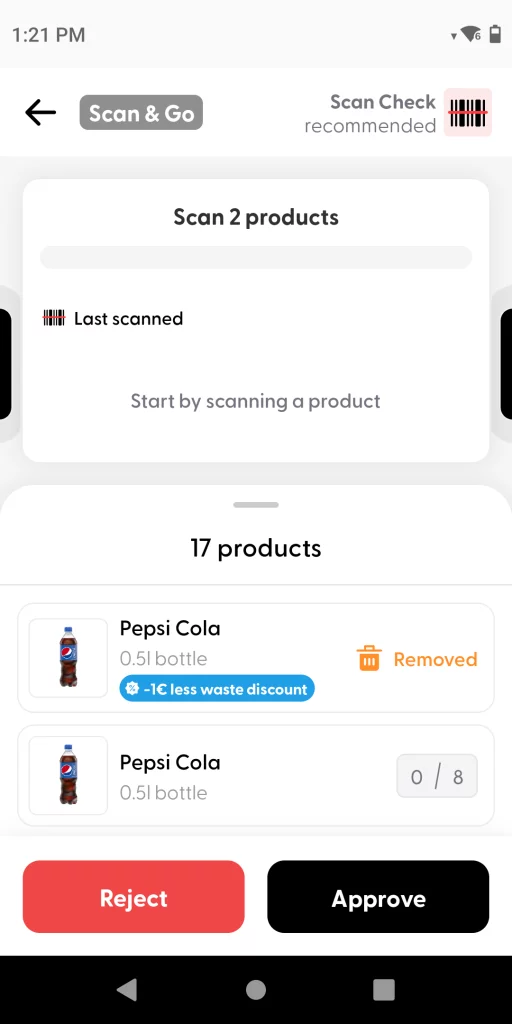
(10) Rescan view for hardware scanner
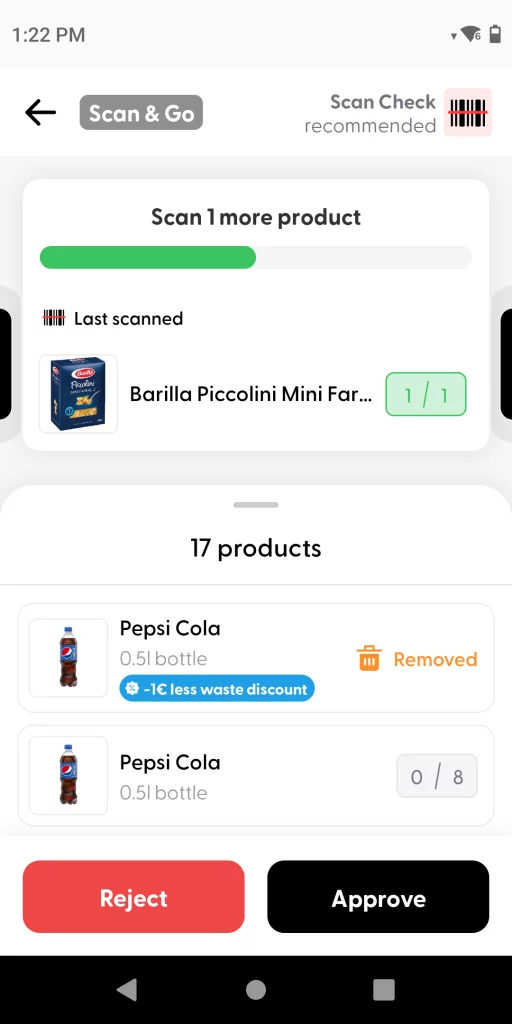
(11) Scanned 1 product
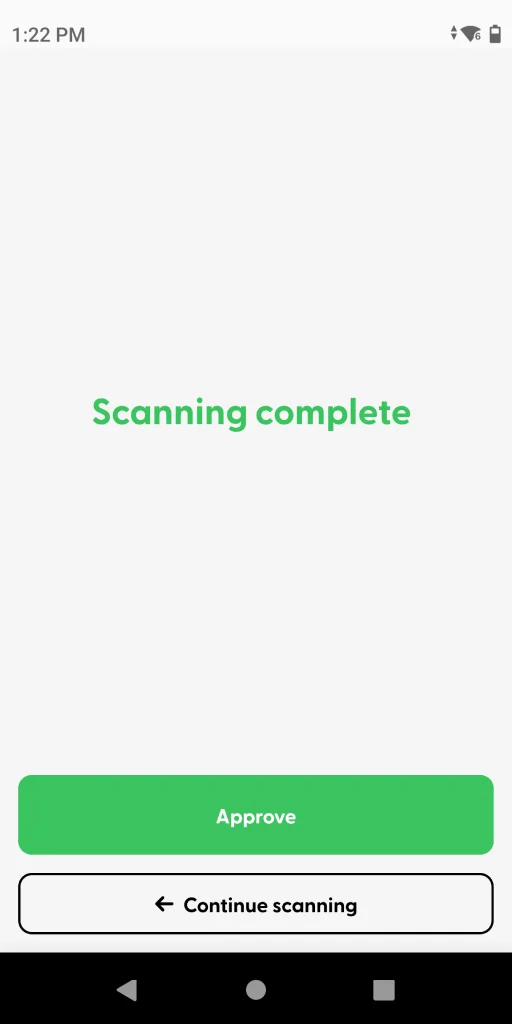
(12) Scanning complete
Customer mistakes
When scanning the customer’s products, it is possible that a product was not scanned (missing product) or that the quantity is not correct. The Rescan view allows you to identify any mistake so that customers fix their list of scanned products before leaving the store.
In the example below, a customer had three packs of chips in their physical shopping cart, but only two were scanned in the Scan & Go app. Because of that, the employee scanned three packs of chips, which triggered an error: Quantity Exceeded. In this situation, the employee will confirm the mistake and mark the Spot Check as “Not OK” when finishing it.
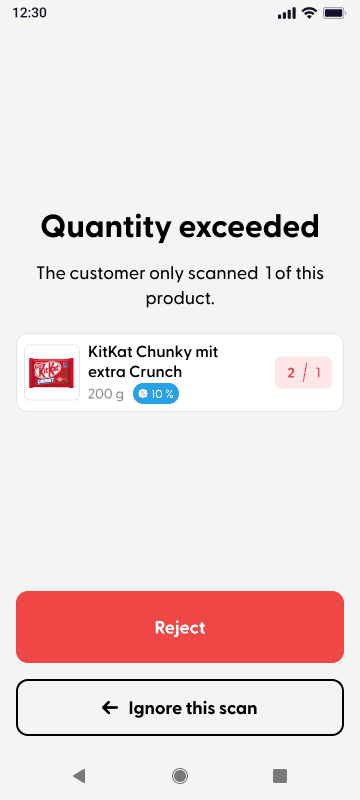
(13) Rescan mistake confirmation
Marking a cart for spot check
This option allows employees to mark specific customers for a Spot Check, in case of any unusual shopping behaviors.
In the Customers tab, you can tap on a customer card to open the basket view and see the list of items that the customer has scanned. On the top part of the screen, you will see the option to “Mark for Check.” This will cause the customer to see the Spot Check screen and will require them to complete the check process before leaving the store.
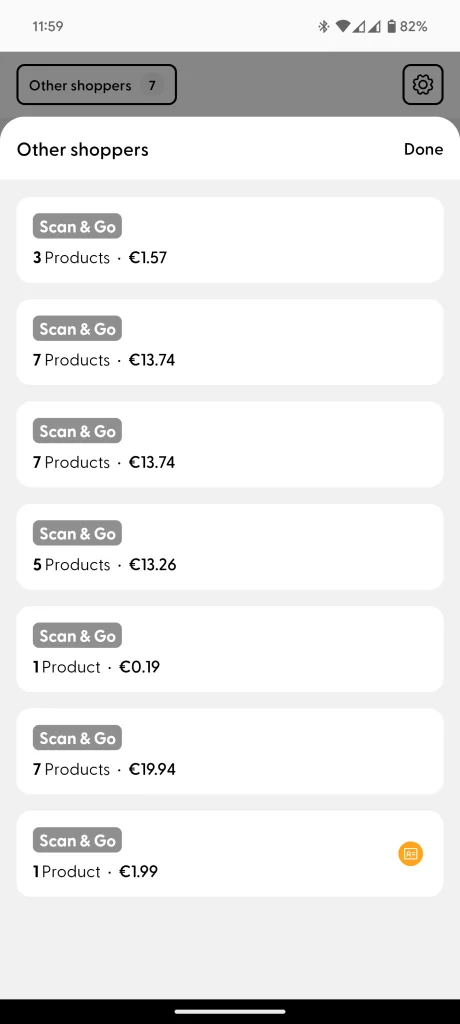
(14) Other shoppers bottom sheet
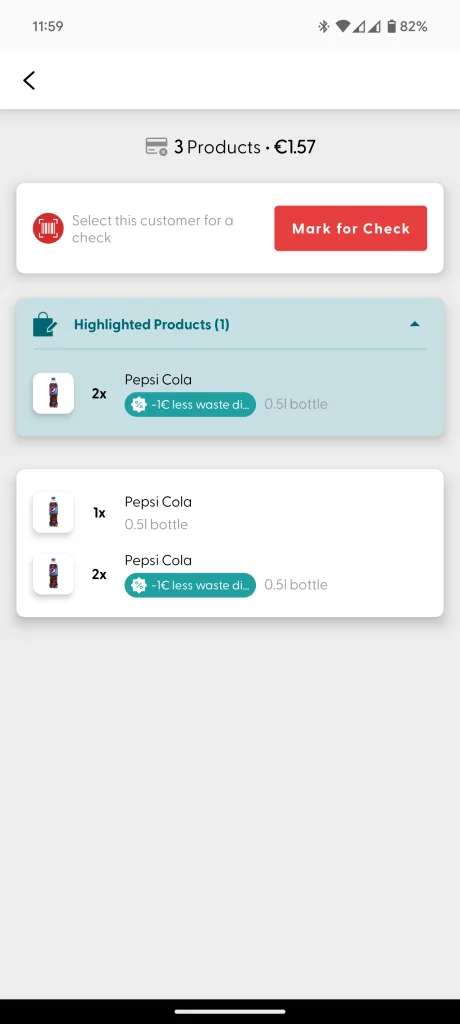
(15) Option to mark for spot check
Forcing or stopping spot checks
With your Supervisor app, you can control whether to stop spot checks or enforce them to check every single customer for a given amount of time.
To do this, go to the Settings tab, select “Spot Checks” (Picture 16), and then choose one of the two options: Force or Pause (Picture 17).
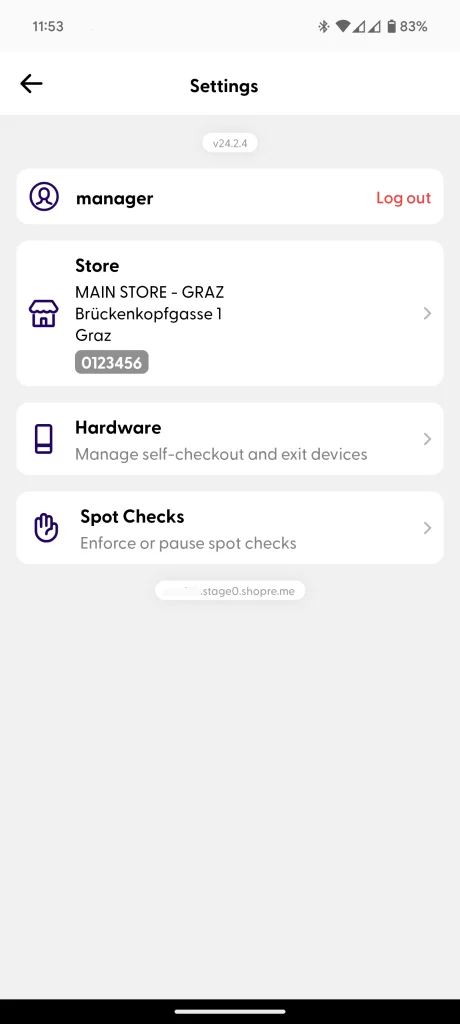
(16) Settings screen
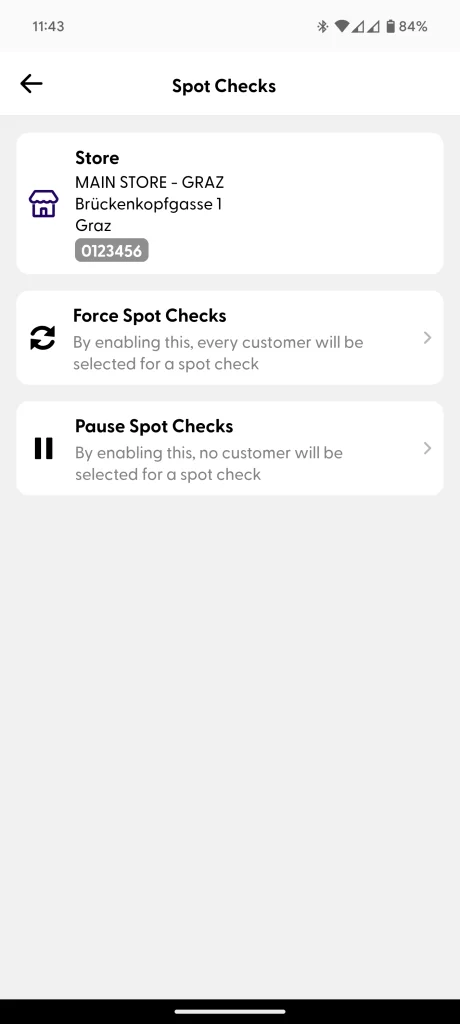
(17) Spot check settings screen
Force spot checks
When tapping on the “Force Spot Checks” option, you will be able to choose for how long the setting should be enabled. By default, 30 minutes will be selected. Tap on the button to confirm your choice.
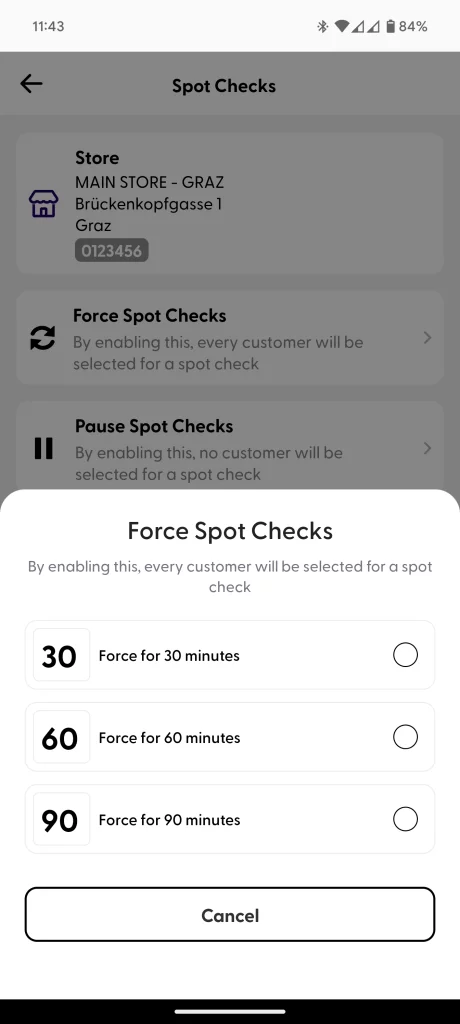
(18) Force spot check options
If the Spot Check enforcement needs to be cancelled, this can be done anytime from the menu, by tapping on “Cancel”, as shown on the left.
When cancelling the “Forced” Spot check, the store will continue with the default configuration. This will not pause the Spot Checks unless they are disabled completely in the store configuration.
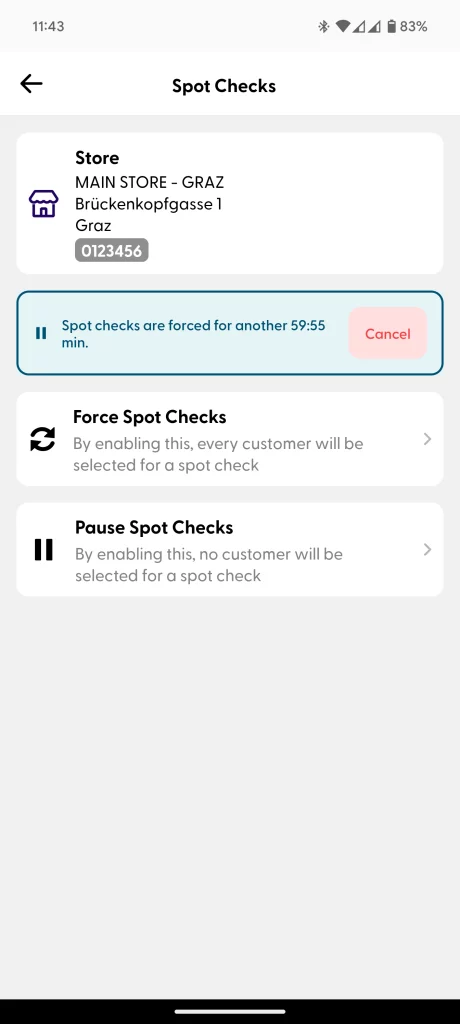
(19) Forced spot check is currently active
Pause spot checks
When tapping on the “Pause Spot Checks” option, you can choose for how long the setting should be enabled. By default, 30 minutes will be selected. Tap on the button to confirm your choice.
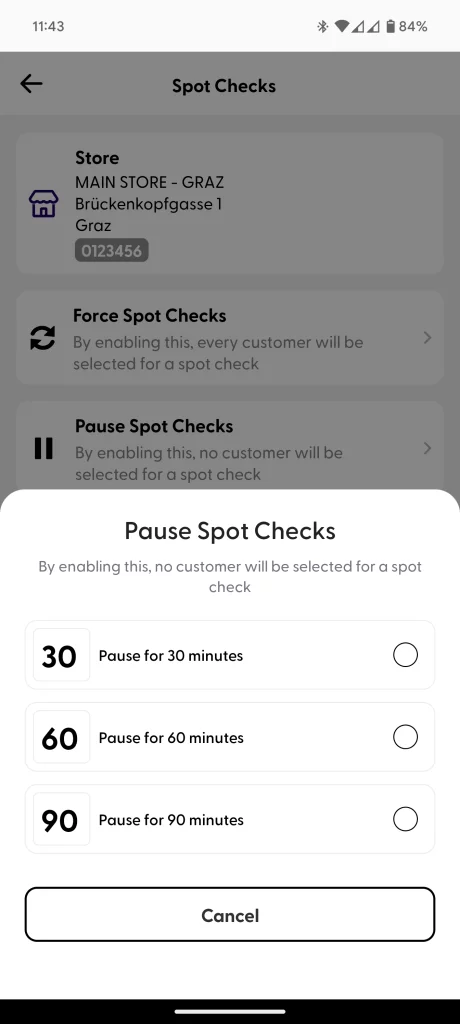
(20) Pause Spot Checks Options
If the pause needs to be cancelled, you can do so anytime from the menu by tapping on “Cancel,” as shown below.
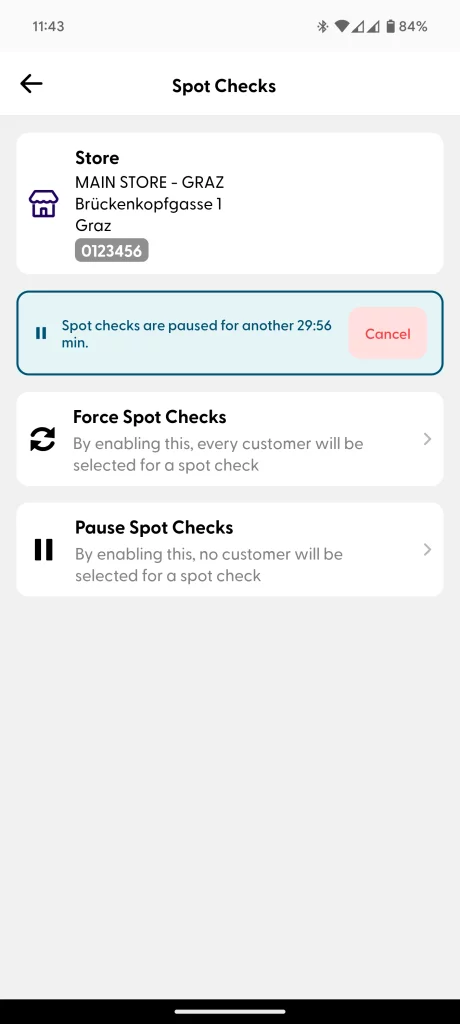
(21) Spot Check Is Currently Paused
