In-store processes
Spot check logic for all clients
Overview
Our spot check works as a software-based mechanism to prevent loss and minimize risk in the stores. Shoppers are asked to be verified by an employee before they can pay and leave the store. This is done by presenting a screen on the client Scan & Go app and the shopreme matrix. The shopper verification is completed by employees only through the shopreme Supervisor app.
✨ If you want to know more about the Spot Check process in the Supervisor app, see the article “Spot check: Employee process” for general information and “Spot check configuration for Supervisor users” for more details.
How it works: spot check modules
When customers tap “Pay”, a new transaction is generated on the shopreme backend, along with the next steps to take during the payment process. One of those steps is to calculate the probability of having the contents of the basket checked by an employee. The calculation is comprised of a series of “modules” that are checked one by one linearly, depending on settings, server parameters, and the user’s shopping history in our database.
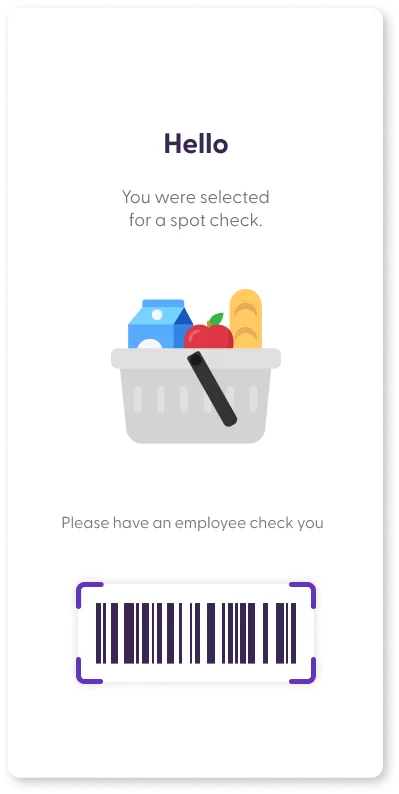
In short, our shopreme Spot Check logic and the order of the logic modules ensure that the likelihood of being checked cannot be predicted by shoppers and prevents any unfair behavior.
The set of spot check modules and their order may be different, depending on whether a customer is completing the payment process from a Scan & Go client (native app, SDK, or web application) or from the shopreme matrix (Self-checkout Point of Sale). We will explain the differences between both paths below.
Some modules provide an early exit and a quick outcome (either “selectedForSpotCheck": true” or “selectedForSpotCheck":false“). This means that a boolean condition is checked and there is no random value calculation. The shopper will be selected for spot check as the next step after tapping “Pay”, regardless of the following modules or configurations in the list.
For the rest of the modules that do not have an early exit, the chance value can be increased or decreased by adding or subtracting from a base value in doubles. For instance, we start with a base value of 0.10, and then one condition adds 0.5, another one subtracts 0.25, and the result is 0.35. This is then converted to a percentage of 35% chance of being selected for a spot check.
Description of spot check modules
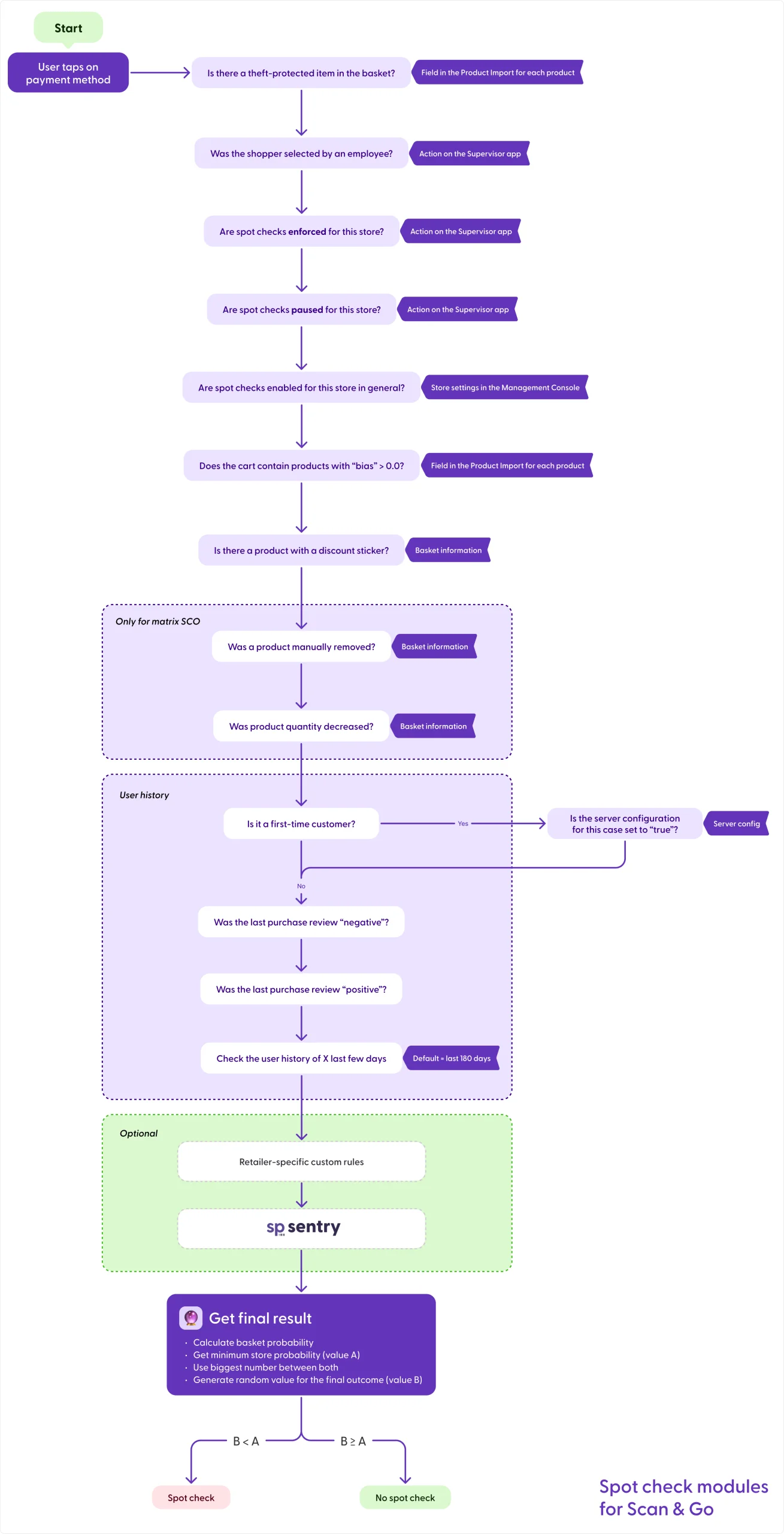
The graph below illustrates how the modules are organized and set in a specific order, to give priority or prevalence to certain choices or conditions over others. The spot check calculation is triggered when the shopper taps “Pay” in the app. Let us go over each module in more detail and describe what each of them reviews:
Theft-protected products: (Early exit condition) This checks whether any item in the shopping cart is marked as theft-protected. This refers to products with a security tag that must be removed at the checkout area. This condition depends, first and foremost, on whether this feature is enabled and implemented for your server. This is a field in the product import for each product that has a theft-protection mechanism attached to it.
Shopper selected by an employee: (Early exit condition) Store employees can manually select shoppers for a spot check, if necessary. The shopper will not be informed about this and it will look like a random check. Read more about this in the Supervisor app article, “Customer interaction: Spot check“.
Spot checks are enforced for this store: (Early exit condition) Store employees can force spot checks in a store for a specific time (e.g., 30 minutes). This automatically forces all customers within this timeframe to pass a spot check to complete their purchase. Read more about this process at the end of this page, and in the Supervisor section here.
Spot checks are paused for this store: (Early exit condition) Similar to the previous step, store employees can also pause spot checks for a specific time frame. Read more about this process at the end of this page, and in the Supervisor section here.
Spot checks are enabled for this store: (Can lead to an early exit condition) This checks whether spot checks are enabled in this store at all. This can allow, for example, that spot checks can only be caused by theft-protected products and enforced checks, but no random selection additionally to that. This setting can be adjusted anytime from the Management Console > Configuration > Stores. See more details both at the end of this page, as well as in the Management Console section, here.
Products with “bias” higher than 0.0: The “Product bias” is a field in the product import, which adds a chance value to products. This does not enforce a spot check, but only adds an increase in probability based on the bias value. You can learn more about the shopreme product import here.
Products with discount stickers: It is possible to increase the spot check chance based on whether products have discount stickers on them. This module can be configured using two parameters, “Discount sticker: Number of products that will increase the chance” and “Discount sticker: Chance increase value for the number of stickers above”. For example, if the values for those parameters are “2” and “0.3”, this means: If there are at least 2 products with discount stickers in the cart, the spot check chance will increase by 0.3 (30%) for each sticker. Learn more about how our Discount Stickers feature works here.
matrix SCO-specific modules: For the shopreme matrix SCO, there are some different considerations to keep in mind. If any product is removed or a product quantity is decreased, shoppers actually still have the product with them at the SCO. For situations like that, removing a product or decreasing quantity will add to the running chance total, to make it very likely to be selected for a spot check – as the employee needs to remove the extra product from the self-checkout area.
The last few conditions to check are related to the user history. This is both available for Scan & Go clients, as well as the self-checkout. In the case of the shopreme matrix, customers can be identified by scanning a loyalty card (otherwise, it is an anonymous user and the user history will not be considered for the spot check calculation).
Is the shopper a first-time customer?: (Can be an early exit condition) One configuration flag on the server can be set, which disables spot checks for first-time customers. This ensures that customers who are using Scan & Go for the first time have a smooth experience to learn how the mechanism works, without getting confused or scared about a random check. This configuration can be set by the shopreme team.
Was the last purchase review “negative”?: (Can be an early exit condition) This checks if the last transaction (started payment process) was selected for a spot check and the shopper had a negative outcome (the employee rejected the spot check). The value here is added to the running total and can be set to 1.0, for example, to make it likely that the shopper is selected for a spot check again.
Was the last purchase review “positive”?: (Can be an early exit condition) Similar to the previous case, this checks if the last spot check review was marked as positive. The value here is added to the running total and can be set to 0.0, as an example, to make it unlikely that the customer is selected again.
Check user history: (Default: last 5 spot checks in the last 180 days) In this module, the algorithm checks the last spot check outcomes for the user and adds a value to the running total chance.
Positive spot check: Chance is decreased by 1/value
Negative spot check: Chance is increased by a defined value – Default: 0.3
After reviewing the user history, there can also be optional modules customized for retailers based on specific needs. For example, a custom module can be integrated, which specifies that “if the basket total value is higher than X, then the shopper will be selected for a spot check”.
Similarly, shopreme sentry, powered by AI, can be added as a custom module to improve the algorithm based on the aggregated behavior of all customers in the store and smart data analysis.
The final module that contributes to the final result is the calculation of minimum probability. This ensures that the result is a positive number, so that there is always a slight chance of getting a spot check, if there is no early exit condition. For example, if the probability is very low to the point of being a negative number (e.g., very good user history), the customer would never be selected for a spot check again. The minimum probability is calculated by multiplying the current store base probability (e.g., 0.1) by a defined factor (default is 0.5), to ensure this minimum chance (e.g., 0.05 = 5%). Once this minimum probability is calculated (value A), it is compared with the actual basket probability, and the higher number is chosen. Then, a random value is calculated (value B) and the final outcome will be the result of this comparison:
If B < A: Shopper is selected for a spot check
If B ≥ A: Shopper is not selected for a spot check
To discuss custom modules or implement shopreme sentry, please contact your shopreme integration consultant.
Configuration parameters
In your shopreme Management Console, you can go to the Server Settings > Configuration Parameters. This page presents a list of server-side values that can be adjusted to customize the shopreme experience. It can also help verify the values that have been set up for the Store Risk, for example. Here are the most relevant configuration parameters related to the Spot Check modules:
Name | Default value |
|---|---|
Store-level chance for low-risk stores | 0.05 |
Store-level chance for medium-risk stores | 0.1 |
Store-level chance for high-risk stores | 0.15 |
Store-level chance for matrix in low-risk stores | 0.01 |
Store-level chance for matrix in medium-risk stores | 0.03 |
Store-level chance for matrix in high-risk stores | 0.05 |
Prevent spot check on the first-time purchase | true |
Discount sticker: Number of products that will increase the chance | 3 |
Discount sticker: Chance increase value for the number of stickers above | 0.3 |
Spot check probability after a positive basket review | 0.0 |
Spot check probability after a negative basket review | 1 |
Number of previous spot checks that affect chance | 5 |
Spot check probability increase after negative reviews | 0.3 |
Spot check timeout: Spot check is marked as OK after a set amount of time | false |
Spot check timeout: Time to wait | 180 seconds |
You can also find more details about all Global Settings and configurations on the article “Global settings”.
Enabling spot checks on a store level
To enable or disable spot checks in general for a store, you need to edit the store settings in the Management Console. When you log in to the Management Console, you may go to the hand-side menu called “Stores” under “Configuration”. Choose the store, and then click “Edit” on the top right corner of the store details page.
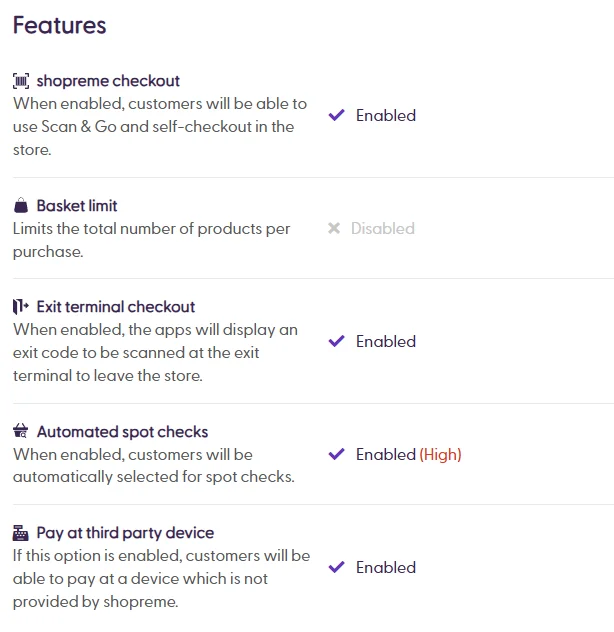
When you enable the automated spot checks, you can choose a store risk level. The percentage is based on the values set up for your server, which are described in the Configuration Parameters section in this article. For example, a low-risk value of 0.05 means that the base value is 5% chance to be selected for a spot check.
Forcing and pausing spot checks
Employees have the option to force or pause spot checks for the store they are currently logged in to in their Supervisor app.
Forcing spot checks means that every single purchase in the store will be selected for a spot check by an employee. By the same token, pausing spot checks means that no shopper will be selected for a spot check unless they were selected manually by an employee or they are buying a theft-protected product.
This option can be found in the Supervisor app under Settings, and then in “Spot checks”:
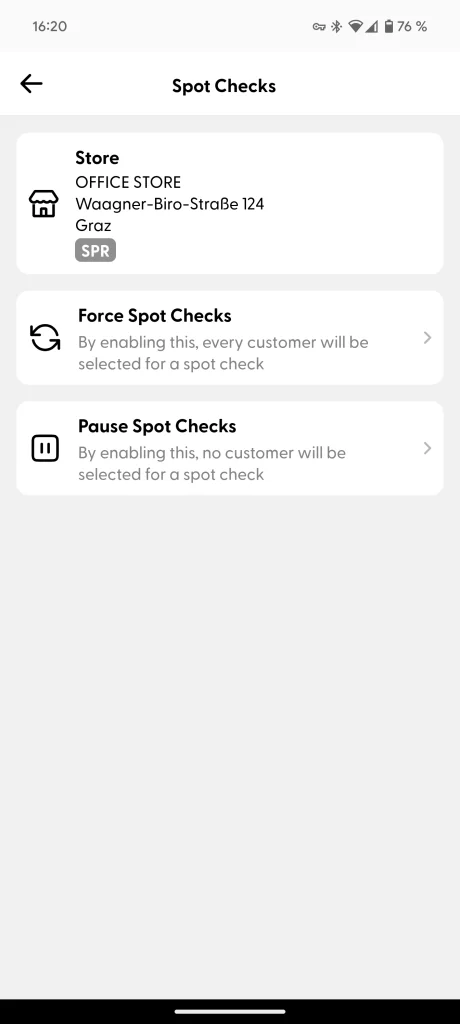
Within the Spot Checks section, employees will find the “Force” and “Pause” options as explained before. Each option can be enabled for 30, 60 or 90 minutes and will turn itself off automatically once the timer ends. The remaining time can be visible within the Spot Checks section, as well as the option to cancel the action.
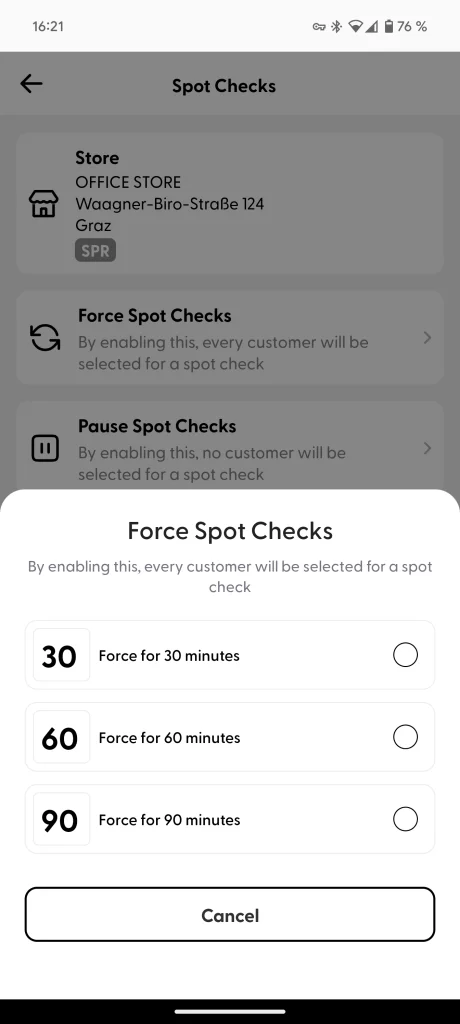
Select the duration
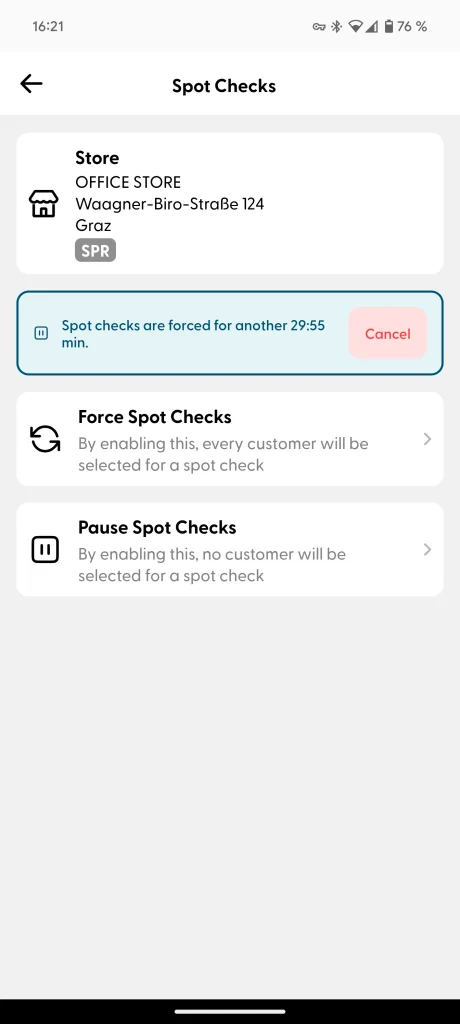
Confirmation of remaining time
