Exit solution: vector
Error messages and info screens
When a customer scans a QR code or Barcode at vector, our system checks the code validity, store location, and the timestamp related to the scanned purchase. However, if something goes wrong while trying to verify the scanned code, the customer will see an error screen. Please check the following possible screens, to understand the different “errors” and what can be done to assist the customer.
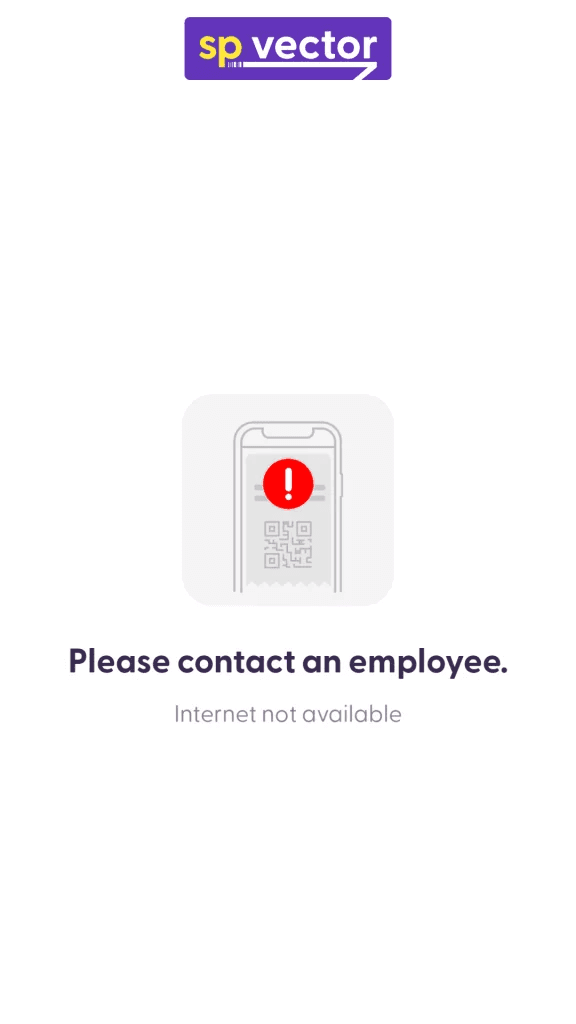
Screen: No internet connection
This error indicates that there is a problem with the current network status or configuration. If you receive this error, please verify the network connection to the vector device.
In technical terms, there are three specific scenarios that may trigger this issue:
The server has timed out while waiting for a response.
The host IP address could not be determined.
vector could not connect to the host (connection refused).
Screen: Receipt has already been scanned
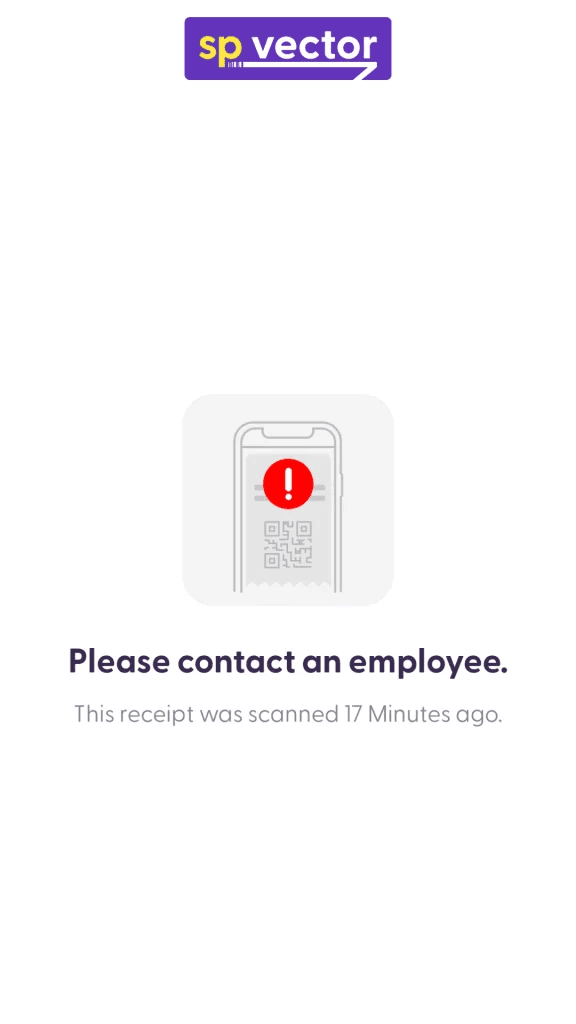
This message informs the customer that the receipt they have scanned has already been used. This means that vector does not allow customers to leave the store by scanning a used receipt.
Screen: Employee assistance
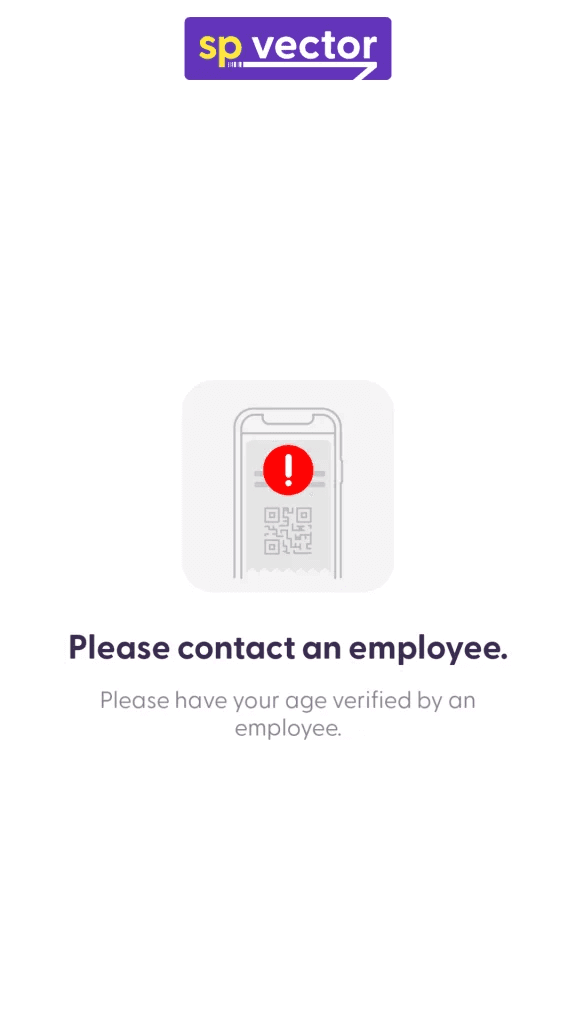
When a customer wants to buy an age-restricted product and they start their payment process at vector, the customer’s age needs to first be verified by an employee.
Once a customer scans a purchase that contains an age-restricted product, this screen will appear on the vector screen. Meanwhile, the user will be able to move aside and wait for an employee, while the vector screen will go back to Idle after a set amount of time to allow other customers to proceed with their self-checkout.
For more information about the Age Verification process, please check this article.
Screen: Error code
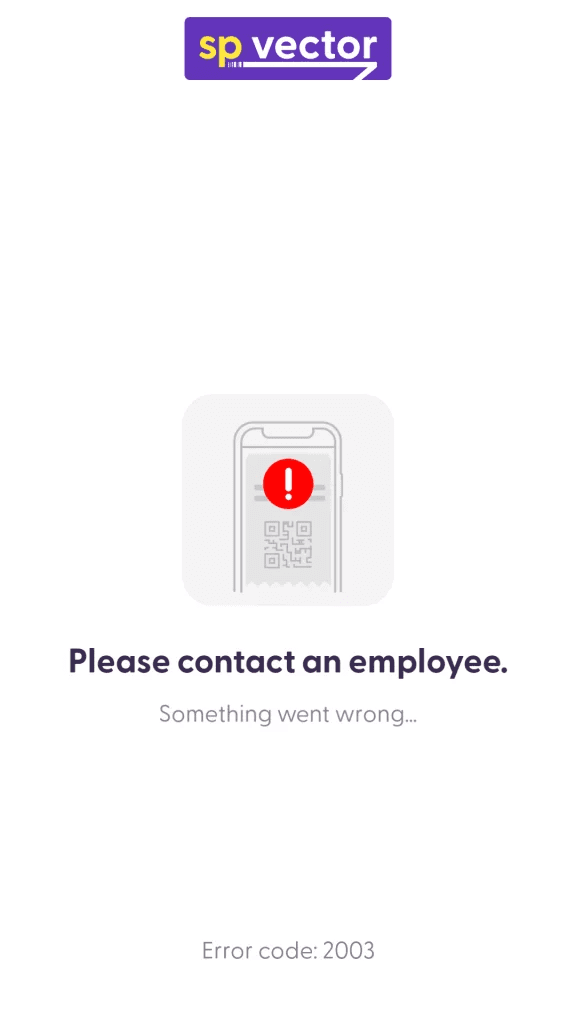
This screen appears in case of technical issues that could not be resolved by our system properly. The app will display the message “Something went wrong…” and the Error Code is shown at the bottom.
If you experience any issues and this screen comes up, please reach out to shopreme Support immediately and provide the Error Code number, details about the transaction ID, the time-stamp of the issue, and information about the steps taken that led to the error.