Management Console
Product details page
In the Products section, you can find the product data imported to the shopreme databases using the shopreme DataHub. The Product data table allows you to search products by name, product number, or product scan code (EAN or PLU).
Please note that scancodes with encoded information, such as for weighed products, are not imported to the database, so in this case, these products can be searched by name or PLU only.
Product detail
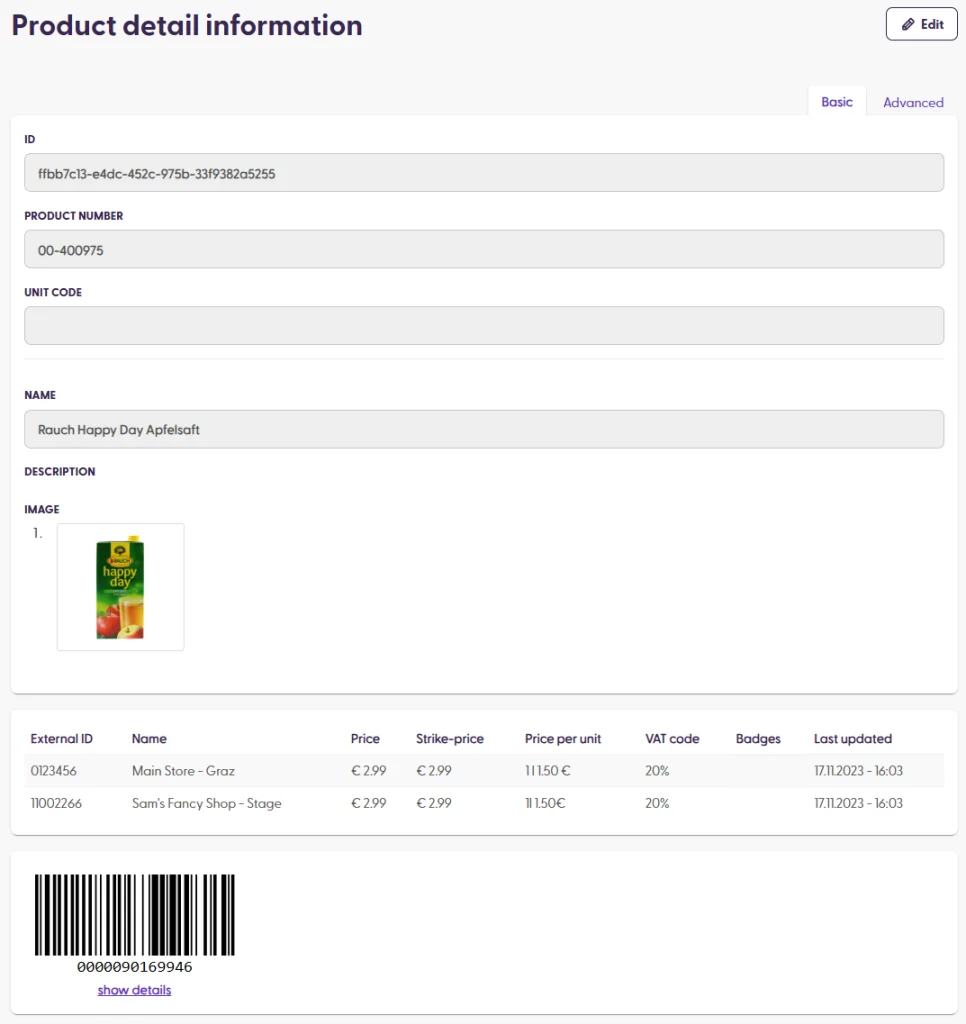
When clicking on a product from the main list, you can see the Product Detail Information.
The functionality of some product fields can vary depending on your custom data integration. The features described here refer to the default shopreme functionalities without customizations or special behaviors.
The basic view shows the following fields:
ID: this is generated automatically and it is the primary key identifier on the product database. This cannot be modified.
Product number: an identifier for the product, usually coming from the retailer’s system. It does not need to be unique. This is a mandatory field.
Unit code: a code that describes the selling unit for the product. For example, a pack of 6, a single unit, or a box. The unit code is an optional field, but if it is not empty, then the code in combination with the product number must be unique.
Name: text displayed as product title in the Scan & Go app. This field is mandatory.
Description: longer text displayed as product additional information in the Scan & Go app, on the product detail page.
Image: image to display on the Scan & Go app, when scanning the product, and in the cart.
Prices: prices displayed to the customer before any cart evaluation. The prices can have a default value (for any store) or be store-specific (a store name should be specified, along with its external ID).
Scan codes: barcodes and scancodes registered for this product. This list can also include PLU numbers and other “blocked” scan codes, for example, if they are meant to show a specific error code when being scanned.
The Advanced view within a product includes more fields, and the most relevant ones are:
Unit description: a string used to add extra information about the unit in which the product is being sold, e.g., “500g bag” or “6-pack bundle”. This field is optional.
Age restricted: if checked, it shows that the product will require an age verification to be purchased.
Minimum age: if the Age Restricted box is checked, the minimum age can be specified, e.g. 16, 18, etc.
Quantity can be increased manually: checking this box allows manually increasing the product count in the basket view in the Scan & Go app. This should be disallowed for weighed products, as they have unique scan codes.
Anti-theft device: this field shows if the product requires an employee to remove a theft-protection device from it.
Source: if it says “JOB”, this means that the product was imported through the shopreme DataHub jobs.
Last updated at: the date and time when the product received the last changes or updates.
Deposit products: any linked product that works as a deposit (also known as empties or return product) for the main product. For example, for a bottle of beer, the deposit is usually the glass bottle. The glass bottle should be imported as a product itself.
Product is only available in specific stores: if checked, this option enables a box to select the specific stores where a product will be available. In other stores, the product will show as “Not found” when being scanned.
Show product in the shopping list search: this indicates whether the product should be displayed in the results of the shopping list search. Deposit or test products should have this field set to “false” (box unchecked).
Show product in scanner search: this indicates whether the product should be displayed in the search accessible from the scanner in the Scan & Go app. This allows shoppers to add the product to the shopping cart without scanning a barcode. Only products without a physical barcode should be displayed here. For example, bakery products that customers manually put in paper bags.
Editing a product
Depending on your data import implementation, editing a product’s information may not be available. If you do not see the “Edit” button, this is likely the case, and any changes need to only be done only via the product import process. Please consult your shopreme Integration Consultant for guidance on this topic.
You can find more information on the product import and how it works, in this article.
