Management Console
Retail media
Overview
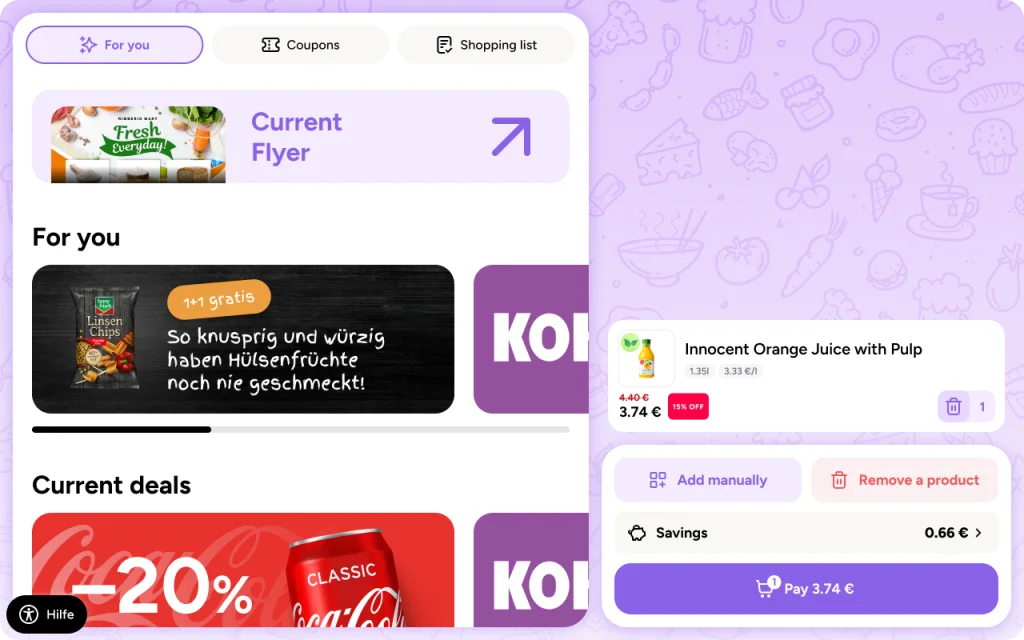
Retail Media refers to advertisements that can be placed on the shopreme apps, such as the snap cart, matrix SCO or the handheld scanners. These can be managed in the shopreme Management Console, and once confirmed, will be synced to all selected devices as soon as they are connected and charging in their cradles.
For static retail media, the images are displayed while the devices are idle (e.g. matrix SCO and portable scanners). For the shopreme snap cart, Retail Media can also be displayed during shopping.
For dynamic retail media (also known as Journey Ads), the images can be triggered based on scanning specific products.
In the Management Console, under Retail Media, a marketing manager can create, edit, and schedule retail media campaigns. Below, you can see how this works.
Static and dynamic ads: Add new campaign
Once you open your Idle Ads Retail Media section for the first time, it will be empty. Otherwise, you can also see previously completed campaigns or future (scheduled) ones.
For either Idle or Journey Ads, the campaign creation is very similar. To get started and create a campaign, you can click on “Add Campaign”.

Idle ads
A modal dialog with different settings will be opened. Here you can enter the name of the campaign, the start and end dates, and the shopreme platforms where the campaign images will be displayed. Lastly, you should upload at least one and up to four images for your campaign. For compatibility across multiple devices, these images must be square (1:1 aspect ratio). They should also have a minimum resolution of 1024×1024 pixels for good visibility on the SCO big screens.

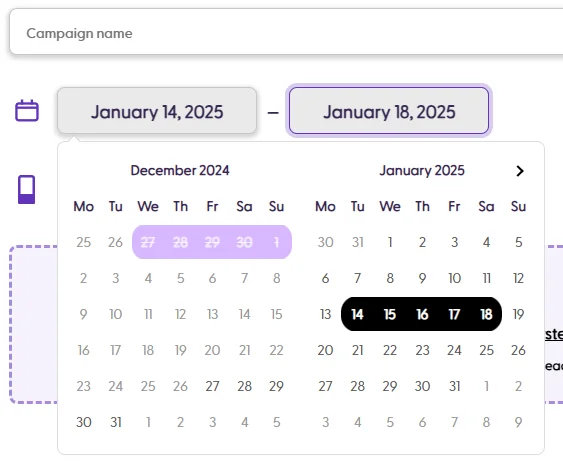
For idle ads: When selecting a date, your chosen start and end date will be marked in black. Any unavailable dates will be shown in purple, and overlapping campaigns are not allowed. This means that, for example, if one campaign is for matrix SCO only, it is not possible to have another campaign at the same time for another platform such as portable scanners.

Once the campaign images, dates, and platforms are defined, you can click on “Save and schedule” to finish editing and confirm the entry.
If needed, you can also rearrange the images to a specific order, by dragging and dropping them in the edit modal dialog.

Journey ads
The campaign creation modal is similar to the idle ads option. You need to enter the name of the campaign, the campaign start and end dates, and how you would like the ads to be delivered to end-customers. Please note that you can have multiple Journey Ads enabled for the same timeframe, so, unlike Idle Ads, the campaigns can overlap.
Journey ads are available for the shopreme snap cart by default, and require images in 3:1 aspect ratio to be displayed on devices correctly.

After publishing the campaign, it will be visible in the main Retail Media section. If it is currently being displayed on devices, the Live label will be visible on the top left corner of the entry.
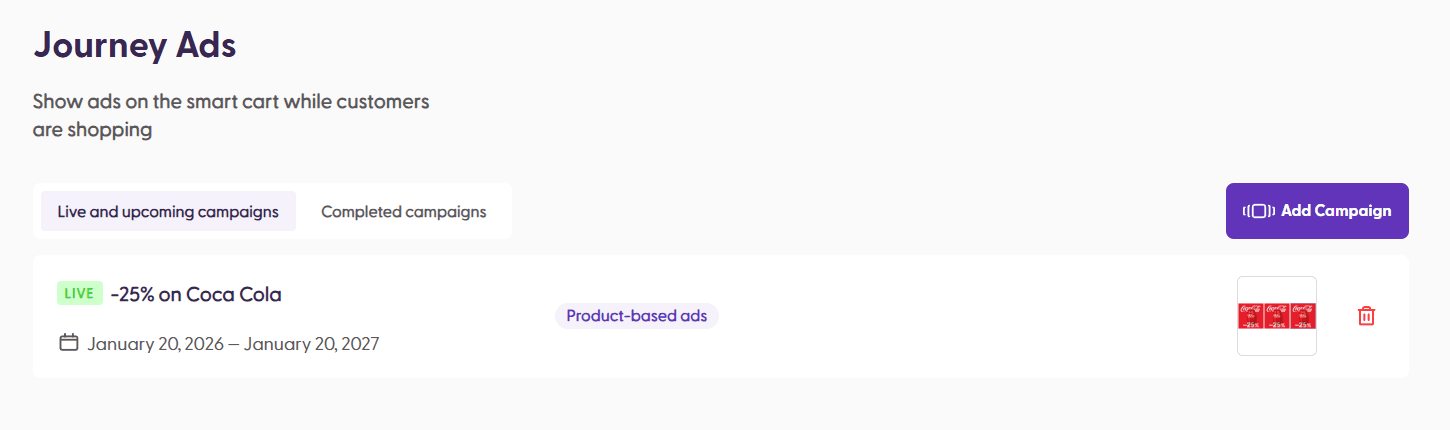
You can click on any Retail Media entry to edit it, reschedule it, or delete it.
Flyer
We offer the option to upload the current retailer’s flyer in PDF format to the Management Console, which can then be displayed on demand on the snap cart, allowing shoppers to browse the latest offers.
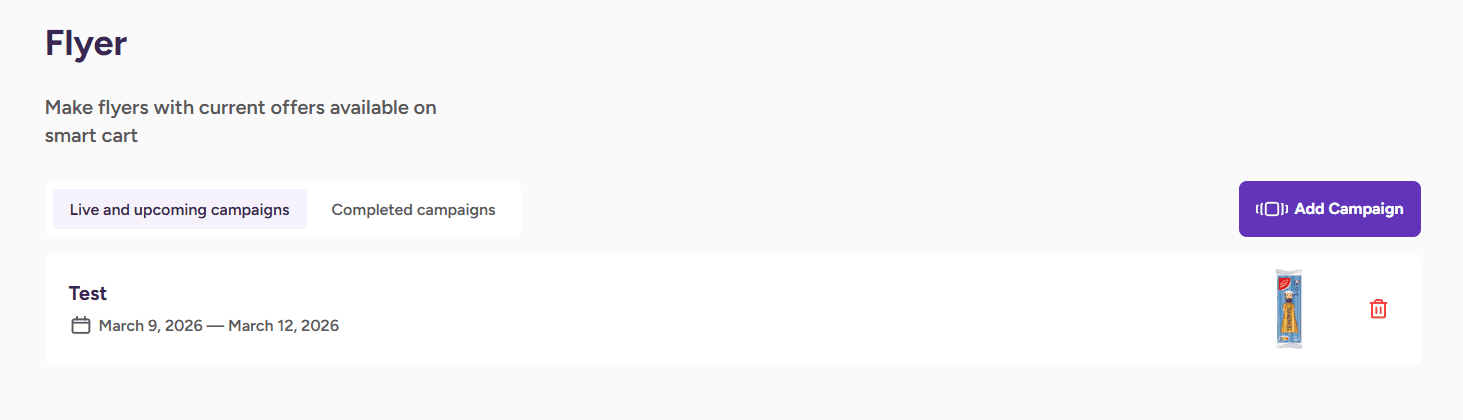
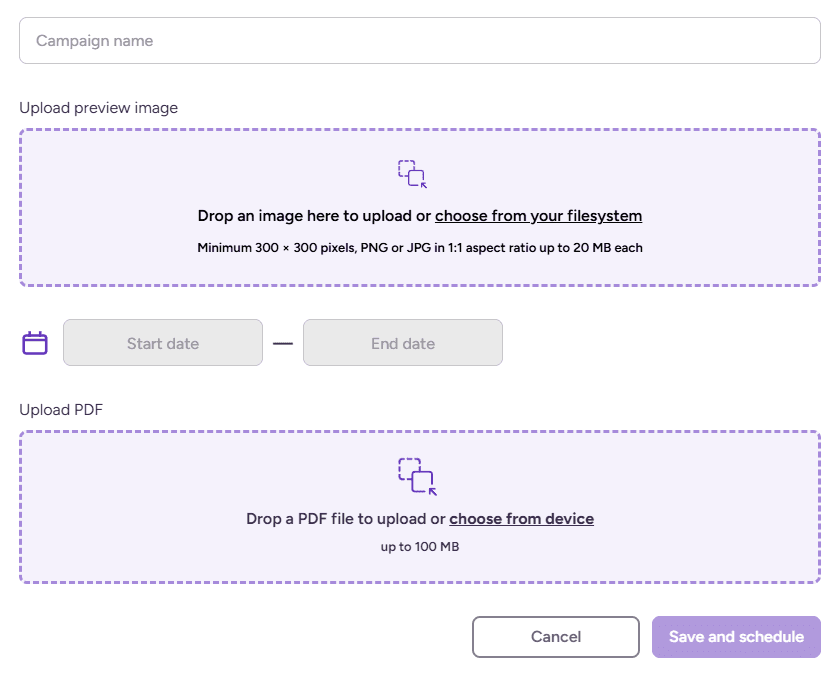
Uploading a flyer campaign requires a campaign name, a preview image (square, 1:1 ratio), a start and end date for the campaign, and a PDF file that is up to 100MB.
Final result
The shopreme apps will fetch any updates from the shopreme server regularly during their heartbeats. In that call, the backend service will inform the app that there are updates to download, and the app will then download the scheduled images and display them in the correct order, for the defined timeframe.
Here you can see an example of what Idle Ads look like in the matrix SCO app:
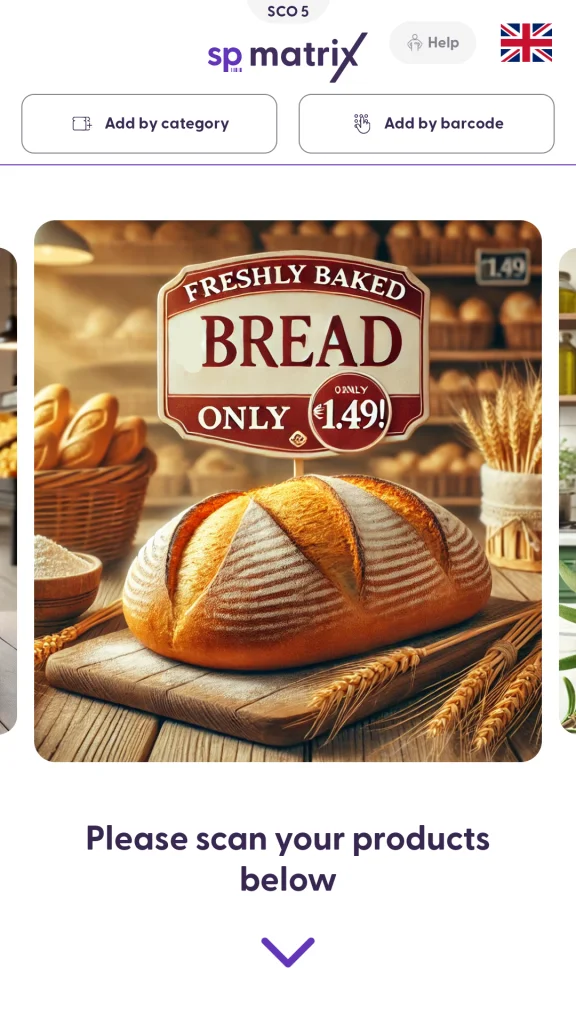
The images scroll automatically to make sure that all the scheduled content is visible.
In the case of portable scanners (e.g. snap cart or handheld scanners), the Idle Ads Retail Media content is synced so that all docked devices display the same ads at almost the same time. This makes the visual aspect of the docked devices more pleasant, as all images will be scrolled synchronously.
Here you can see an example of what Journey Ads look like in the shopreme snap cart: