Management Console
Supervisor analysis
Overview
The Supervisor Analysis page can help retailers have an overview of the store’s performance regarding employees and their interaction with Scan & Go users. The two customer processes to measure are the Age Verifications and Spot Checks.
The waiting time graph illustrates the distribution of the number of customers per waiting time group. For example, the chart below shows that 65% of shoppers waited 0 to 15 seconds until an employee verified them during a spot check. Similarly, 5% of shoppers had to wait more than 60 seconds for an age verification.

Clicking on the “Processing time” button will switch the chart’s content and display the time spent resolving an age verification or a spot check. That is, the processing time starts when an employee starts the process (opens the verification on the Supervisor app) and ends when they confirm an outcome (approve or reject).

Spot check statistics
The Spot Check process requires that an employee rescans products from the shopper’s basket to verify that the quantities and promotions claimed in the Scan & Go app match the actual basket contents. The number of minimum or maximum products to rescan is based on a proportion of the number of products in the basket and can be configured on the shopreme Backend.
The Amount of rescanned products graph illustrates how many spot checks (percentage out of the total) were completed by rescanning different amounts of products (proportion from the basket contents in percentage). For example, we see below that 80% of the Spot Checks were completed by not scanning products directly but through a visual check.

The “Selection & Results” chart offers two views, depending on the information label selected. For example, if you select the “Selected/Not Selected” toggle button, you will see the percentage of shoppers that were selected (lighter color) or not selected (darker color) for a spot check. The circular graph displays the total numbers for the selected time range, while the bar graph shows the share of selections per day by default. The default display will be per week if the selected time range is at least 30 days long, and the default will be per month if the selected time range is at least 90 days.

When toggling the “Not OK sessions / OK sessions” button in the graph, it will display the count of users whose Spot Check outcome was positive (OK) or negative (Not OK). The rest of the graph will work in the same way as the one above.

However, selecting the toggle for "Not OK value / OK value" shows the ratio of basket value marked as "not OK" in comparison to the rest of verified purchases marked as "OK". This can show, for example, that a high number of sessions that do not pass the spot check does not equal a high loss in revenue.

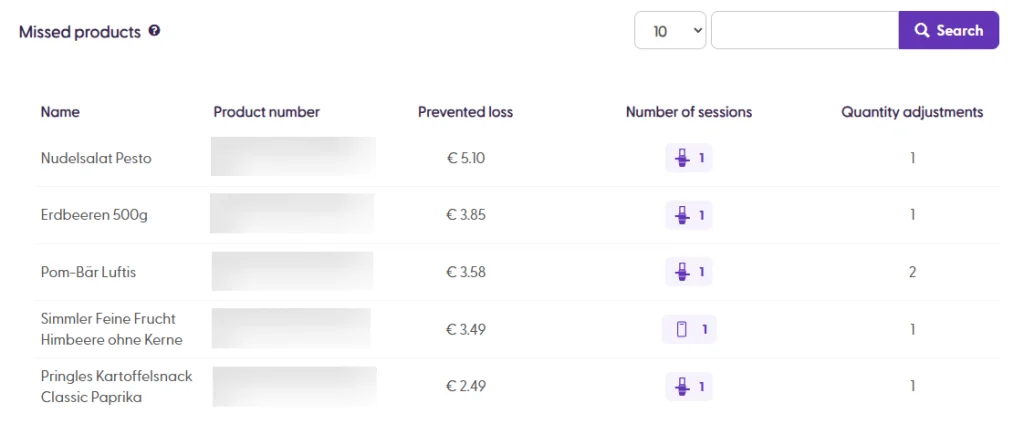
Starting with shopreme Core 10 (released in May 2025), a new metric has been added, namely the Missed Products table. This table shows a list of products that were not scanned by shoppers on their Scan & Go app (or SCO purchase) before an employee completed a spot check. This can also refer to products that had some wrongfully applied discount sticker, which contributed to the Prevented Loss metric. The data on this table will only populate when using shopreme Core 10 onwards, as this information was not tracked on earlier backend versions.
Age verification statistics
The Age Verification graphs display the information following the same logic as the Spot Check graphs above. The toggle button “Required/Not Required” shows the percentage of shoppers that did or did not need to be age-verified.

The other toggle button shows the possible outcomes of the Age Verification process: Declined (employee rejected the age verification), Verified (marked as OK by the employee), or Cached (the shopper used the self-verification option). The “Cached” option refers to using biometrics on mobile Scan & Go apps so that users can self-verify their age after being successfully verified once by an employee.

Please note that the age-caching feature needs to be activated on the shopreme Backend before being able to use it. Contact your shopreme Integration Consultant if you would like to learn more about this feature.
