Employee solution: Supervisor app
App configuration
App permissions
When first installing the app on your managed devices, you should automatically grant it the following runtime permissions to ensure smooth operation:
android.permission.READ_EXTERNAL_STORAGE– The app reads a configuration file during the initial setup.android.permission.WRITE_EXTERNAL_STORAGE– The app writes a configuration file after the setup has been completed.android.hardware.camera– The camera is used to scan codes from the customer’s phone.
The app will ask for these permissions when necessary, but automatically granting them can simplify the process of rolling out the app to new stores and reduce the potential for error.
Configuration overview
Before you are able to log in to the Supervisor app with your employee credentials, you will need to set up the app for your specific organization (e.g. shopreme middleware server).
There are two ways to complete the setup:
Automatic setup using a configuration file
Manual setup by scanning a QR code (Recommended)
The Automatic setup works by placing a specific configuration file on the managed device before launching the shopreme app. No manual steps are required before the app is ready to use. However, the app is hardcoded to work in only one server/store as defined by the configuration file.
The Manual setup requires a one-time scan of a shopreme Supervisor Setup QR Code, which you will receive from your shopreme integration consultant. The code has to be scanned once for each employee device. This also allows switching servers or stores, in case of needing to test a different environment.
Automatic setup
The automatic setup only works on devices running Android 12 or older. If your device is running Android 13 ond newer, look at the manual setup steps.
When it launches, the shopreme Supervisor app looks for a JSON file at /sdcard/shopreme/shopreme_supervisor_config.json.
The JSON file has the following structure:
The server URL is the one matching the Management Console for your server. For example, if your Management Console address is https://mystore.shopre.me/static/static/#/dashboard, the serverUrl value is "https://mystore.shopre.me".
Setting username and password is optional and refers to a Supervisor user, as set up on the Management Console. If you set both properties, the app will try to log in with these credentials automatically. (See Account Management for information on how to create users for the Supervisor app.)
You will be redirected to the Login screen automatically if the configuration file was found and valid. Otherwise, the app will fall back to Manual Setup mode.
Manual setup
If the Supervisor app does not detect the configuration JSON file, it will show the Manual Setup screen upon first launch.
Tap on “Scan a setup code” to open the scanner and scan the code provided by your shopreme integration consultant. This code contains information about the organization and a URL to connect to (the shopreme middleware server URL).
If the code is valid and accepted, you will be directed to the Login screen. You can learn about the login process in this article.
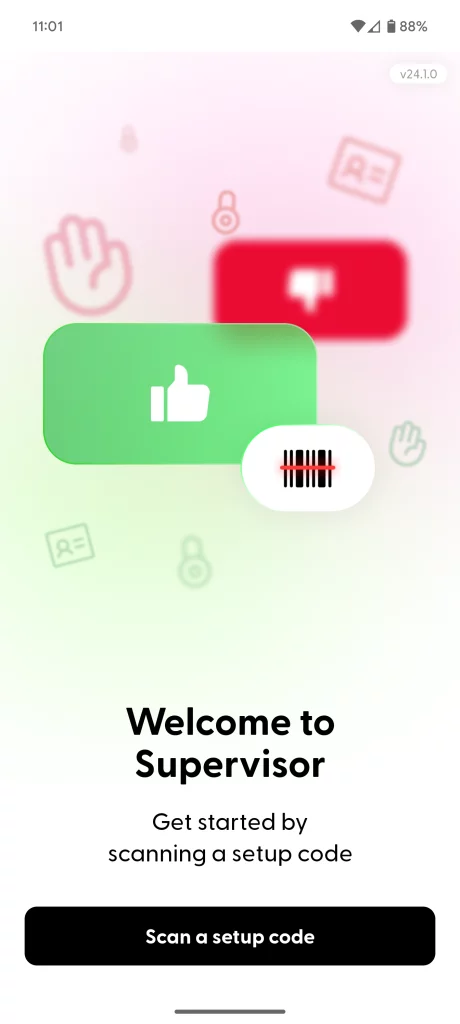
Get started screen
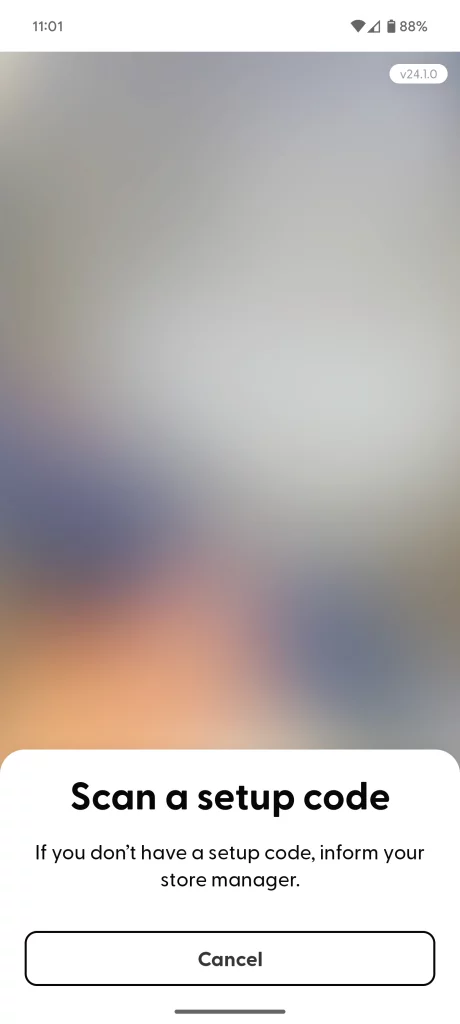
Scanner view to scan the setup code
