Employee solution: Supervisor app
App setup and login
Initial setup
Before you can log in to the Supervisor app, you must first configure it. You can learn more about the initial setup in the following article: Supervisor App Configuration
Login
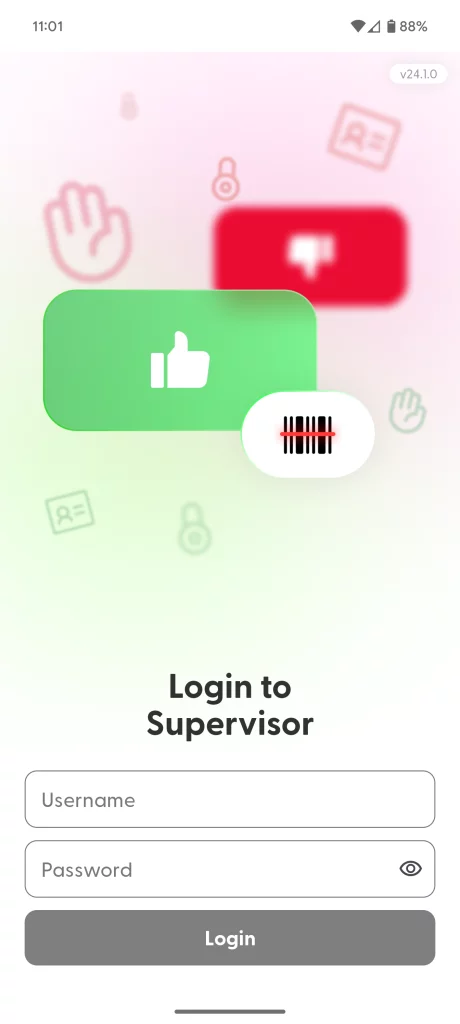
To ensure that only specific employees have access to the features of this app, every user should enter their username and password, which will be provided by their management team. Managers and admins can create a Supervisor app on the shopreme Middleware (Management Console). For more information on how to manage accounts, check Account Management. Once you receive your credentials, you can sign in after loading the app.
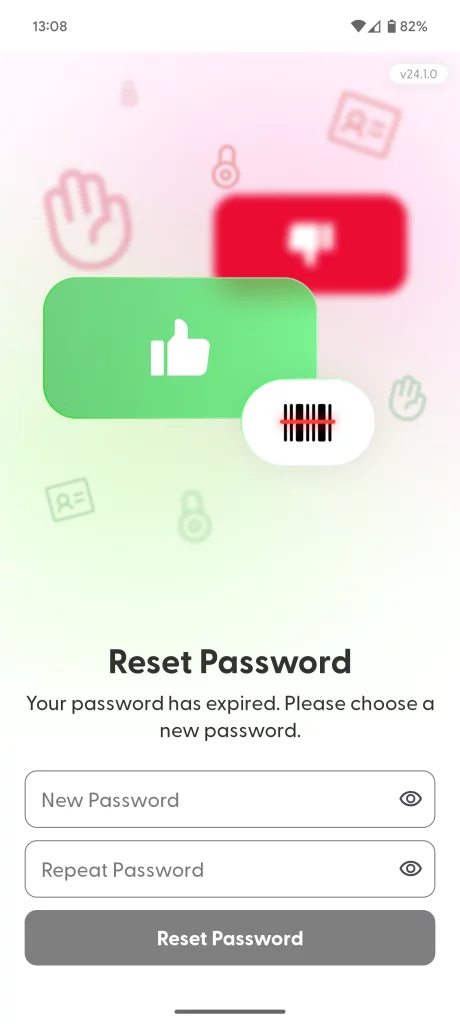
If necessary, you will be asked to set up a new password after the first time you log in with the shared credentials. Keep your new password private, and do not share it.
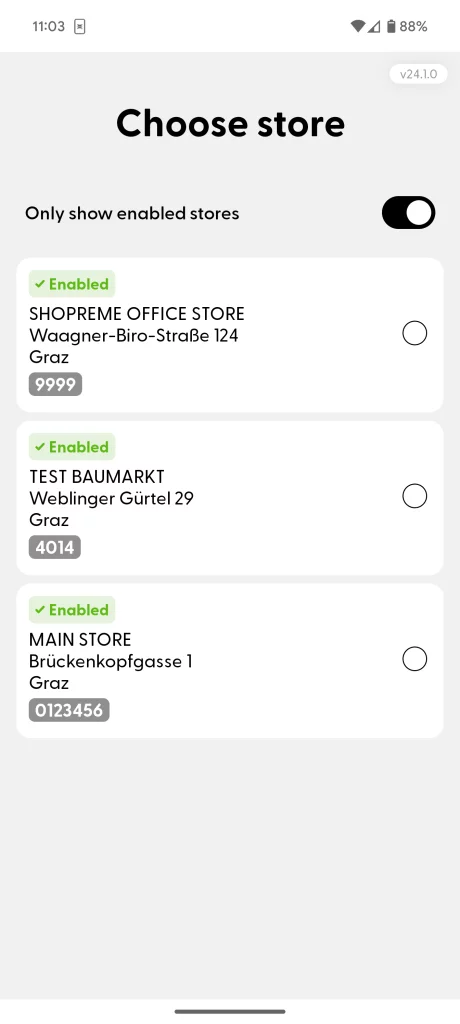
If you are registered for more than one store, you will be asked to confirm the store where you are currently located.
If you are a manager or have access to the Management Console, you can help an employee reset their password in the “Supervisor Users” section by entering a temporary password and ticking the box “User needs to change the password on the next login”. After the employee resets the password, this box will be unchecked again.

