Employee solution: Supervisor app
Hardware setup and configuration
The Supervisor app also includes a section to manage, setup and configure the hardware devices such as: vector exit terminal, matrix SCO, snap carts, Unlocking Stations, and Handheld Scanners.
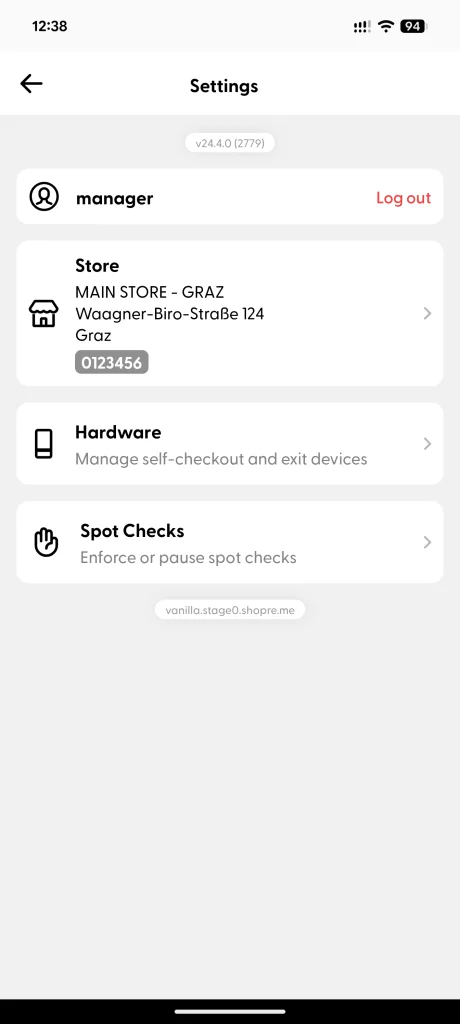
In the Supervisor app, you will find all the hardware-related options by clicking on the settings icon in the bottom navigation bar (Picture 1). Then, you can select the Hardware settings option (Picture 2).
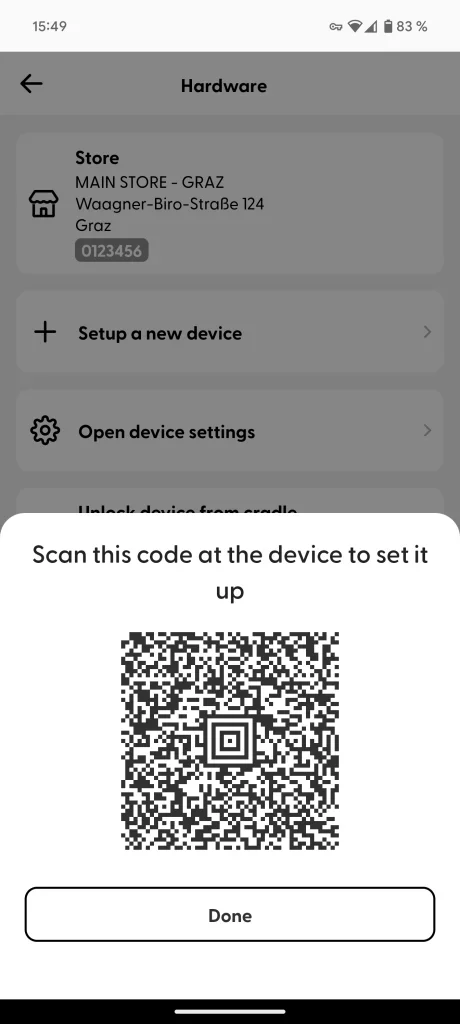
When you tap the option “Setup a new device”, a QR code is generated and displayed. Please note that these codes need to be scanned directly at the vector or matrix, respectively.
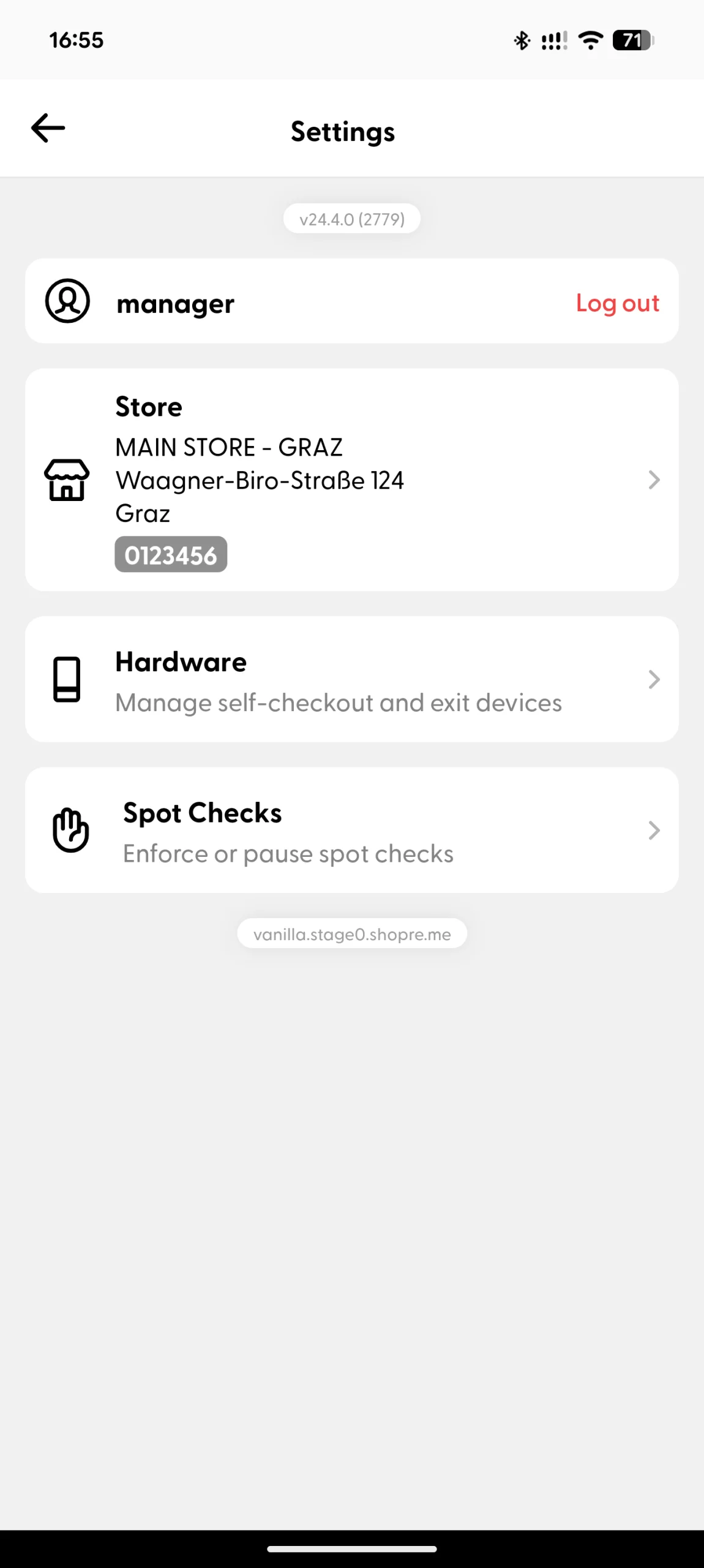
(1) Settings screen
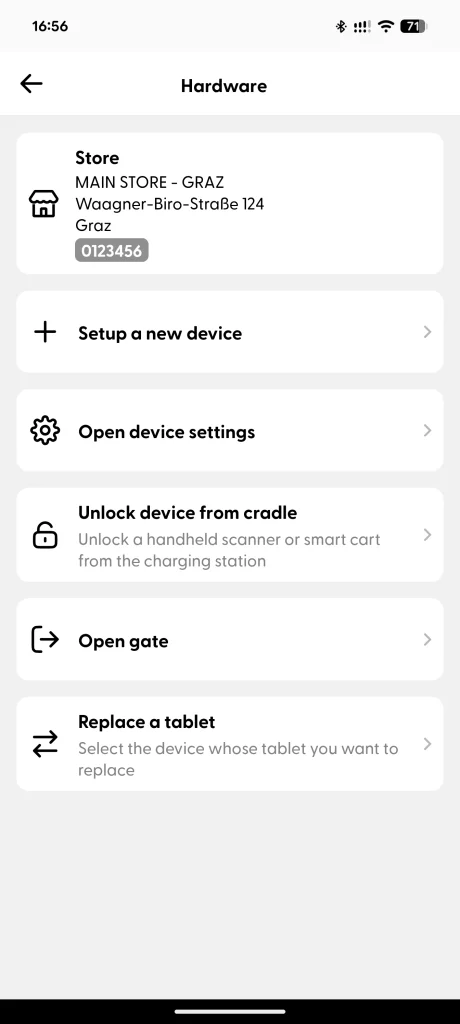
(2) Hardware section
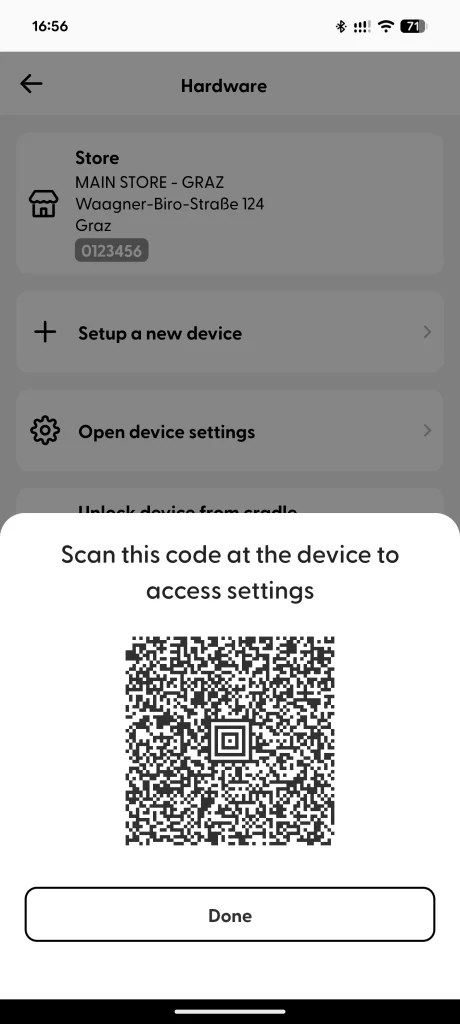
Open hardware settings
When you click on “Open device settings”, the app generates a QR code that you can use to access the settings options of different shopreme-managed devices such as the matrix SCO, vector exit, handscanners and snap cart. Some of these settings options include rebooting the device, opening the optional gate (vector only), testing the payment terminal, printing a test receipt (matrix only), and seeing status and network information about the hardware device itself. Check this article to learn more details about the vector settings, this article about the matrix settings, and this page about smart cart config and settings.
Set up a new hardware device
To set up a device, whether it is a snap cart, handheld scanner, vector, or a matrix SCO, you need to visit the Hardware section in the Settings section, and tap “Setup a new device”. This will generate a QR code that should be scanned on the device to be registered, during the Software Setup steps. These software setup and configuration screens are shown the first time a device is turned on and it has the shopreme software already installed.
The shopreme app will register the device to a particular server (URL) and a specific store (location, store ID).
Unlock device (Portable scanner only)
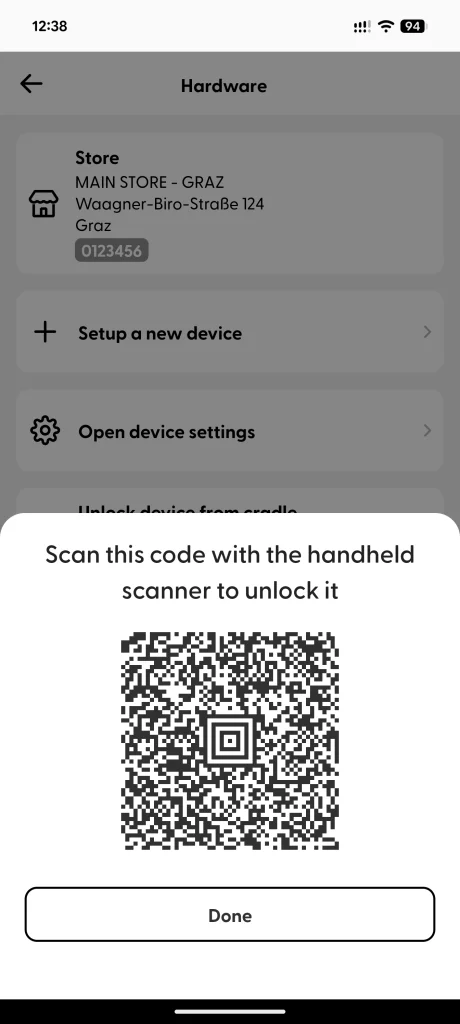
The Unlock Device code allows you to unlock a shopreme device that is normally charging in a cradle, such as a handheld scanner or a snap cart device. This can help you remove a device from a charging cradle, in case the unlocking station app is unavailable or for testing purposes.
Open gate (vector only)
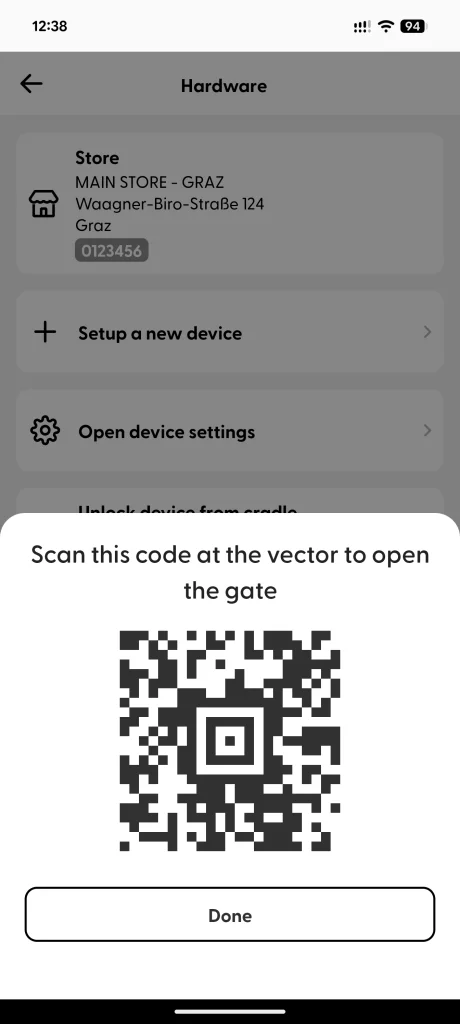
By clicking on “Open gate”, the app will generate a QR code that you can use to open the gate at the vector exit manually, in case a customer wants to leave the store and does not have an exit code (e.g., the customer did not purchase anything).
Replacing a matrix or vector tablet
If the tablet (Android system) of a matrix or vector device ever needs to be replaced, it is possible to make a smooth transition so that the new tablet simply replaces the old one, and all device history is migrated to the new device without any information loss.
When setting up the new device, in the Software Setup process, a special QR code for setup should be used. This is found in the Supervisor app settings section, under the “Replace a tablet” option.
In this section, select the device that needs to be replaced. It will likely be offline and disconnected, so it will appear in red. Tapping on the device will display a new special setup code for the new tablet.
The rest of the setup process will continue as usual.
Hardware settings option
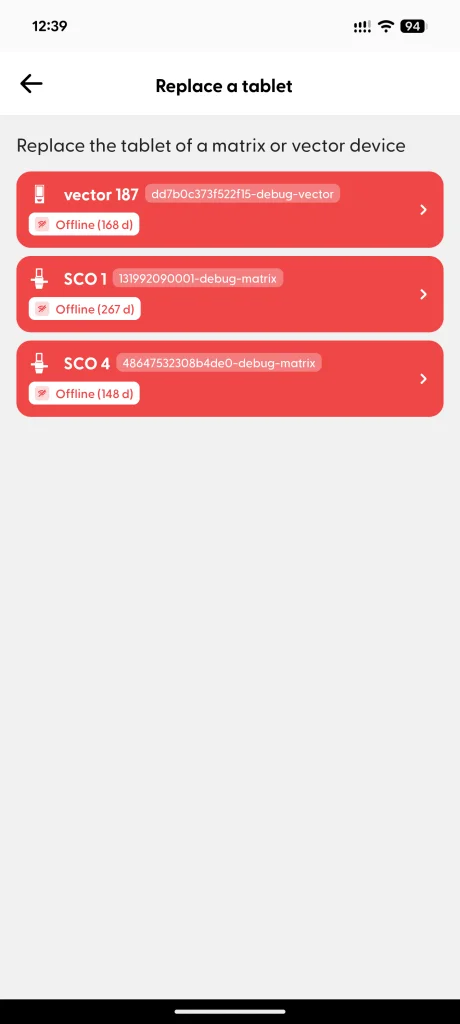
Tablet replacement section
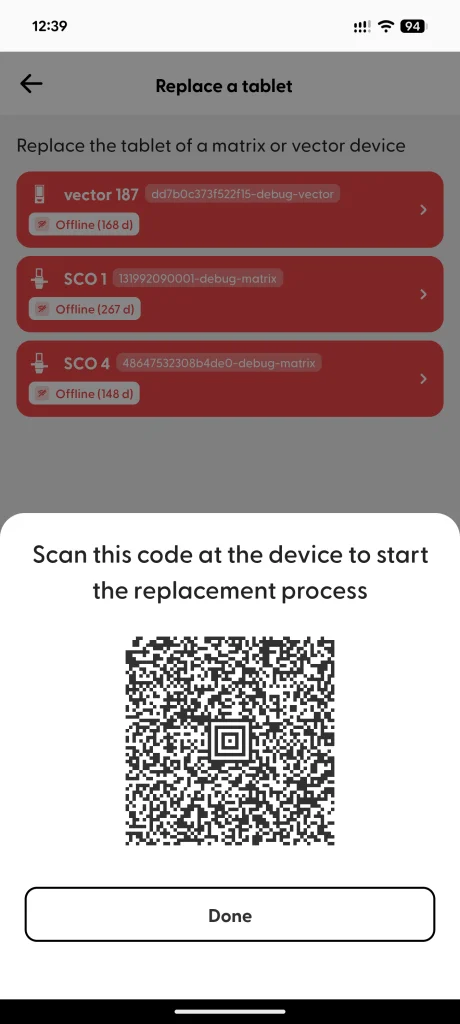
Code to set up a new replacement
