Smart cart
Configuration & setup
Installing the snap cart app
To efficiently manage snap cart devices, retailers can leverage a mobile device management (MDM) system to deploy app updates and configuration files remotely.
Before the shopreme Scan & Go app on a snap cart device can be used by shoppers, it must be configured for the specific store and server environment. The start screen on the snap cart will inform the employees that the device has not been configured yet:
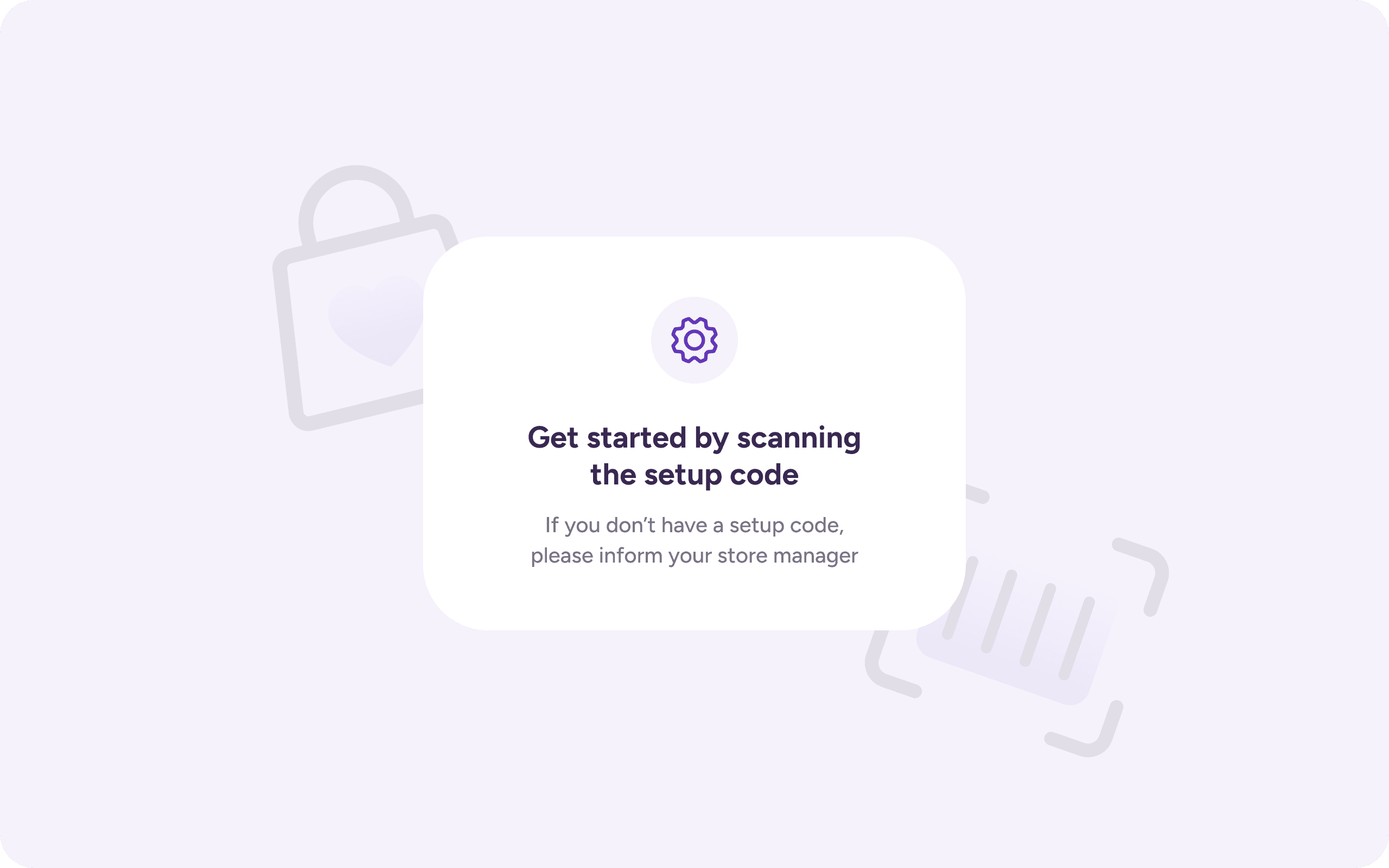
To do so, a store employee can use the shopreme supervisor app to generate a device setup QR code, which we will describe in the next section.
Setting up the snap cart
While the “Get started” screen is being displayed, sign in to your Supervisor app, using the store credentials for which the snap cart should be registered. Once logged in, go to Settings and then Hardware. In there, you will see the option to see the code to set up a device.
A setup QR code will be generated. Scan it on the snap cart device. The shopreme Scan & Go app will process its content and load configuration and styling information from the server, after which it is ready for use.
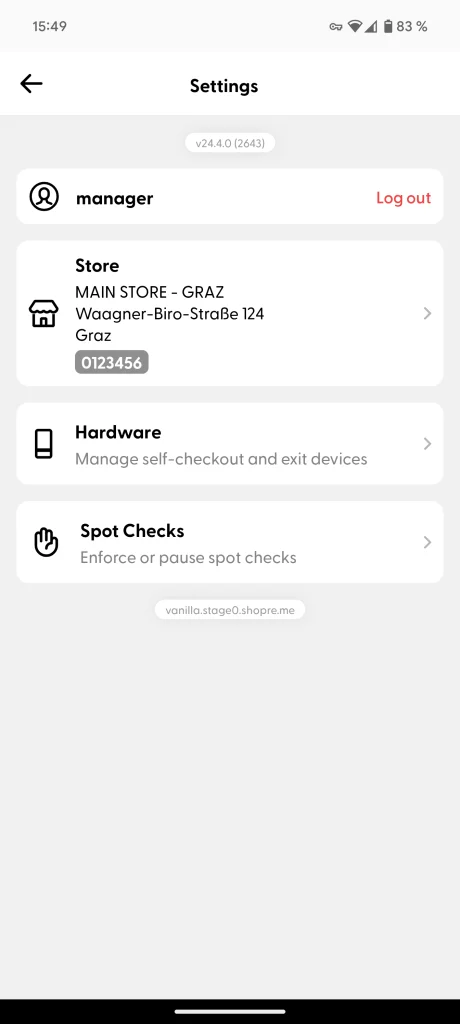
Settings screen
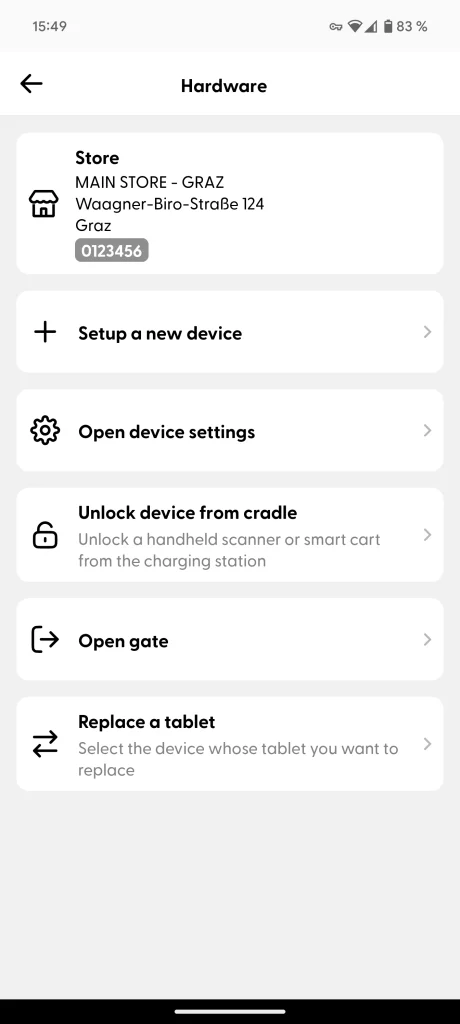
Hardware section
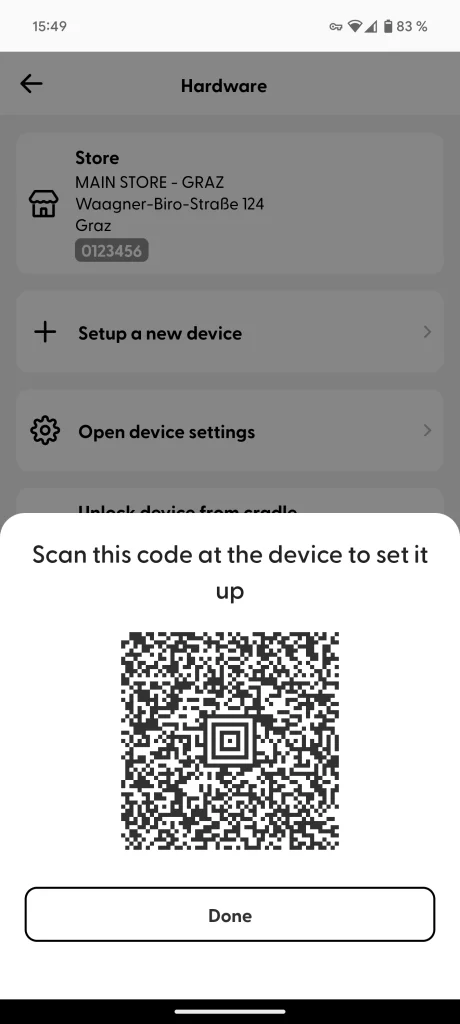
Setup code
Keep in mind that setup QR codes can only be used within 24 hours after they are generated.
Snap cart settings screen
The Supervisor app user can scan the “Open devices settings” code at the snap cart, to see the current configuration of the device. For example, the current network name, IP address, and store ID can be verified here.

More advanced options, such as deregistering the device to move it to another store, can also be done from these settings. If you need further help here, please contact shopreme support.
