Exit solution: vector
Software settings
The vector app has its own hidden Settings and Configuration section, which will help you see the current setup information or troubleshoot most issues.
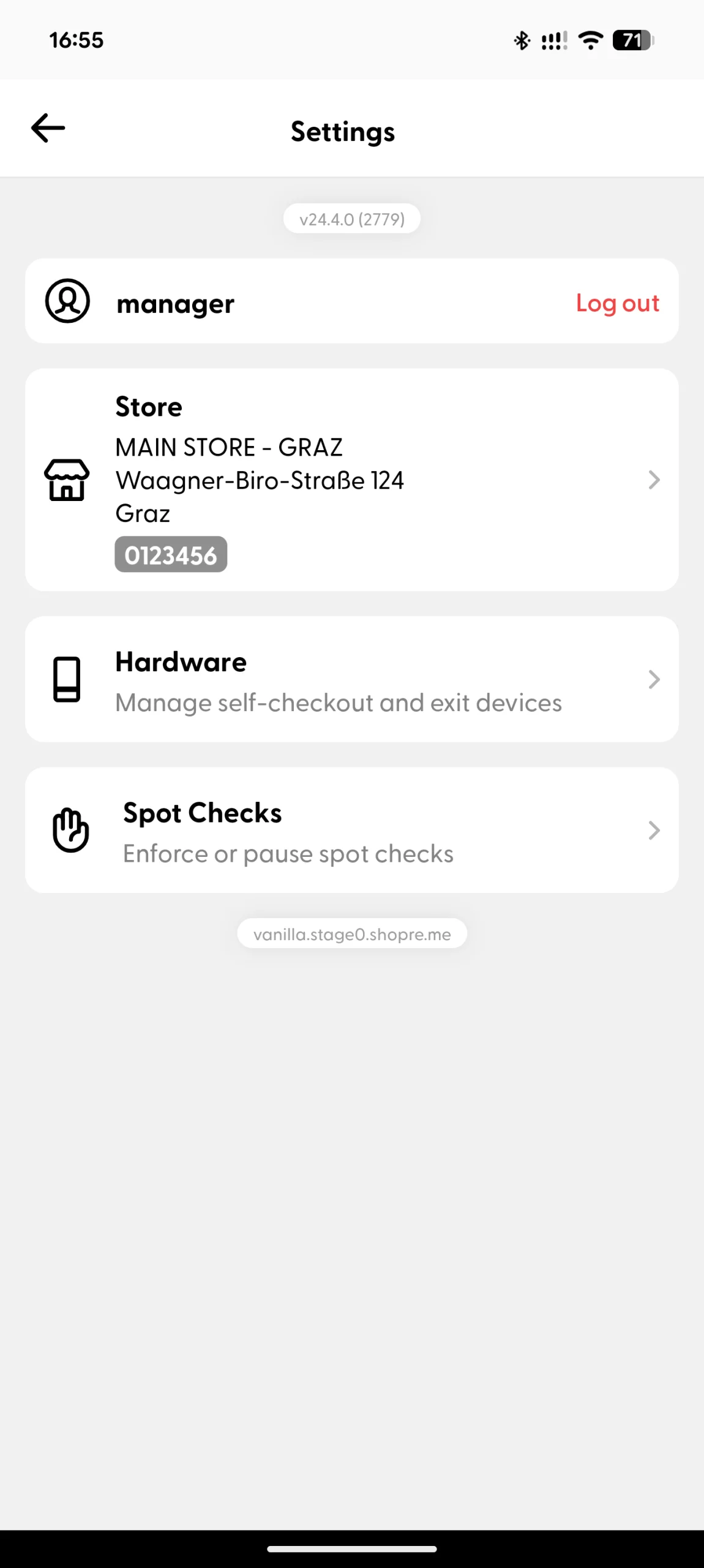
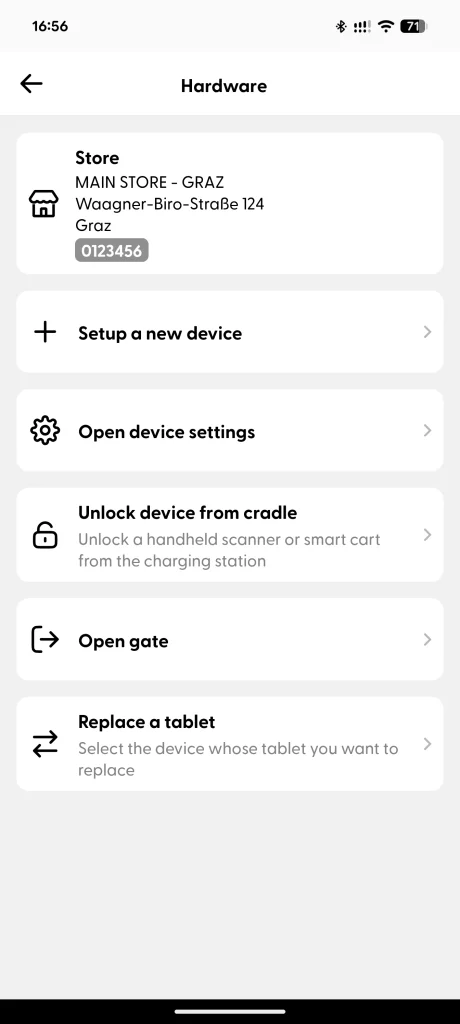
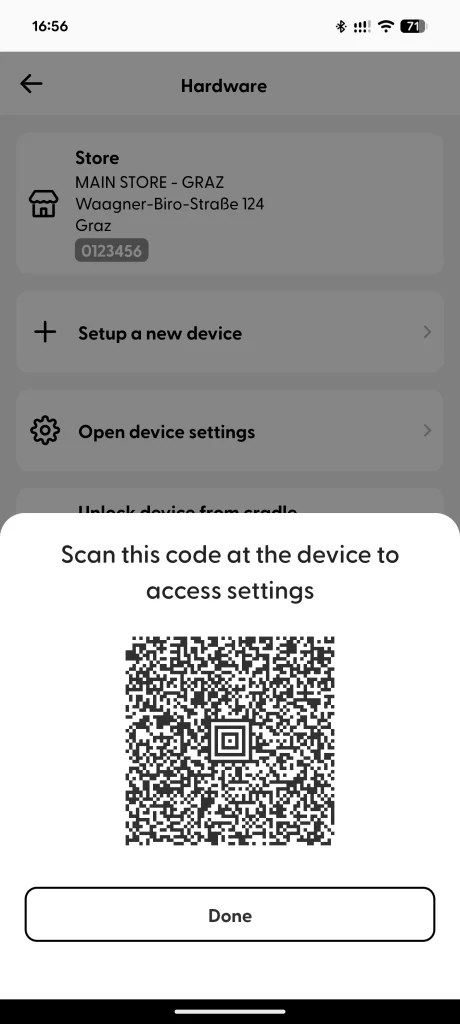
To access the Settings, you will need access to your Supervisor app. In the Supervisor app, go to Settings, tap on “Hardware”, next tap on “vector” and then choose the option “Open vector settings“. Finally, scan the QR code displayed with the vector scanner.
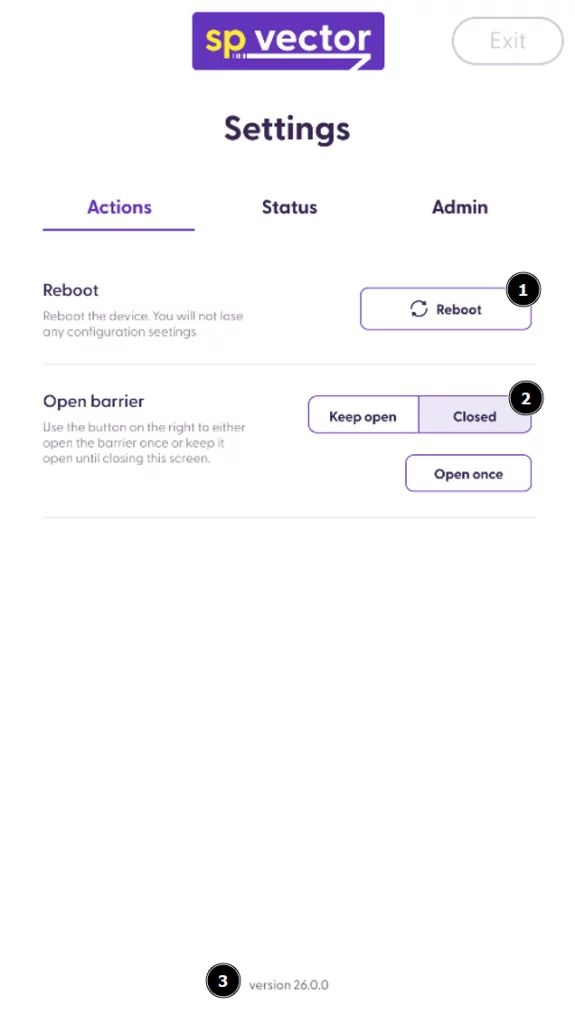
The Settings page on the vector app has three tabs: Actions, Status and Admin. Below you can see the main functionalities included in these three tabs.
Settings: Actions
This section shows general actions such as:
Reboot: This option makes the vector device turn off and turn on again. This could be useful, for example, after changing some network settings.
Open Barrier: With this option, you can choose to keep the gate open, close it, or only open it once (the default time can be set up, e.g. 10 seconds).
App Version: The number displayed here shows the current vector app version installed in the device. If there is any technical issue, please communicate this information if you contact shopreme Support.
Settings: Status
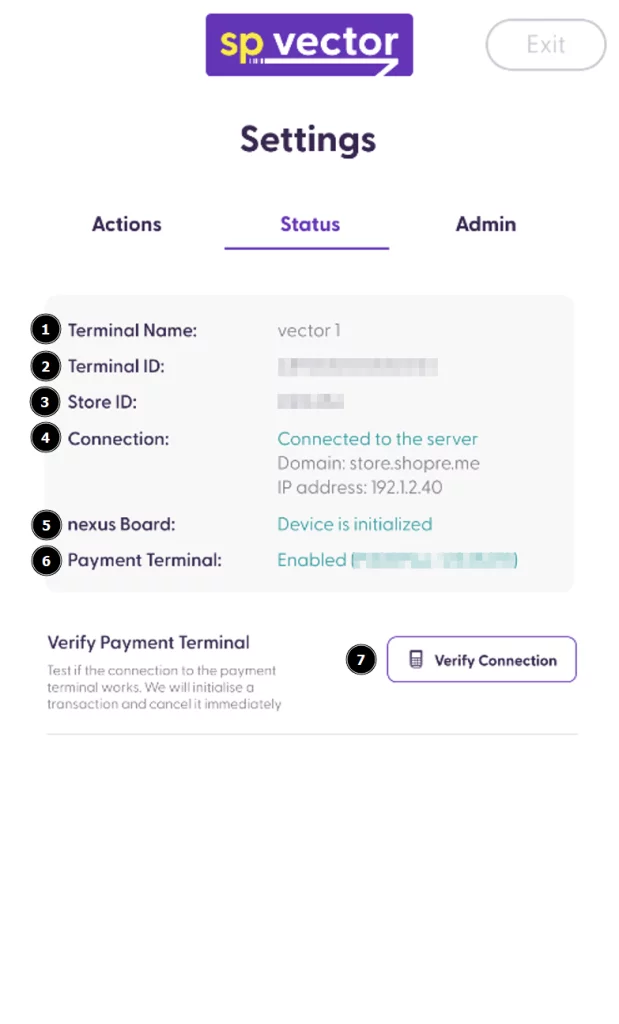
The second tab in the Settings section is more specific to the device and store configurations. Here you have details about what each piece of information in this section:
Terminal Name: This is the name assigned to the device during the Software Setup, to identify it on the Management Console. It is also a short name in case you need to communicate any technical support issues.
Terminal ID: This is the serial number of the tablet, specifically.
Store ID: This is the name of the store as it was registered in the shopreme Management Console and the Supervisor app.
Connection: “Connected to the server” means that the Ethernet connection is working and the app is connected to your server. The “Domain” is your store server. The “Eth MAC” is the network MAC Address.
Nexus Board: This shows the status of the connection between the tablet and other key hardware parts. If this message is green, everything is connected and working as expected.
Payment Terminal: This is the PoS Terminal ID number, or Serial Number, as registered in your shopreme Management Console. If there is no Payment Terminal configured, this message will be “Disabled”.
Verify Connection: Tap on this button to test the connection between your shopreme server and the Payment Terminal. A transaction will be initialized and cancelled automatically. There is no further action to take (no need to complete or cancel the purchase manually).
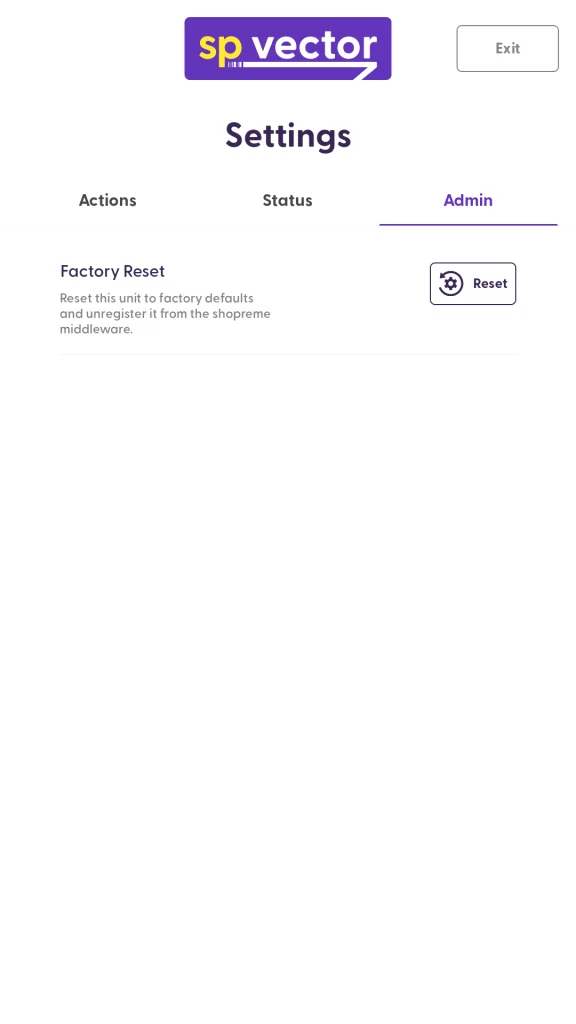
Settings: Admin
This section is only available to employees who have been assigned the Admin permission on the shopreme Management Console. It includes restricted settings.
Factory Reset: This option unregisters your vector from your server, so then you can restart the Hardware and Software Setup process. This can be used in case the vector device is transferred from one store to another.