Handheld Scanners
Configuration & setup
Overview
This section describes how to set up handheld scanners. For more details on how to manage already-registered devices from the shopreme Management Console, check this article in the Management Console documentation section.
Installing the shopreme app
One way to manage your handheld scanner devices is to use a mobile device management (MDM) system to push application updates remotely to your devices. However, this can also be done by uploading the .apk file to the device storage directly through ADB (Android Debug Bridge).
After installing the app for the first time, the setup screen will be displayed. This means that the app is not configured for any server or store yet. It will also have the shopreme styling until that is configured through the shopreme Management Console (See the section Customizing the shopreme app below).
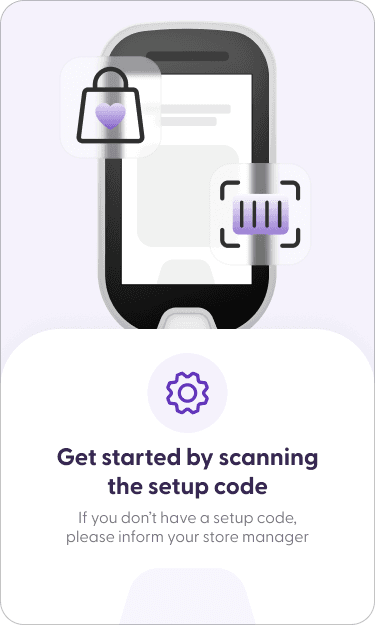
Before starting to use the shopreme app, however, it needs to be configured by following the steps in the next section.
Setting up the shopreme app
Starting with the shopreme app version 3.0, the process to configure handheld scanners has been unified for all Android versions. This means that if your device has Android 11 or higher, it is no longer required to manually enable special permissions on the device via USB debugging.
To get started, sign in to your Supervisor app using the store credentials for which the handheld scanner should be registered. Once logged in, go to Settings and then Hardware. There, you will see the option to view the code for setting up a device.
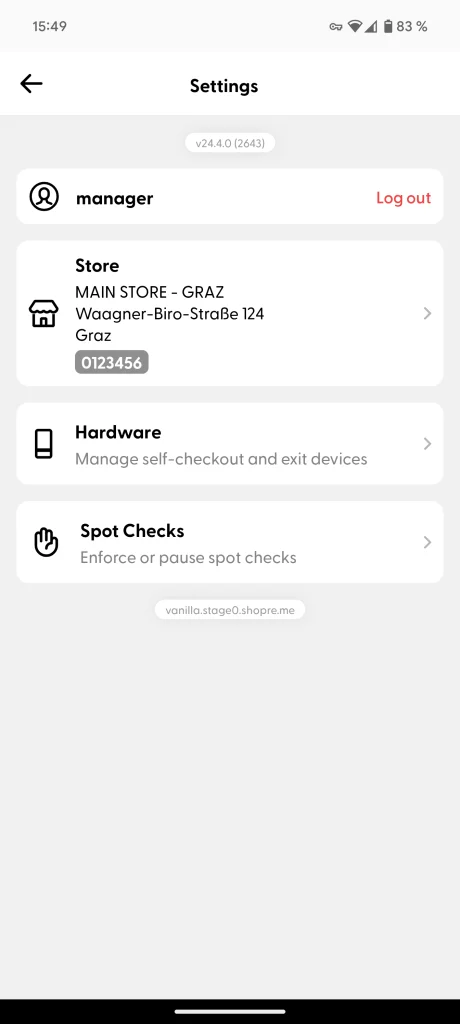
Settings screen
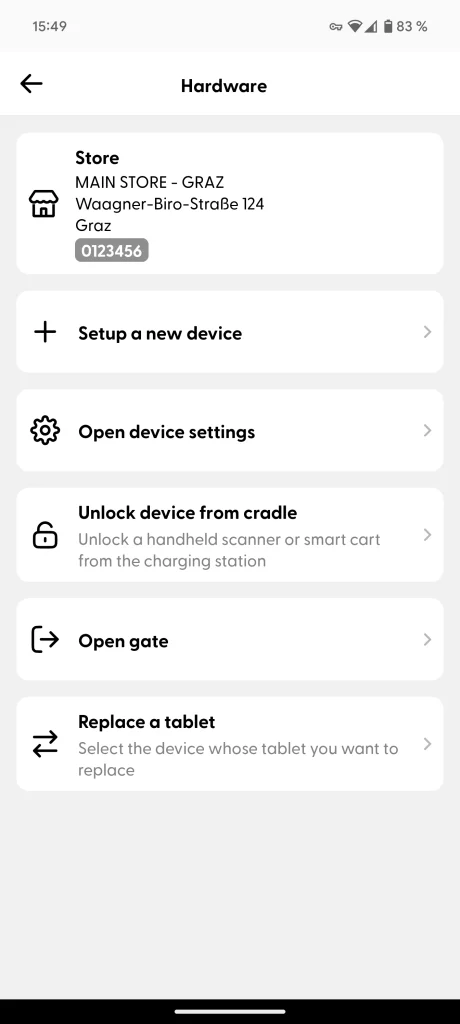
Hardware section
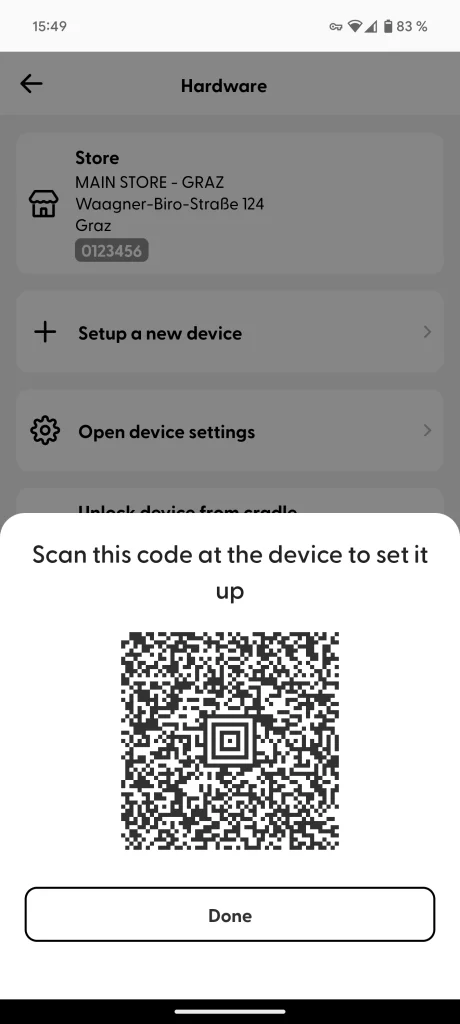
Setup code
The setup codes are valid for 24 hours and can be reused for different devices, which is handy when setting up multiple handheld scanners.
Unlocking a device
Unlocking devices works by sending push notifications to portable scanner devices, thanks to the Google Cloud Messaging service. There are three ways to unlock a device:
Using the Unlocking Station as a customer with the loyalty card, which will unlock the device with the highest battery available in the cradles in the current store.
Unlocking a specific device from the shopreme Management Console, in the device detail dialog.
Unlocking a device by scanning the Supervisor app unlock code.
In the Supervisor app, similar to where the Setup code is found, there is another code called “Unlock device from cradle”. This code can be scanned at any portable scanner that is docked in a cradle, and it will unlock itself. This method can be helpful while troubleshooting any technical issues, such as connection to the shopreme backend or the Google Cloud Messaging service.
Hardware section
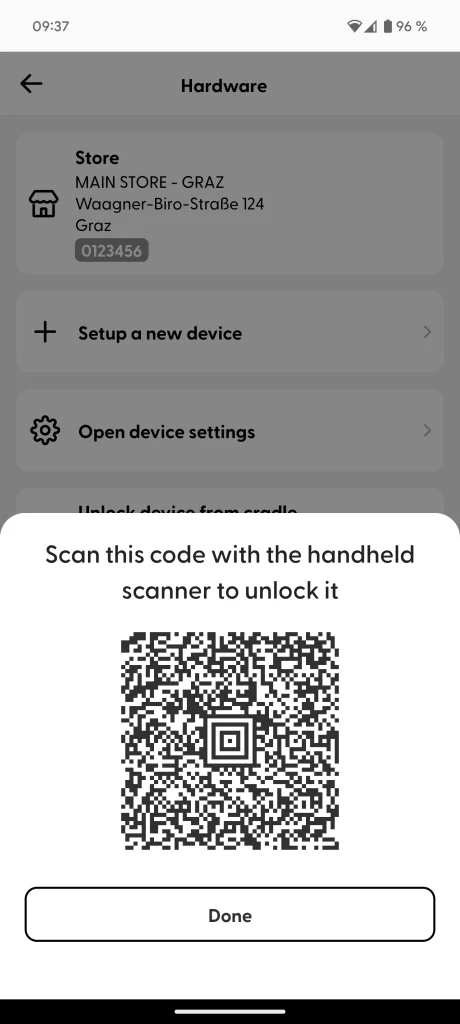
Unlocking code
Customizing the shopreme app
This customization option is available only on the shopreme handheld scanner app version 2.0 and higher.
If you are using our shopreme app for the handheld scanners, you can customize its appearance, such as images, lottie animations, fonts, and color scheme. To do that, a few files must be pushed to the device in a .zip file. This .zip file should contain all the custom files.
Example customization files:
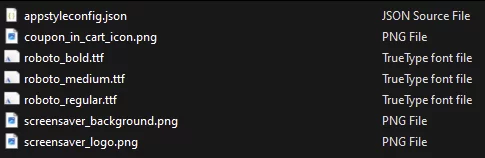
Once you have the zipped file, you can distribute it to your devices by uploading the .zip file on the Portable Scanner Management section. You can read more about this section at the bottom of the "Portable Scanner Management" details: “Updating the stylesheet”.
To know more about how to exactly create the stylesheet file and upload it correctly, please contact your shopreme integration consultant or shopreme support.
