Management Console
Portable scanners management
The Portable Scanner Management section is the hub for all handheld scanners, snap carts, and unlocking stations. Once there are devices already registered to your store, they can be seen in this overview page.
The main management page offers an overview of each store, how many devices there are and what their last reported states are. To learn how to set up each device, please check the following article on Handheld scanners configuration and smart cart configuration pages.
It also allows managing the styling (images and stylesheet) for all devices, which is described in this article.
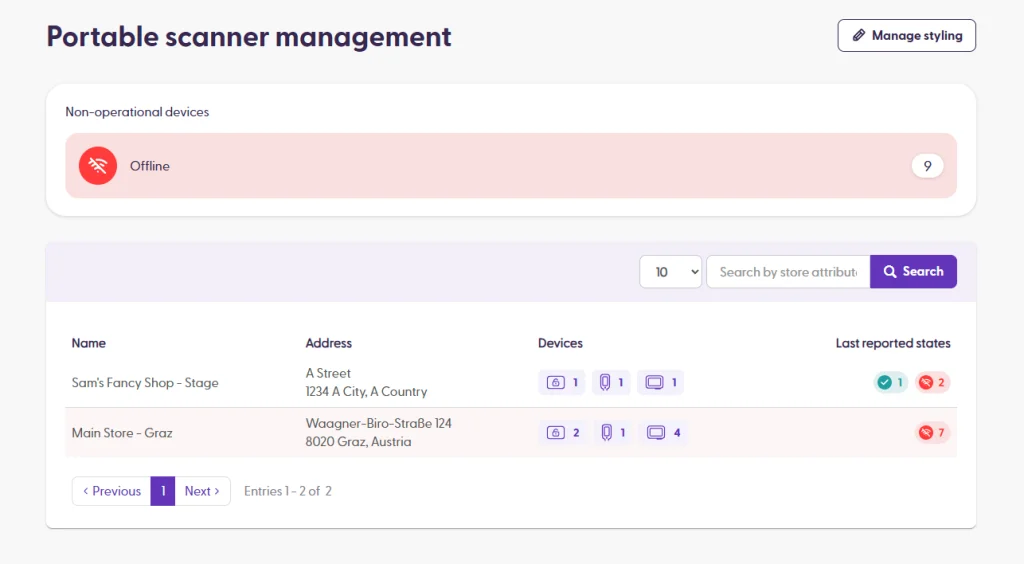
Store summary
Clicking on a store entry will open a new modal window with a list of all devices registered in that store. The type of device will be illustrated with the icon in the Device column, and the specific hardware model in the Model column.
The devices sync with the shopreme backend every 5 minutes, and they report their state. The device states available are the following:
Charging (green): The device is plugged in the cradle or charging station.
In user (purple): The device is currently unlocked and being used by a customer in the store.
Offline (red): The device could not sync with the shopreme backend for more than 15 minutes, so it is considered offline (outside the network or out of battery).
The example below shows the Unlocking Station in operational (connected and working) state, and some devices in charging and offline state:

The following example shows the device being used by a customer in the store:
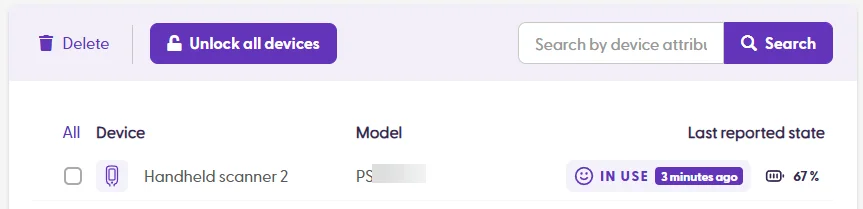
Device details
As mentioned before, in the store summary modal page, all devices are listed. When clicking on one of those individual devices, you can see more details about the app and the last activity recorded in the device.
ID: This is the device serial number.
Model: Hardware model, from the manufacturer
Registered: The date when the device was registered to the shopreme backend, using the Supervisor app.
Operating system: Android version
App version: The shopreme portable scanner app version. The app version number refers to the minimum API level that is required on the backend.
SDK version: Shopreme SDK version that is used in the installed shopreme software.
Last unlocked: The timestamp of the last unlocking action on the device.
FCM token: A secret key that allows the shopreme backend to send push notifications to the device. This is used for sending unlocking requests proactively from the Management Console.

Updating the stylesheet
Clicking the “Manage styling” button on the top right corner on the Portable Scanner Management page will open the Portable scanner stylesheet dialog.
This dialog allows admins to upload a custom stylesheet to change different UI styling on the handheld scanners or snap cart.
Some features that can be customized:
Primary colors (buttons, icons)
Secondary colors
Font style
Idle screen logo (before unlocking the device)
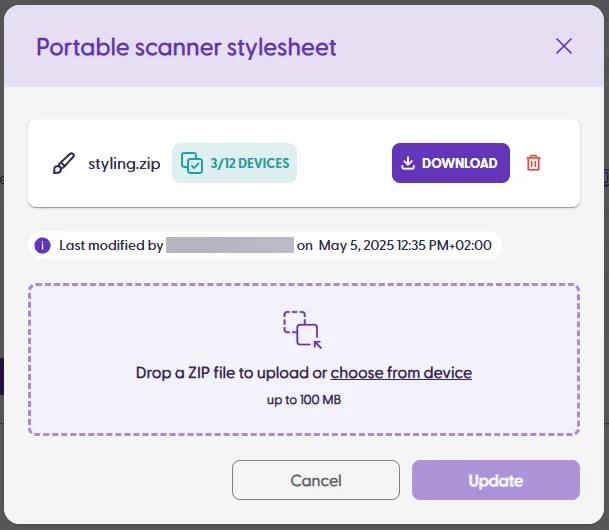
To know more about how to exactly create the stylesheet file and upload it correctly, please contact your shopreme integration consultant or shopreme support.
