Management Console
vector management details
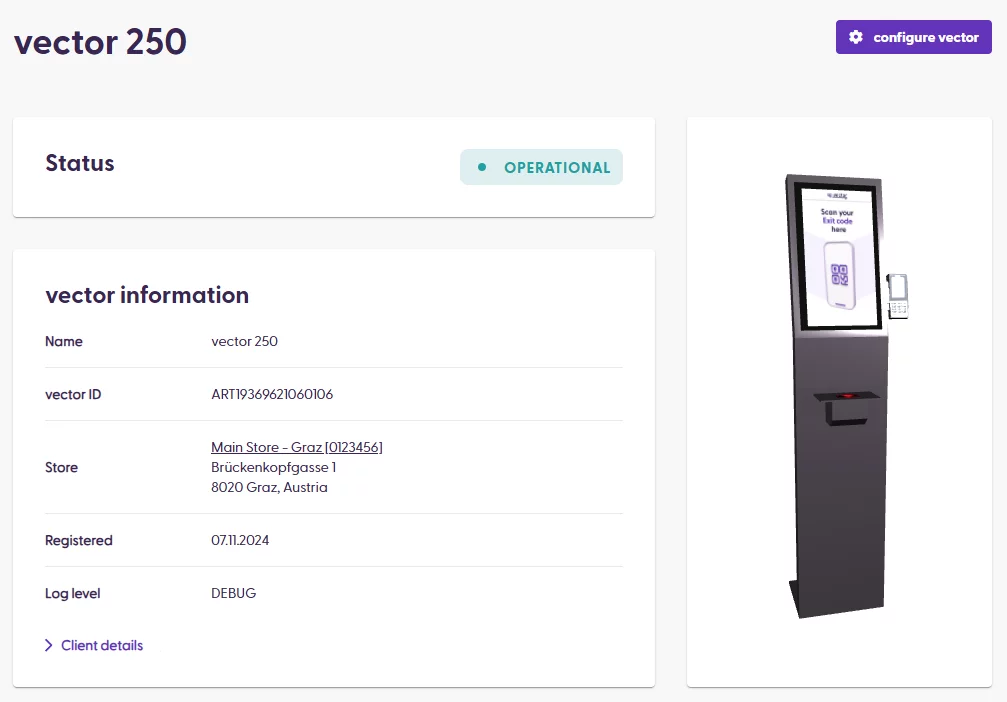
Each vector has its own detail page that provides an overview of the device’s status. For example, the vector information section displays the vector ID, registration date, and log level. You can also see the store name and its external ID in the “Store” line.
Clicking “Client details” displays the current screen on the vector app, network information, and the last status reported by the device within the heartbeat.
Tags
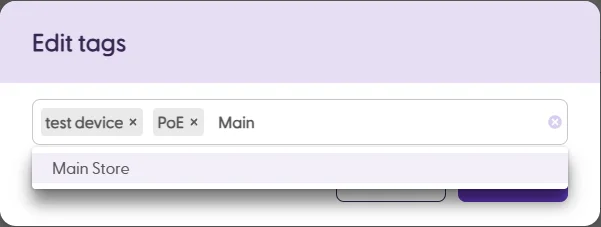
Beneath the vector information section, you can see what tags a device has. Each vector can have up to 4 custom tags to help you keep track of any specific details. Each tag has a limit of 55 characters.

When editing the tags, you will be suggested tags which already exist that match the characters you have entered:
Hardware components
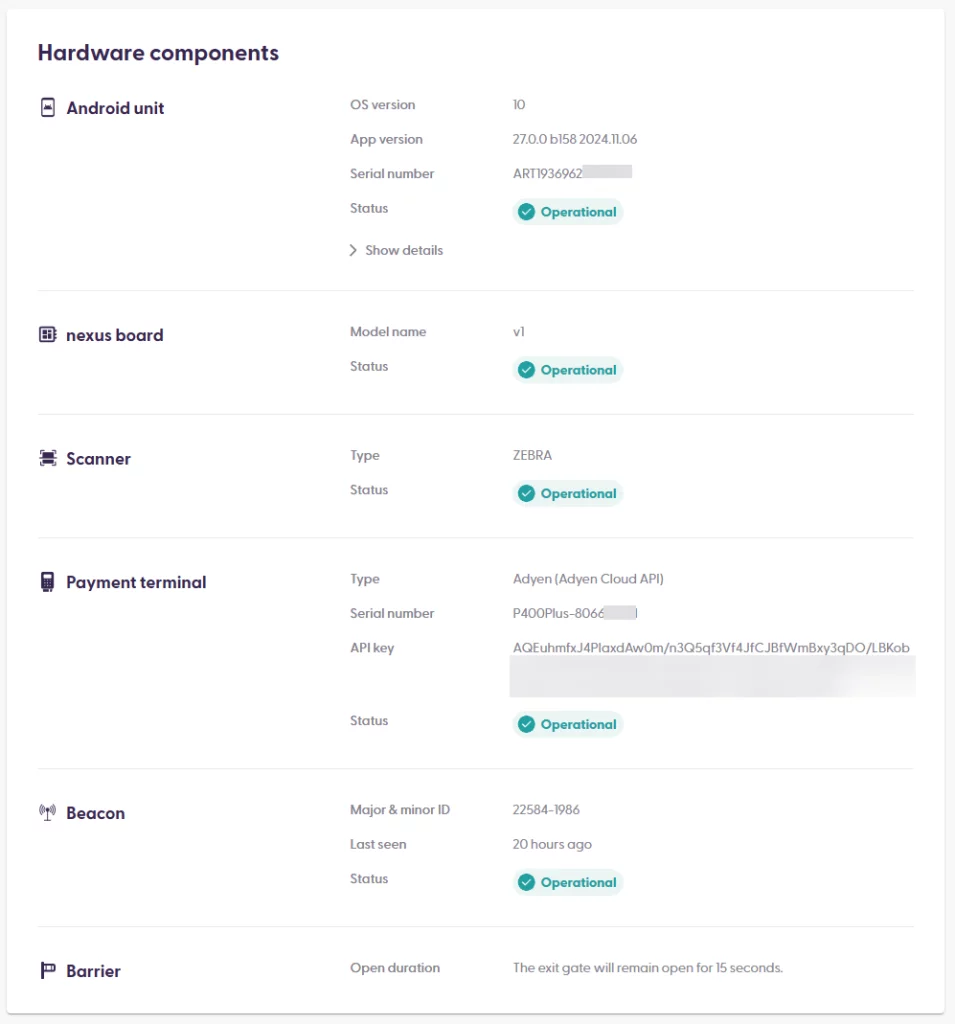
This section refers to the hardware parts within the vector, such as the Android unit, nexus board, Scanner, gate, and more.
A shopreme vector can be used with or without a physical gate. However, once a vector is registered, adding or removing the gate from the device is not possible without completely de-registering the device. If you want to add or remove a gate, you need to reset the vector from the vector settings screen (on the device) and go through the hardware and software setup once again.
However, the payment terminal can be added or replaced later, as it is an optional component, depending on your user journey. This can be done by clicking the ‘configure vector’ button at the top of the page. If you use the vector as an exit only, you do not need a payment terminal, and the vector will not include a payment terminal connection.
The nexus board controls the power supply to all other components, and the Android unit refers to the screen and computing component (“tablet”).
Beacons assist shoppers to check in to a store when they open the Scan & Go app. This is done by detecting the Beacon’s major and minor IDs, which should match the current store’s registered ones. You can verify the vector’s beacon IDs in this section at the bottom of the hardware components table.
Transactions
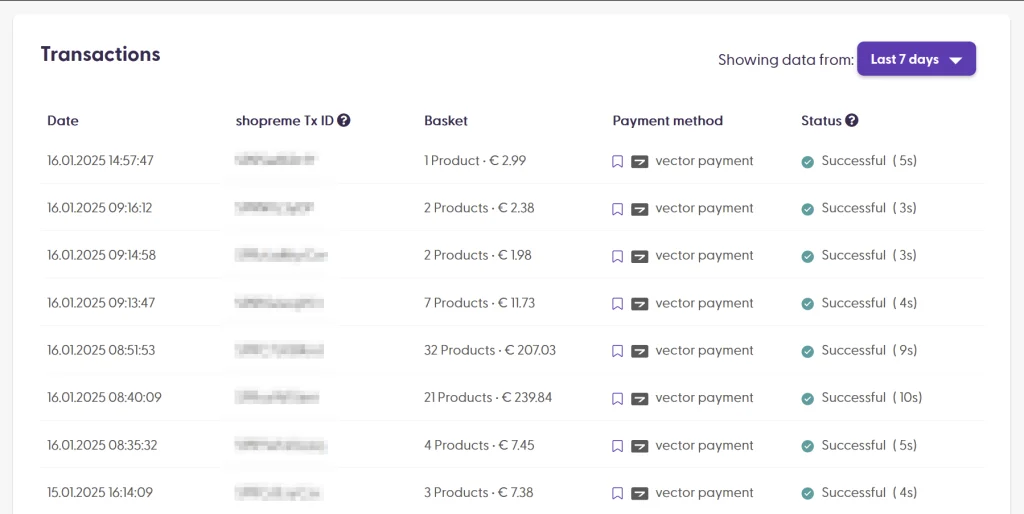
For vectors with a payment terminal, you will find a list of the device’s most recent transactions at the bottom of the detail page. This provides a list that you can filter per day to have an overview of the last transactions completed on this device. Clicking on any transaction in the list will take you to its detailed transaction page.
If the vector device does not have a payment terminal attached (e.g., vector-as-exit only), this table will not be displayed.