In-store processes
Employee guides: Supervisor app
Overview
The shopreme Supervisor app is the store employee companion to the shopreme Scan & Pay ecosystem. It is the tool that allows store associates to oversee store activities, approve shoppers' baskets during spot checks and age verifications, and manage hardware devices running shopreme software.
In this guide, you will find quick examples and guidelines on how the app works and how to best use it. We suggest that you use this guide as a template, and you can replace the images with the app in your language and more details to your specific use cases.
Additional details and information can be found on the linked pages at the end of each section. You can use the information in the full articles to make the guide more suitable for your needs, but please remove this section before printing.
Please note that the screenshots are in English, but the screens are the same. The app may show a different language when you use it, based on the device. If you want to switch languages, change the system language of your Android device.
You can download a template copy of this guide in different languages to help you set up the training in your store:
Mitarbeiterleitfaden: Supervisor App
Deutsch
Employee guide: Supervisor app
English
Guía para empleados: app Supervisor
Español
Guide de l'employé : application Supervisor
Français
Ghidul angajatului: Aplicația Supervisor
Română
Log in to the app
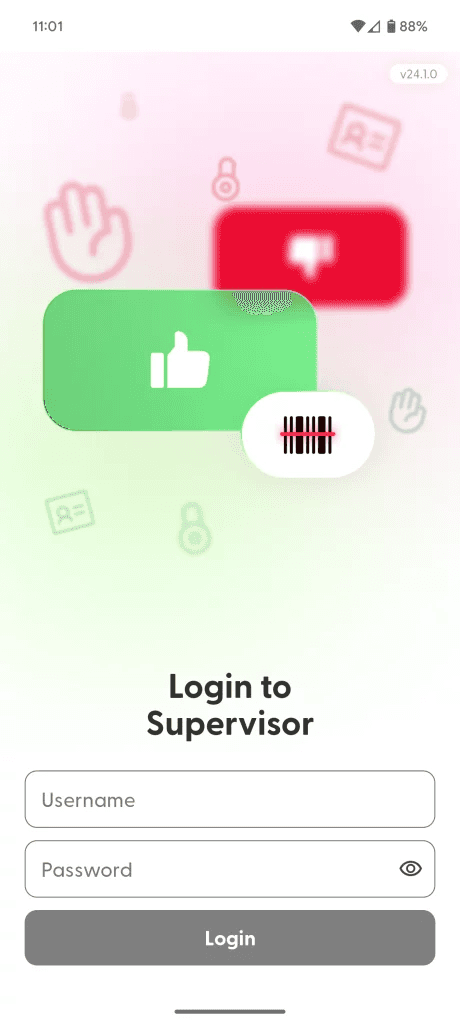
When you open the app for the first time, log in with your Supervisor app credentials. If you do not have any credentials yet, please contact your manager or project team.
If you have responsibilities in different stores, you will need to confirm in what store you currently are. If you do not see this screen, you only have access to one store and there is no extra step.

Additional information
More details about the Login process and Password recovery, in the Supervisor app: App Setup and Login page.
More information about how to configure the devices to a specific store can be found on the shopreme Knowledge Base: Supervisor app: App configuration.
If you need to learn how to create users (credentials) for the Supervisor app, check the shopreme Knowledge Base article: Employee account management.
App overview
After logging in, you will see the Waiting Customers list. This is where you will see new customers that need your assistance for having their purchase reviewed and approved.
Depending on the device model you use, the app may look a bit different. It can use the device camera or a hardware laser scanner (e.g., in devices of the Honeywell or Zebra brands).
See the two options below:


Spot checks / Random checks
Spot checks are randomly-selected security controls carried out by store employees. In short, store associates can verify that the items in the customer's shopping cart match the list they entered in the Scan & Go app.
When a shopper is selected for a Spot Check, you will see a card in the Waiting Customers section, and you will receive a notification on your device. A timer will show for how long the shopper has been waiting.

App notification for Spot Check
Tap the customer card to start the spot check process.

Customer waiting for Spot Check
If you approve the review, the shopper will be allowed to start the payment process.
If you reject the review, the shopper will go back to the "Cart" in the app, so they can correct the cart and restart the payment process. Please assist the customer to correct the contents in their basket in their app.
Sight check (Quick verification for fewer articles)
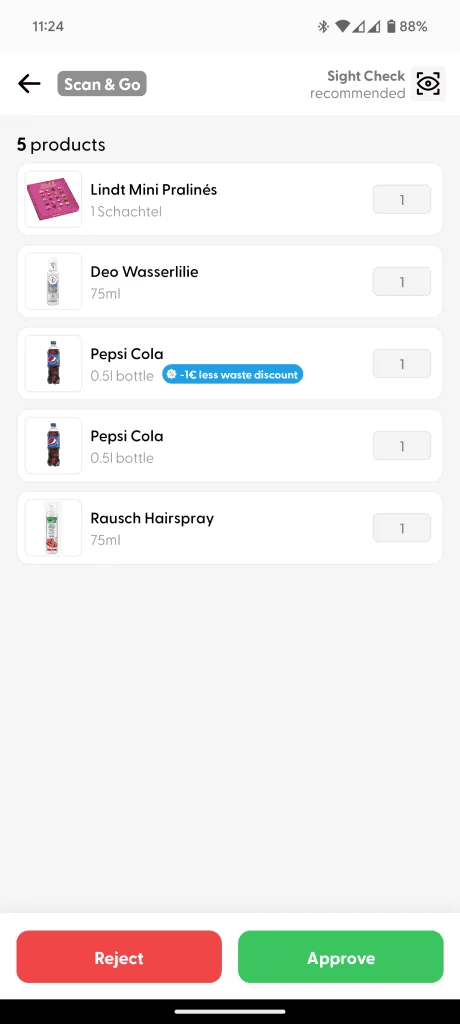
When a basket has only a few articles, a quick look at the basket can confirm whether the customer's shopping cart matches the list of products scanned with the Scan & Go app.
In this case, you only need to verify the products match and select “Approve”, or “Reject” if there is a mistake (a product is wrong, or the product quantity does not match).

Waiting customers list
Sight check (Quick check)

Approved
Rescan check (Product rescanning)
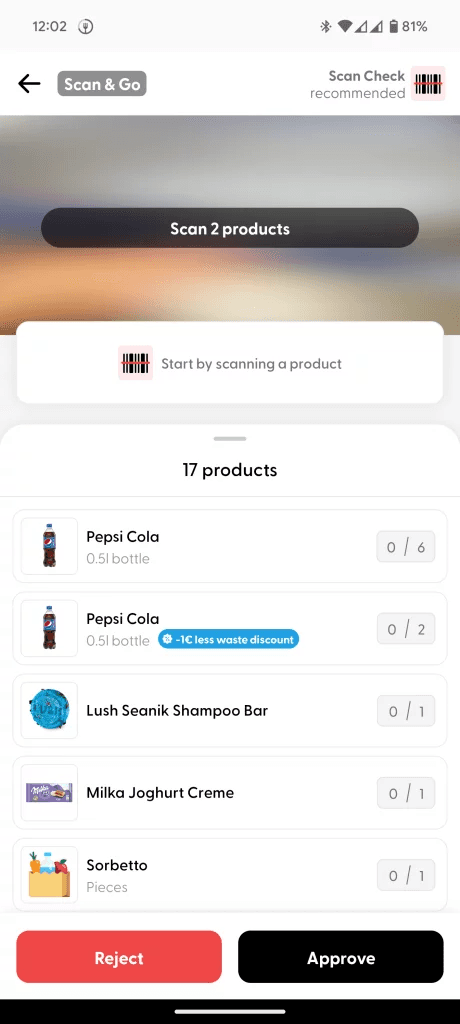
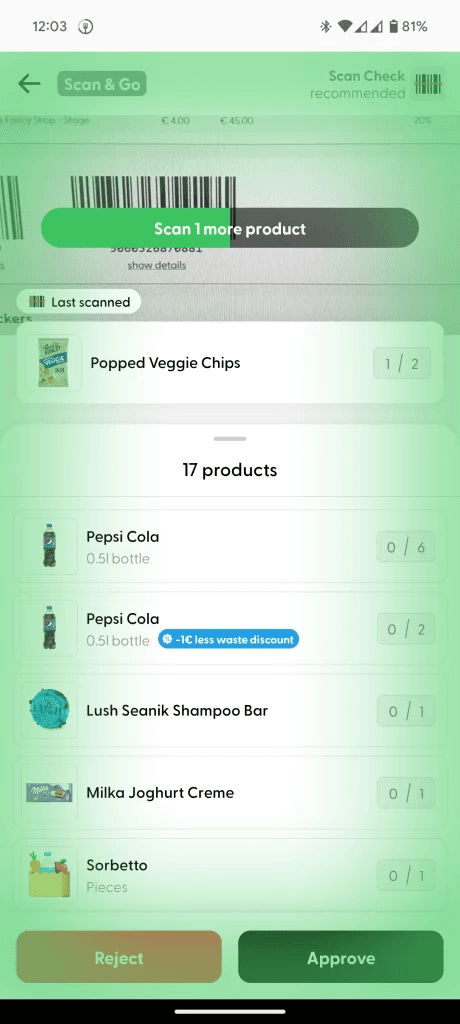
For a bigger number of products, the app recommends rescanning the products in the shopper cart. A colored bar will help you count how many products need to be scanned to complete the review. Once the scanning is complete, you can approve the cart or, if a mistake is found, the review can be rejected.
The view of these screens is slightly different, depending on whether you use a camera or laser scanner on the device. Here are some screenshots of a device with a camera:
Rescanning starts
Valid product scanned

Purchase is approved
And here is what the app looks like when rescanning when a laser scanner is available:
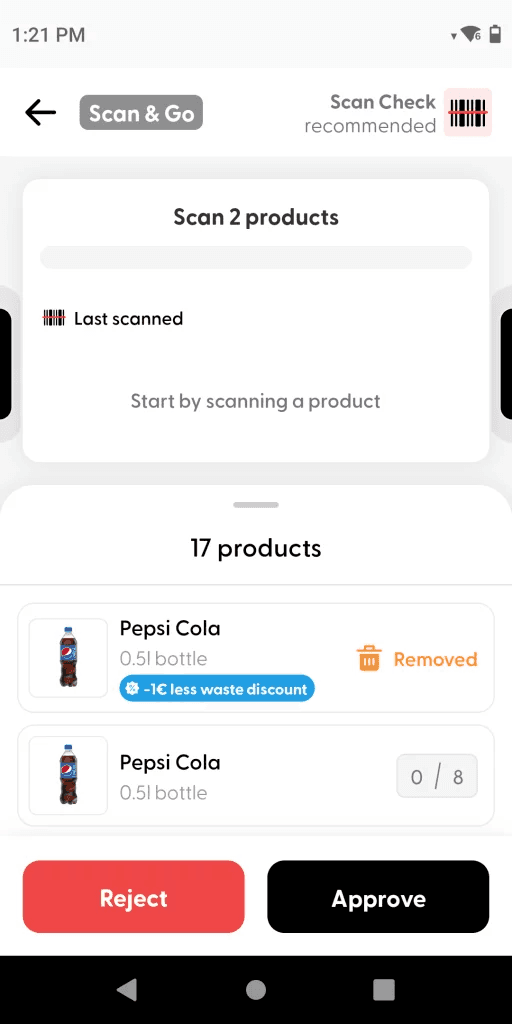
Rescanning starts

Valid product scanned

Purchase is approved
Additional information
More information about the spot check process can be found on the shopreme Knowledge Base article: Spot check: Employee Process.
Age verification
Age verification checks whether a customer is old enough to buy age-restricted products (e.g., alcoholic drinks). Using the Supervisor app for this check is only done for apps with mobile (in-app) payment.
The following screen shows the waiting customer card for age verification:

Customer waiting for age verification
When you tap the waiting customer card, you need to scan the code on the shopper's app.
Verify that the shopper’s date of birth is before the date shown on the Supervisor screen.
Mark the purchase as Approved or Rejected
If the age verification is rejected, the shopper must remove the product from the cart to continue with the payment.
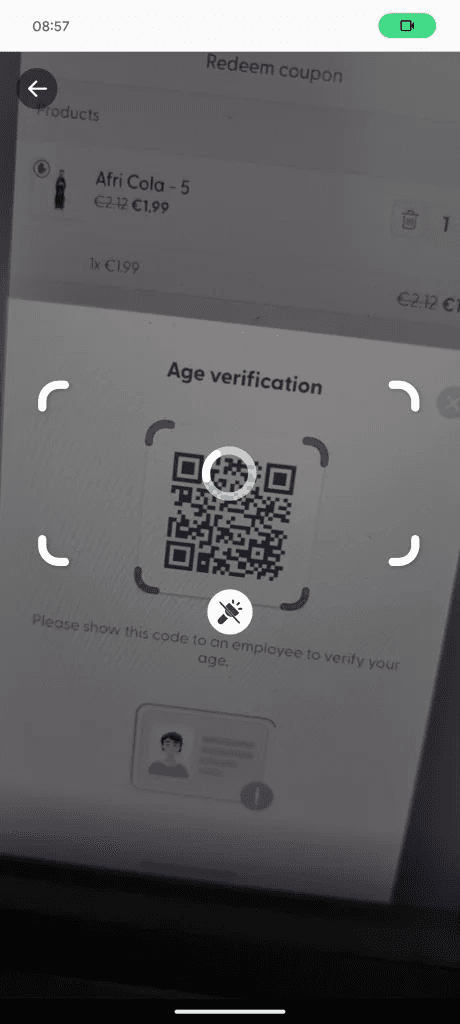
Scan customer code

Verify ID with the expected age

Age is approved
Additional information
You can learn more details about the Age Verification process in the Supervisor App: Age verification process article.
Hardware setup
This section is only relevant for users who have permissions to manage hardware devices, such as hand scanners, smart carts, or shopreme matrix or vector.
Tap the cog wheel on the home screen to open Settings. Make sure the correct store is selected.
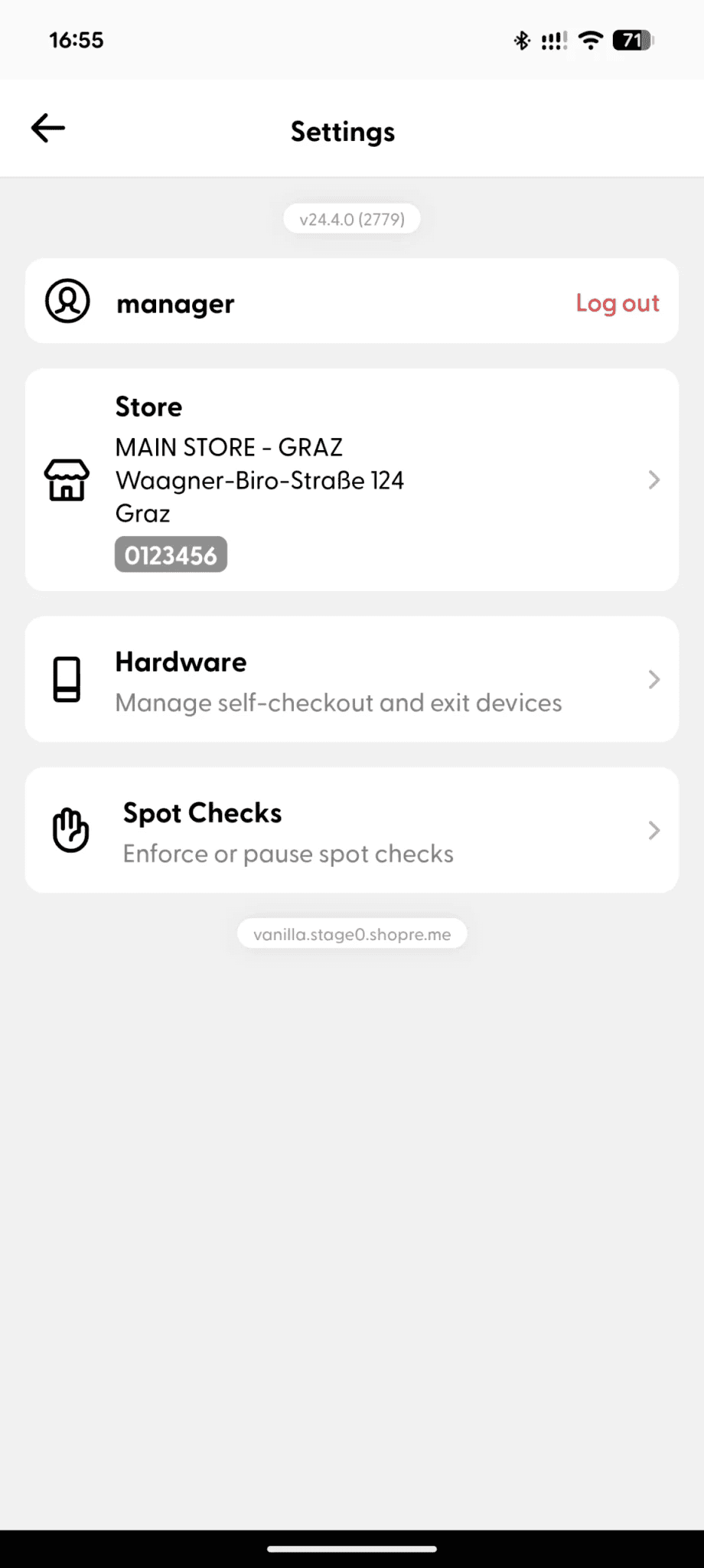
Settings screen

Hardware section
Available options
Setup a new device: Use the Setup Code to register a new hardware device (hand scanner, smart cart, matrix SCO, vector exit). When the device asks for a registration code, simply scan the Setup Code to complete the setup.
Open device settings: Scanning this code will open the settings screen on the device you are troubleshooting. For example, if you need to see what WIFI network a hand scanner is connected to, or if you want to confirm that a smart cart is registered to the correct store ID.
Unlock a device from cradle: Scanning this code on a smart cart or hand scanner will unlock the device so it can be removed from the cradle. Please take into account that if you have any restrictions in place, such as only being able to use the device with a loyalty card, the customer will still need to scan a loyalty card before starting the purchase. This unlocking code is only meant to be used for testing or emergency situations.
Additional information
More information about these codes and special situations is detailed in the Supervisor App: Hardware setup and configuration article on the shopreme Knowledge Base.